
AI Video10 min read
Cut Your Editing Time in 5 Steps with AI Video Editing for Creators
Creator focused AI video editing in 5 steps. Repurpose footage, fix captions, and publish faster. When to choose AmmarAI for script to video.

Cut Your Editing Time in 5 Steps with AI Video Editing for Creators
AI video editing automates the routine work of cutting, captioning, and reformatting footage so creators spend more time on message and less on manual timeline work. It benefits solo creators, marketing teams, and podcasters who need consistent output without hiring an editor for every clip. The features and setup steps below show exactly how to put it to work.
TL;DR:
- Automated scene detection and trimming speed up repurposing long recordings into shorter clips, saving significant editing time.
- Auto-captions and transcript editing allow deleting text instead of manually timestamping, which increases efficiency for content updates.
- Multi-format auto-cropping and background removal streamline format adaptation and correction, reducing manual rework.
- AI-generated clips from scripts or images facilitate quick B-roll creation, especially useful when original footage is unavailable.
- Final review tasks like caption correction, rights check, and format-specific cropping remain essential to ensure quality and compliance.
Table of Contents
- What Is AI Video Editing and How Does It Work?
- What AI Features Actually Change Your Workflow
- Who Actually Uses AI Video Editors?
- How to Choose an AI Video Editor
- Quick Start: A Practical AI Editing Workflow
- Where AI Editing Still Falls Short
- Balancing Speed With Creative Control
- Why AmmarAI Fits a Script-to-Video Workflow
- Sources
- FAQ
What Is AI Video Editing and How Does It Work?
AI video editing splits into two modes: editing footage you already have, and generating new clips from a script or image. The first mode uses scene detection to find natural cut points, then leans on your transcript to trim dead air and filler words. The second mode, often called text-to-video, builds visuals from a written prompt, which is how tools like Adobe Firefly let you generate a clip and drop it straight into a timeline for final assembly.
Most platforms run on the same basic loop, whichever mode you use:
- Upload footage, a script, or reference images as your input
- The AI produces a draft cut, generated clip, or caption pass
- You review and refine through prompts or direct transcript edits
- The tool applies format-aware cropping for the platform you’re targeting
That refine step matters more than people expect. The first draft is rarely the final one, and treating AI output as a rough cut rather than a finished product is what separates good results from sloppy ones.
What AI Features Actually Change Your Workflow
Not every feature saves the same amount of time, so it helps to know what each one actually does before you pick a tool.
- Automated trimming and scene detection turn a raw file into a usable rough cut in minutes, which speeds up repurposing long recordings into shorter pieces.
- Auto-captions and transcript editing let you cut a video by deleting text instead of hunting for a timestamp, which is faster once you’re used to it.
- Intelligent cropping reformats one video for square, vertical, and widescreen without you re-editing three separate versions.
- Text-to-video and image-to-video generate quick B-roll or short clips straight from a script when you don’t have footage to match.
- Background removal, relighting, and one-click audio cleanup fix the production issues that usually take the longest to correct by hand.
- Voiceover generation and dubbing support multilingual versions of the same video without re-recording narration.
VEED’s Auto Edits feature bundles several of these into one pass, removing filler words, adding subtitles, inserting B-roll, and resizing for platform formats in a single automated step. That kind of bundling is exactly why editorial reviews point to caption and crop automation as producing the most tangible time savings for high-volume social publishing.
Pro Tip: Run your auto-captions through a manual read-through before export. Even strong transcription tools mishear brand names and technical terms, and a caption typo in the first three seconds costs you viewers.

Who Actually Uses AI Video Editors?
The tools fit different jobs depending on how you produce content and how often.
- Solo creators and influencers repurpose long-form videos into short clips for multiple platforms, usually editing on a phone between other tasks.
- Marketing teams batch ad variations and need predictable output so a campaign doesn’t stall waiting on one editor.
- Podcasters and interviewers rely on automatic filler removal, chaptering, and audio enhancement to turn raw recordings into clean episodes fast.
- Educators and product teams build demos, tutorials, and short explainers directly from a script, skipping traditional storyboarding.
If your work falls into more than one of these categories, look for a tool that handles both editing modes well rather than one built for a single use case.
How to Choose an AI Video Editor
Skip the spec sheets and start with how you actually work. Decide first whether you need a prompt-first tool for fast experimentation or a timeline-first tool that fits into an existing pipeline, since prompt-first platforms suit idea-to-visualization speed while timeline tools handle precise layering better for structured production.
From there, run through a short checklist before you commit to a subscription:
- Confirm export rights and watermark policy. Many free tiers cap you with watermarked exports, credit limits, or lower resolution until you upgrade.
- Check whether AI drafts are actually editable through a transcript, not locked behind a black-box render.
- Verify multi-format export exists natively, so you’re not manually resizing for every platform.
- Look for brand kit support and shared team seats if more than one person touches the project.
- Treat inconsistent captions, opaque pricing, or locked edits as red flags worth walking away from.
Pro Tip: Test the free tier with your worst-quality footage, not your best clip. That’s where you’ll see how the AI handles shaky audio, bad lighting, and messy cuts, which tells you more than a polished demo ever will.
Editorial coverage of the category consistently frames collaboration, predictable output, and integration support as the deciding factors once teams move past the novelty of automation, and that’s a useful filter to apply to your own shortlist too.
Quick Start: A Practical AI Editing Workflow
Getting from raw footage to a published clip usually takes five steps.
- Prepare your inputs. Gather raw footage, a script or transcript, brand assets, and know your target aspect ratios before you start.
- Generate or auto-edit. Run a text prompt for new clips, or trigger an auto-edit pass on existing footage and pick your social format if you’re repurposing content.
- Refine the draft. Edit the transcript to adjust cuts, swap in different B-roll, and fix pacing or audio levels that the automation got wrong.
- Finalize the export. Apply platform-specific cropping, add or review captions, and double-check rights and export settings.
- Run a publish check. Confirm captions are accurate, sound levels are consistent, and the thumbnail actually represents the content.
Pro Tip: Keep your script and transcript in sync throughout the process. If you edit the transcript after generating captions, re-run the caption pass, or the two will drift apart and you’ll catch it only after publishing.
Solid source footage and a clean thumbnail image still matter here. If your visual assets need work before you feed them into an editor, photo strategy guidance built for listings offers useful principles on framing and lighting that carry over to video thumbnails too.
Where AI Editing Still Falls Short
AI editing is fast, not infallible, and knowing where it slips saves you from an embarrassing publish.
- Generated video can show imperfect lip-sync, and auto-cuts occasionally lose context that a human editor would have caught.
- Caption errors cluster around names, numbers, and jargon, so always spot-check those.
- Confirm stock footage and music licenses, and get explicit permission before using cloned-voice or likeness features on anyone but yourself.
- Disclose synthetic content when the audience would reasonably expect to know, and never use AI edits to misrepresent what someone said or did.
Before you publish, watch the full export once, not just the sections you edited, and run a quick rights check on anything you didn’t create yourself.
Balancing Speed With Creative Control
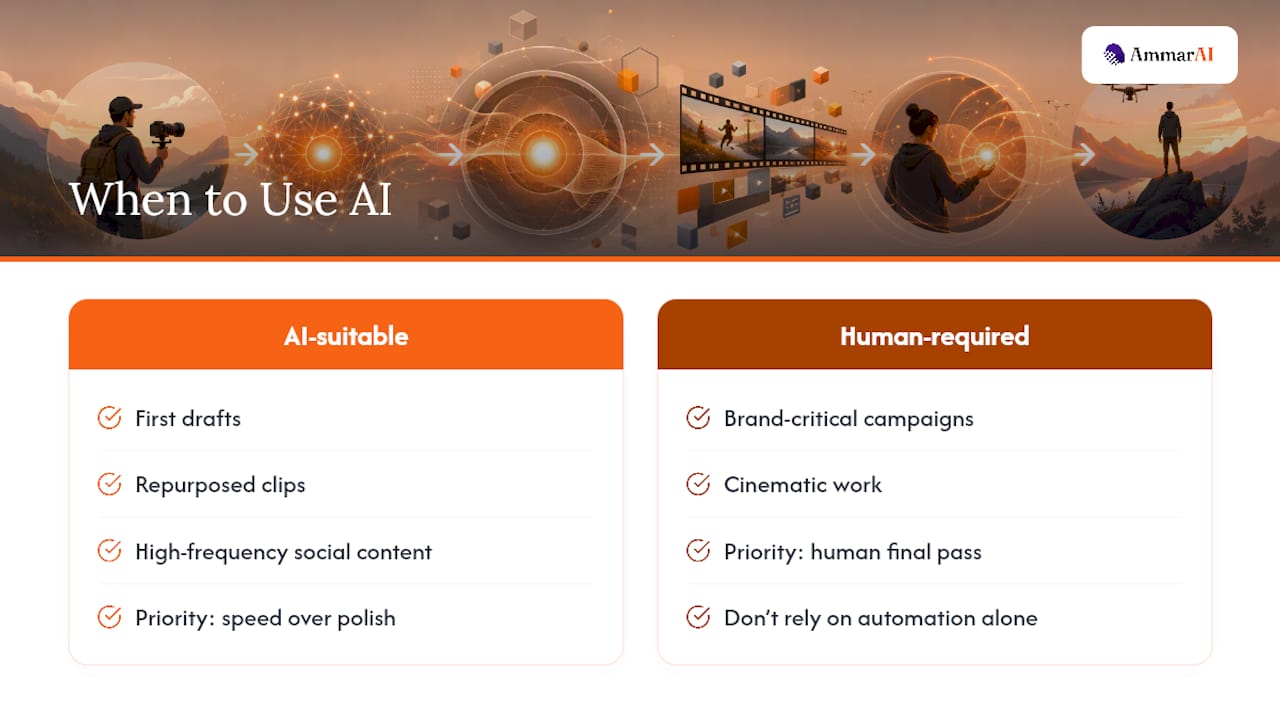
AI earns its place on volume work: first drafts, repurposed clips, high-frequency social content where speed beats polish. Brand-critical campaigns and anything meant to feel cinematic still need a human hand on the final pass. A short review after the AI draft, even fifteen minutes, tends to catch the mistakes automation makes consistently: mistimed cuts, mispronounced names, captions that drift out of sync.
Teams that scale AI editing well build a short checklist and run it every time, rather than trusting the tool to improve on its own. That habit matters more than which platform you pick.
— Ahmed
Why AmmarAI Fits a Script-to-Video Workflow
Most of the checklist above, brand kit support, multi-format export, editable drafts, team collaboration, comes down to whether your tools work together instead of against each other. The idea is one workspace where script writing, video generation, transcription, and voice all share the same brand settings and history, instead of four subscriptions that don’t talk to each other.
Start with the AI Video Generator to turn a script into a short video, or use AI Text-to-Video when you’re working from a prompt instead of finished footage. If you need the script first, the Video Script Generator builds a structured draft fast, and AmmarAI’s guide on creating AI videos walks through the full process end to end. Try the video generator with your next short clip and see how much of the rough cut it handles for you.
Sources
For deeper technical detail on specific features, Adobe’s documentation on Firefly’s video editing capabilities covers prompt-based generation and timeline integration. Editorial coverage from thecmo.com’s tool roundup and hands-on breakdowns from VEED and Kapwing explain how workflow fit and collaboration features play out in practice.
FAQ
Is there an AI for video editing?
Yes. Tools like Adobe Firefly, VEED, and Kapwing all use AI to automate trimming, captioning, and reformatting, and AmmarAI adds script-to-video generation in the same workspace.
Which AI video editor is the best?
There’s no single best option. It depends on whether you need prompt-first generation for quick experimentation or timeline-first editing for an established production pipeline.
Is there a 100% free AI video maker?
Most platforms offer free tiers, but they typically come with watermarked exports, credit limits, or reduced resolution until you upgrade to a paid plan.
Can ChatGPT generate videos?
ChatGPT itself does not generate video directly. Dedicated tools built for text-to-video and script-to-video generation, including AmmarAI’s video tools, handle that function specifically.
Recommended
Recommended for you
- How to Create Videos With an AI UGC Video Generator
Use an ai ugc video generator to script, cast, voice, lip-sync, review, and publish consent-based creator ads. Follow this practical workflow today.
- How to Enhance Video Quality With an AI Video Enhancer
Use an AI video enhancer to restore soft, compressed, or low-resolution footage step by step while preserving motion, faces, edits, and original audio.
- Best AI Tools for YouTube: A Buyer’s Guide
Compare the best AI tools for YouTube for scripting, editing, captions, thumbnails, and publishing, with pricing notes, pros, cons, and ideal users.
Tools to try next
- UGC Factory
Produce creator-style videos at volume with virtual actors, digital twins, voiceover and lip-synced delivery.
- Viral Clips
Turn one long video into a set of short vertical clips built for TikTok, Reels and Shorts.
- AI Video Enhancer
Upscale and restore video frame by frame for sharper detail and a higher output resolution.