
Chat & Documents
How to chat with documents in AmmarAI
Document Chat lets you add a document to a conversation and ask questions about its content, structure and context. It is useful for obtaining a summary, locating a detail or exploring a long file without losing the source conversation.
The steps below walk through the complete upload-and-chat workflow in AmmarAI, with a screenshot for each step.
When to use this
- You need a quick overview of a long report or PDF.
- You want to locate clauses, dates, figures or decisions in a file.
- You want to ask follow-up questions while keeping the document attached to the conversation.
Upload and question a document
Open the file control
Open AI Chat Pro and select the add control beside the message field. This opens the file and content picker for the conversation.
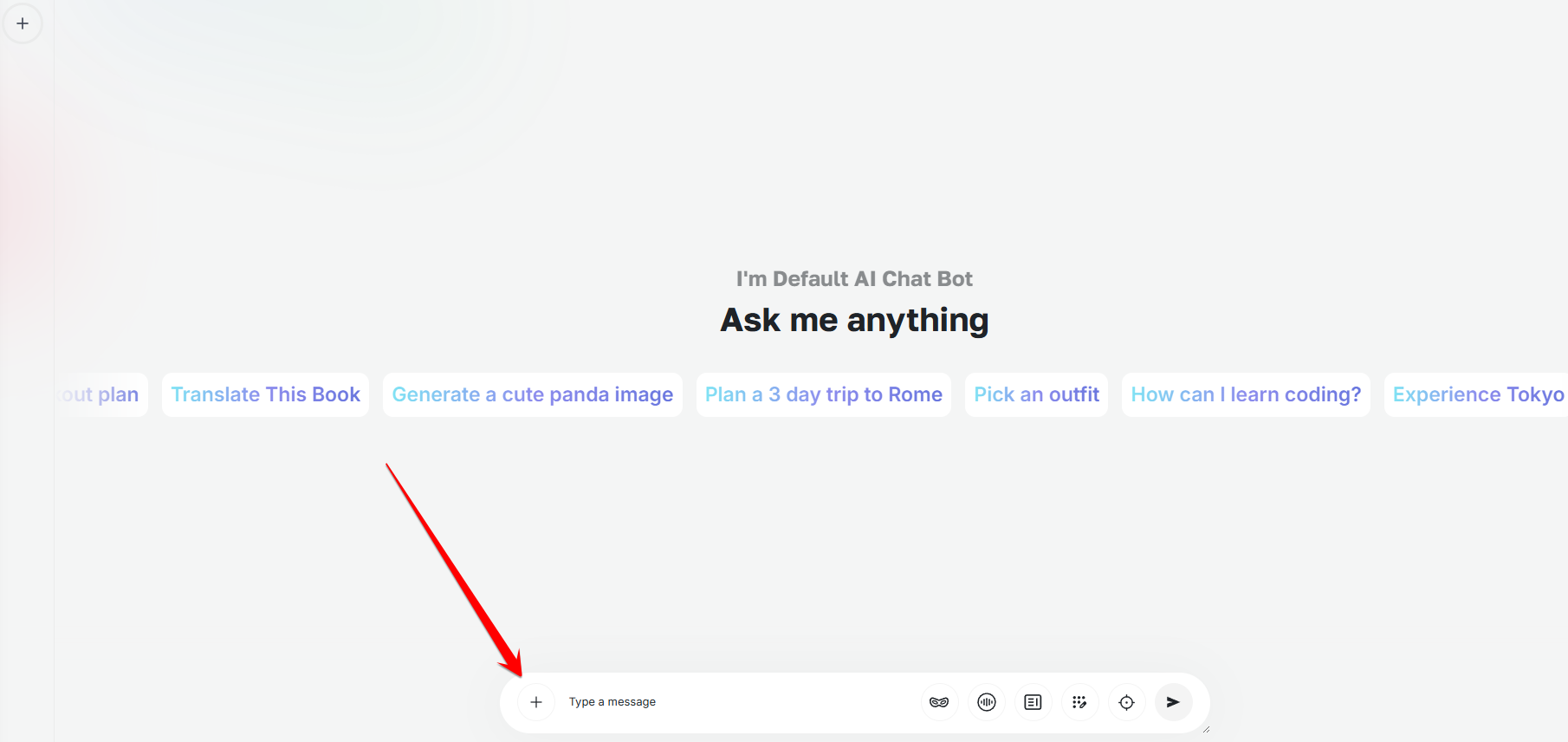
Open the add-file control from the chat input. Upload the document
Choose Upload Files, then drag the document into the upload area or select Browse Files. Wait until processing finishes before continuing.
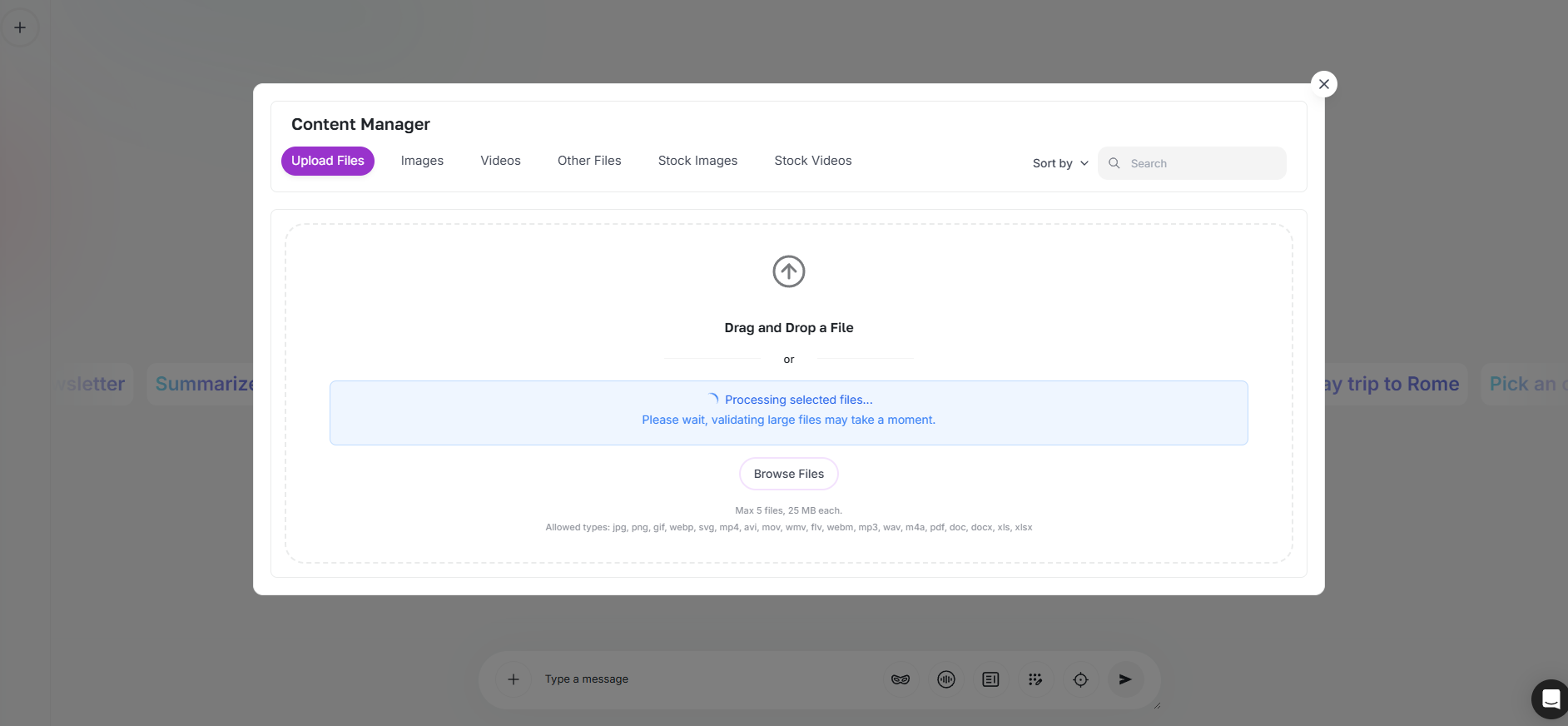
Add the document and wait for processing to finish. Select the processed file
Open the file list and select the document you uploaded. The selected file is then available to attach to the current conversation.
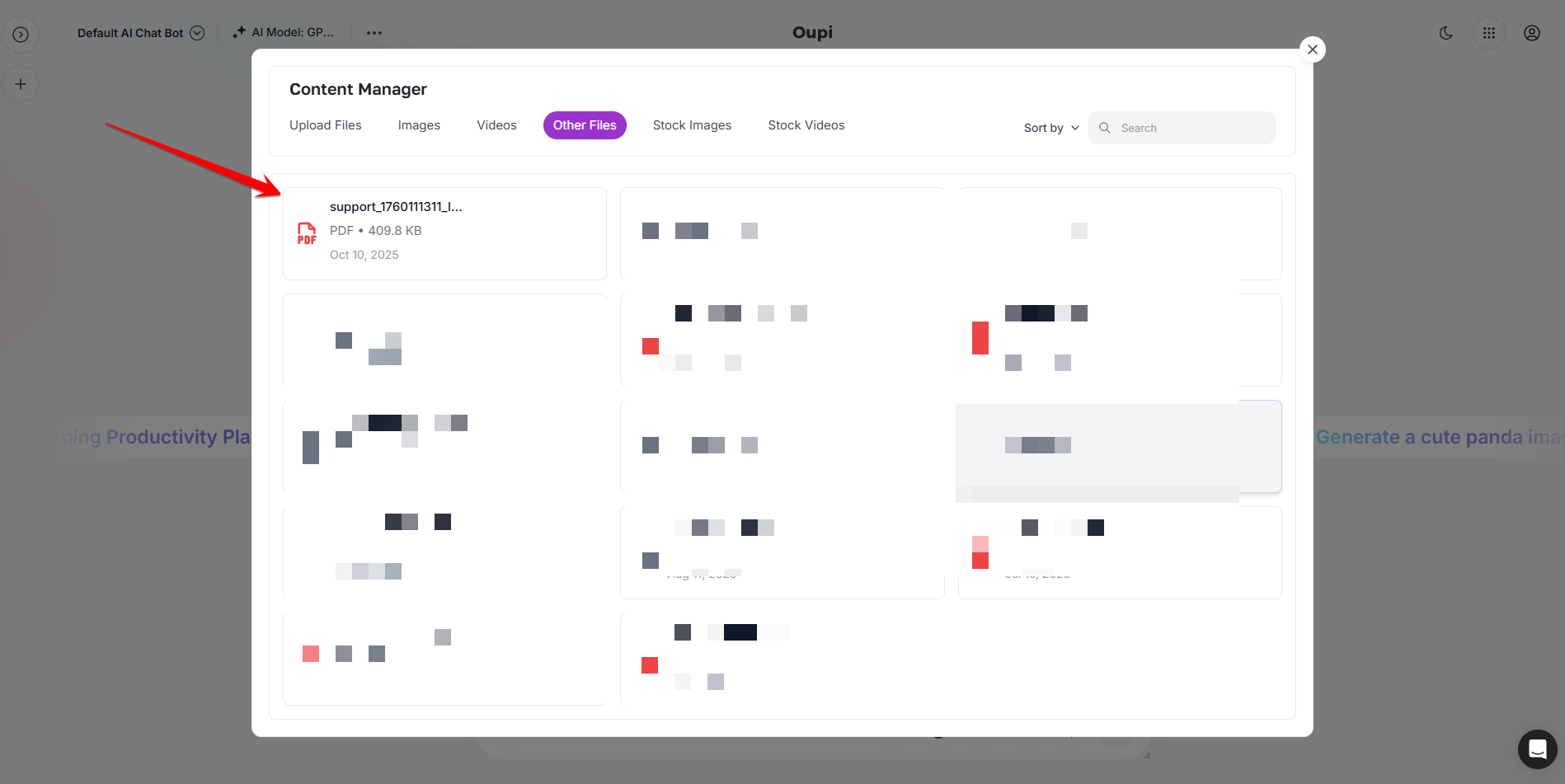
Select the processed document from the file list. Ask the first question
Confirm that the file appears with the message, write a clear question about its contents and send the message. A broad opening question can confirm that the correct document was attached.
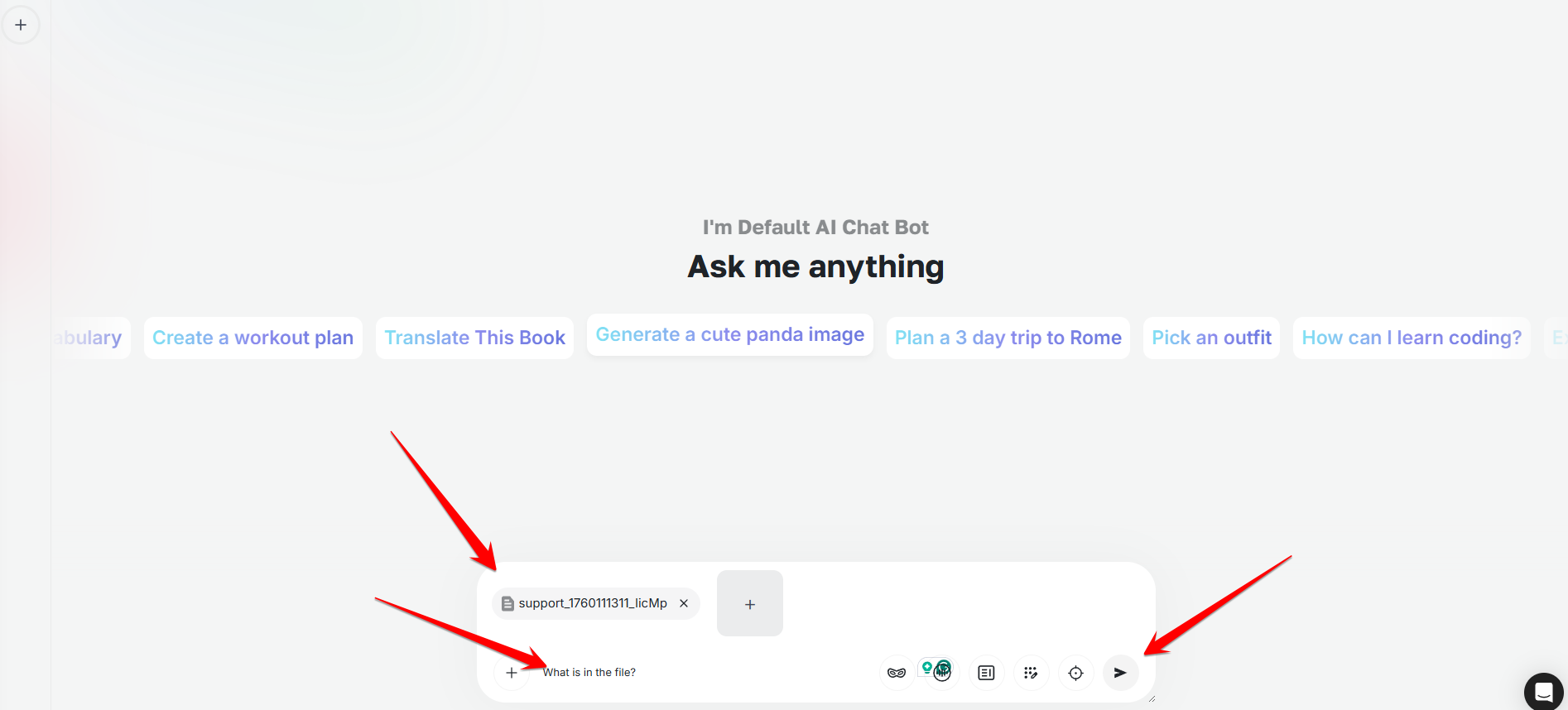
Attach the file, enter the question and send it together. Review the answer and continue
Read the answer against the source, then continue in the same thread with narrower questions. Ask for the relevant passage or location when you need to verify an important detail.
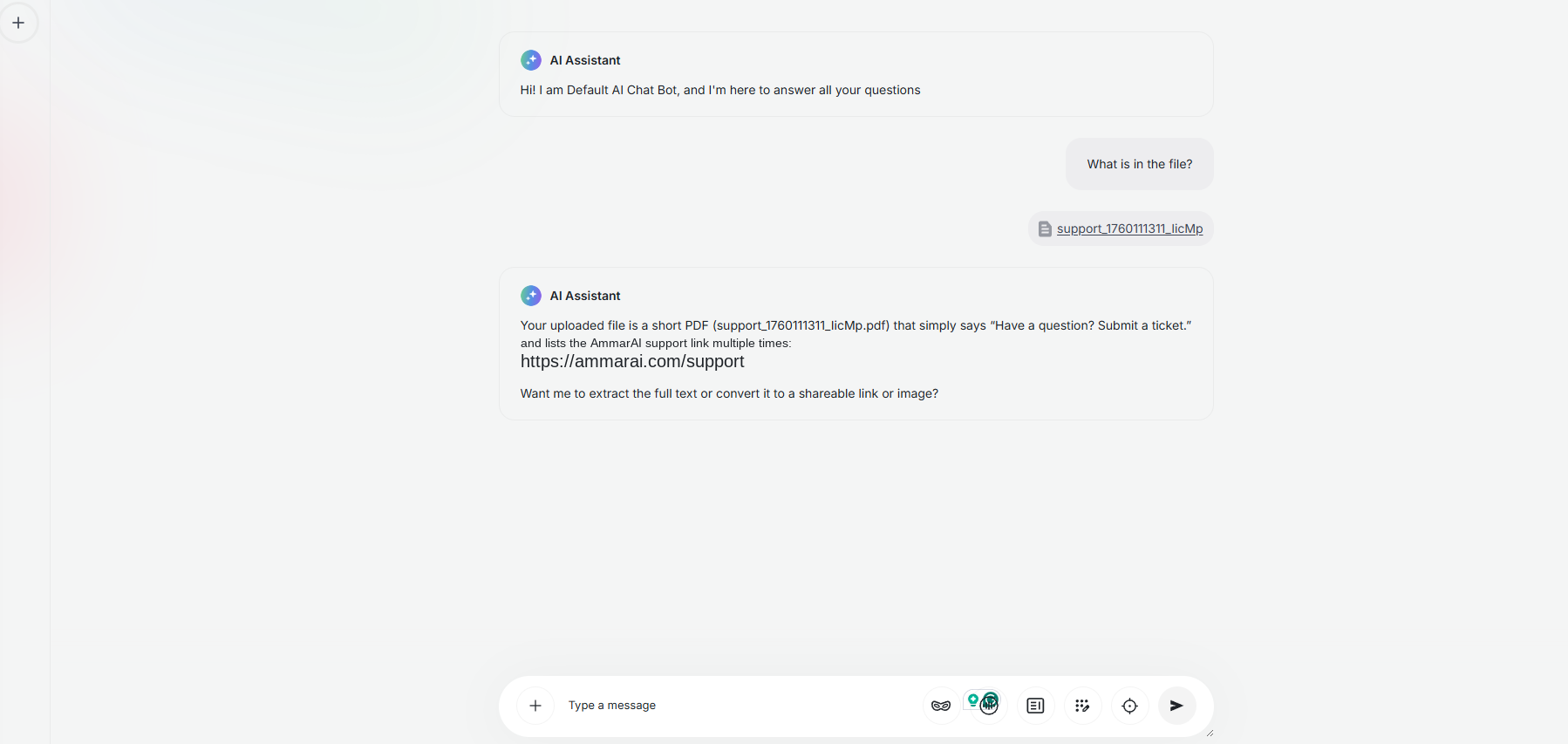
Review the document-grounded answer and ask follow-up questions.
Questions to try
- Summarise the document in ten points for a reader new to the subject.
- List every date and deadline, with the section where each appears.
- Extract the fees and payment terms into a table.
- Quote the passage that supports this answer.
What to expect
| Action | Expected result |
|---|---|
| Upload and process | The document becomes selectable in the file picker. |
| Attach and send | The question and document enter the same conversation. |
| Ask a follow-up | The answer continues to use the attached document as context. |
| Request evidence | The response identifies or quotes the relevant source passage when available. |
Limits and good practice
- Check consequential answers against the original document before acting on them.
- Scanned pages, handwriting and complex layouts may be read less reliably.
- Split very large files when you need close analysis of a particular section.
- Do not upload confidential documents unless you are authorised to process them.
Ready to try it?
Try AI Document Analyzer in AmmarAI