
Video Marketing
How to create a video ad from a product URL
AI URL to Video builds a complete short video ad from a product page. You supply the product link or your own product images, set the video details, then choose the presenter, the voice and the caption style before the finished cut is rendered.
The workflow runs as a short wizard: Product, Detail, Composition and Render. Each step keeps what you selected before it, so you can step back and change one choice without starting again.
When to use this
- You have a live product page and need an ad for Reels, TikTok or Shorts.
- You want a presenter-led ad without filming anything.
- You need several ad variants of the same product to test against each other.
Create the ad
Open the tool and start a new video
Open AI Influencer from the sidebar and select Generate New on the card for generating an ad video from a product URL or uploaded assets.
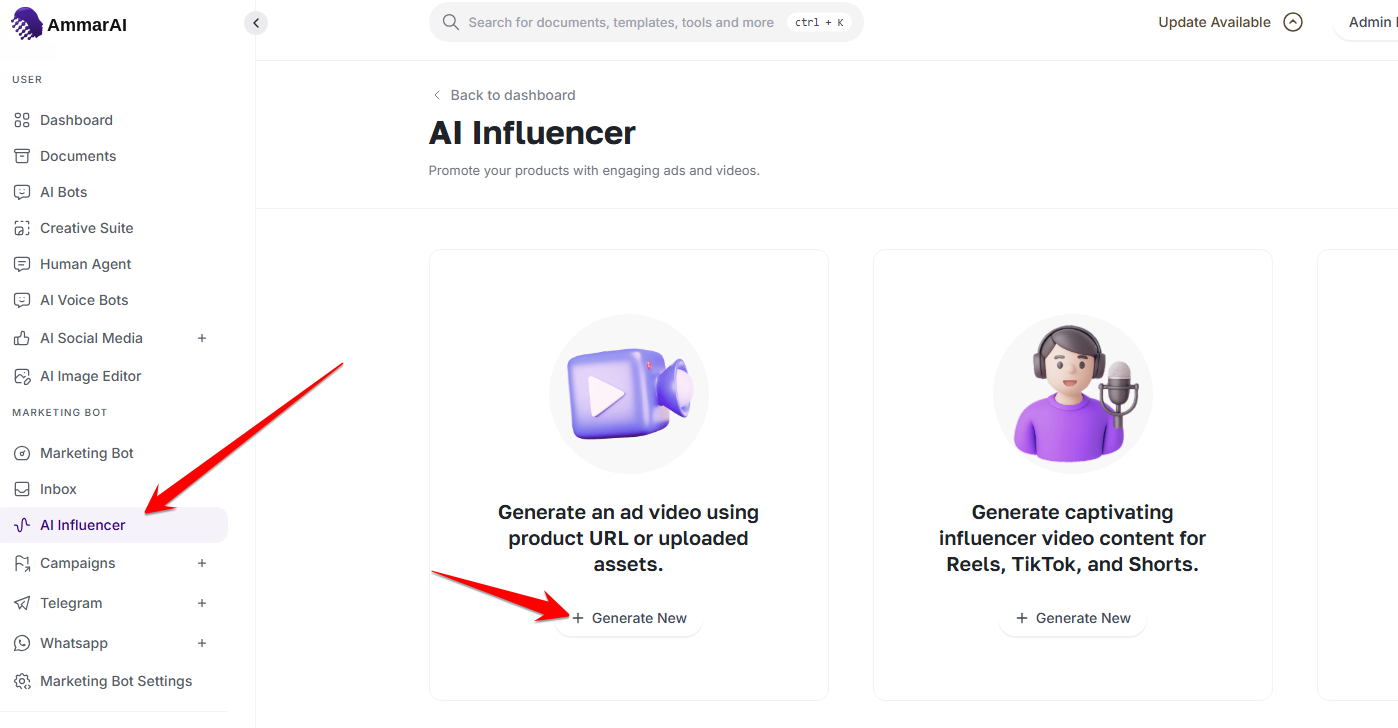
Start from the ad video card and select Generate New. Add the product information
Choose Auto URL and paste the product page link, then select Analyze so the page is read for the product name, description and imagery. Choose Manual Upload instead when the product is not on a public page and you want to supply the details and images yourself. Select Next when the product is in place.
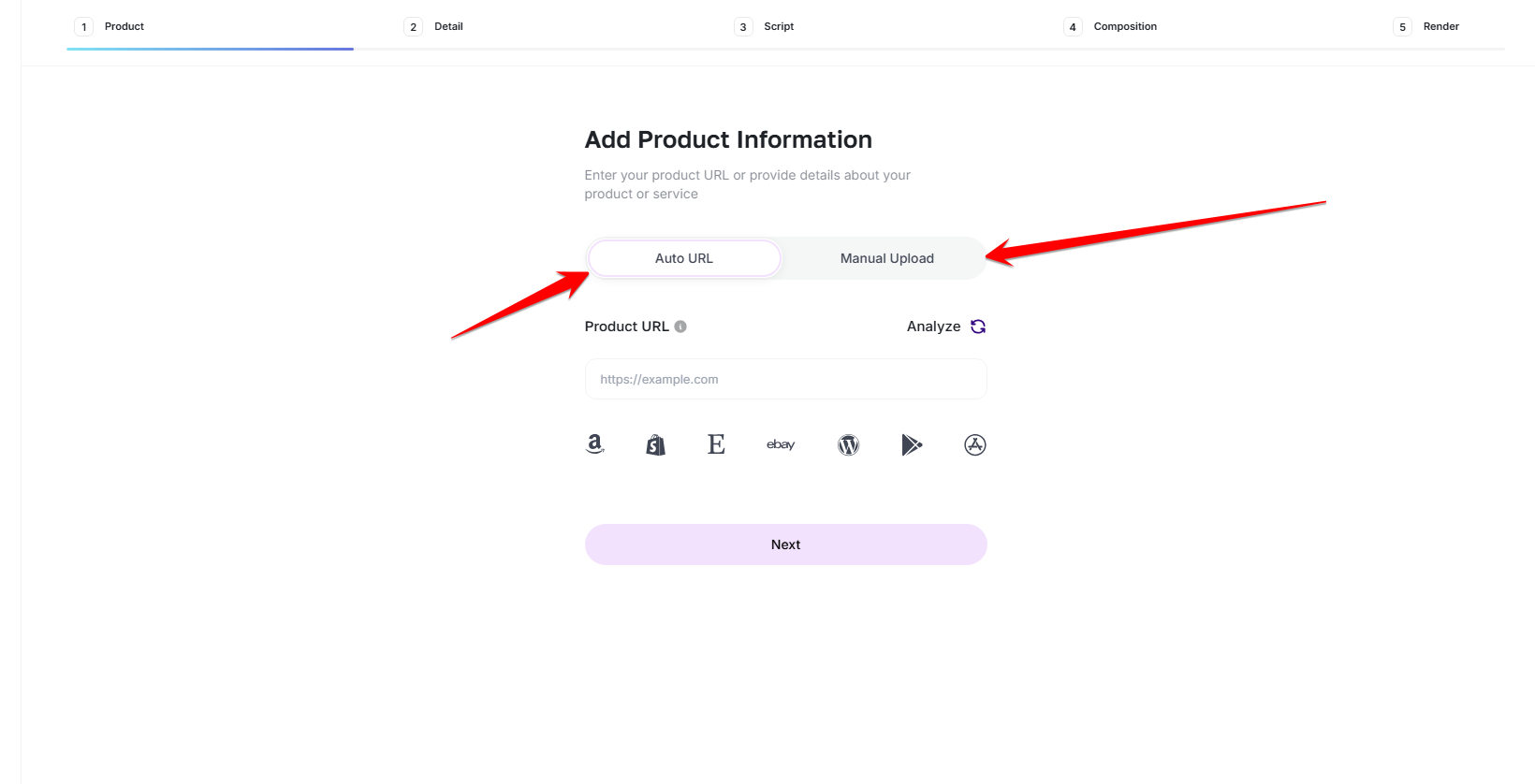
Paste a product URL and analyse it, or upload the product details manually. Choose the video details
Set the spoken language, the target duration and the aspect ratio. Vertical suits Reels, TikTok and Shorts; keep the duration short for paid placements. Select Next to continue.
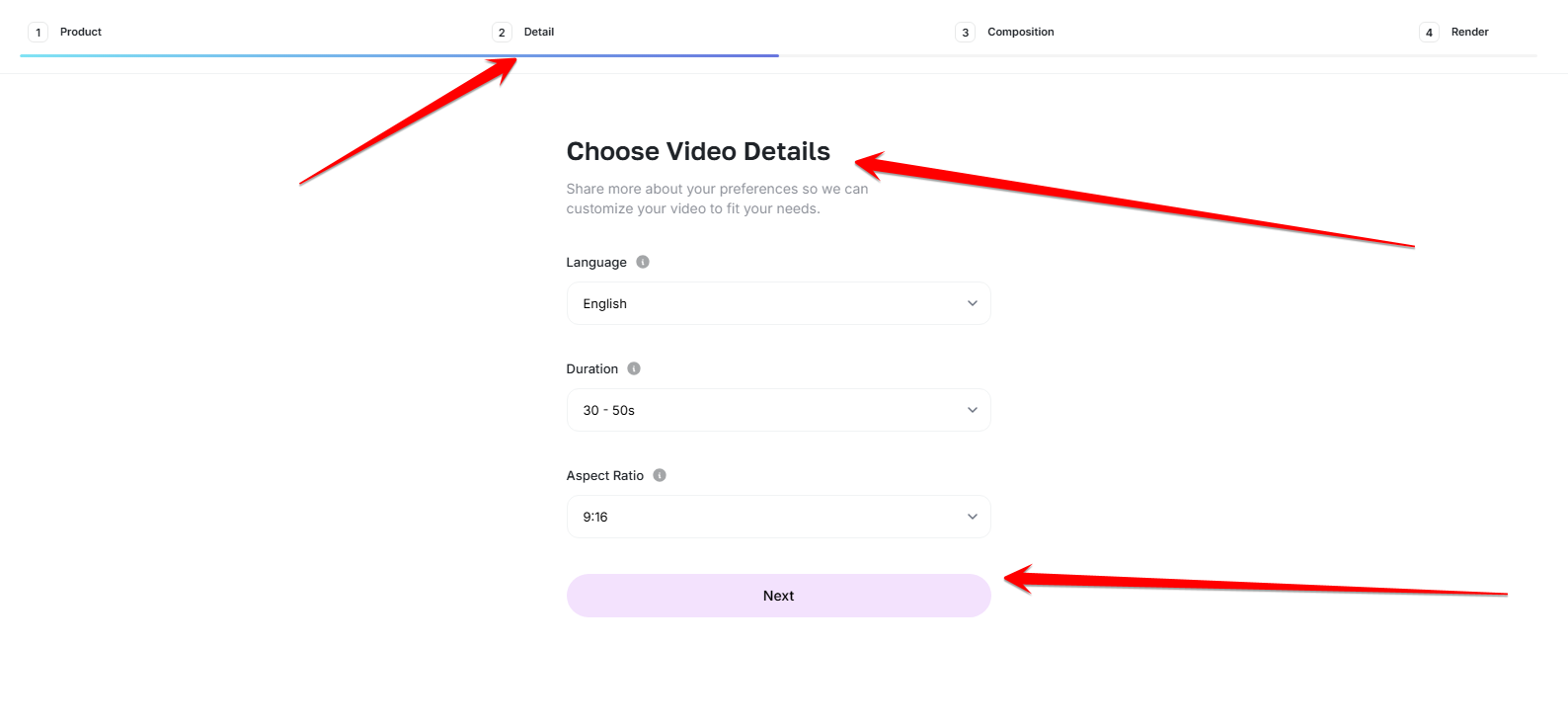
Language, duration and aspect ratio are set before the composition step. Pick the avatar
On the Composition step, stay on the Avatar tab and choose the presenter who will deliver the script. Use the search box to narrow the list, and match the setting of the avatar clip to the product you are selling.
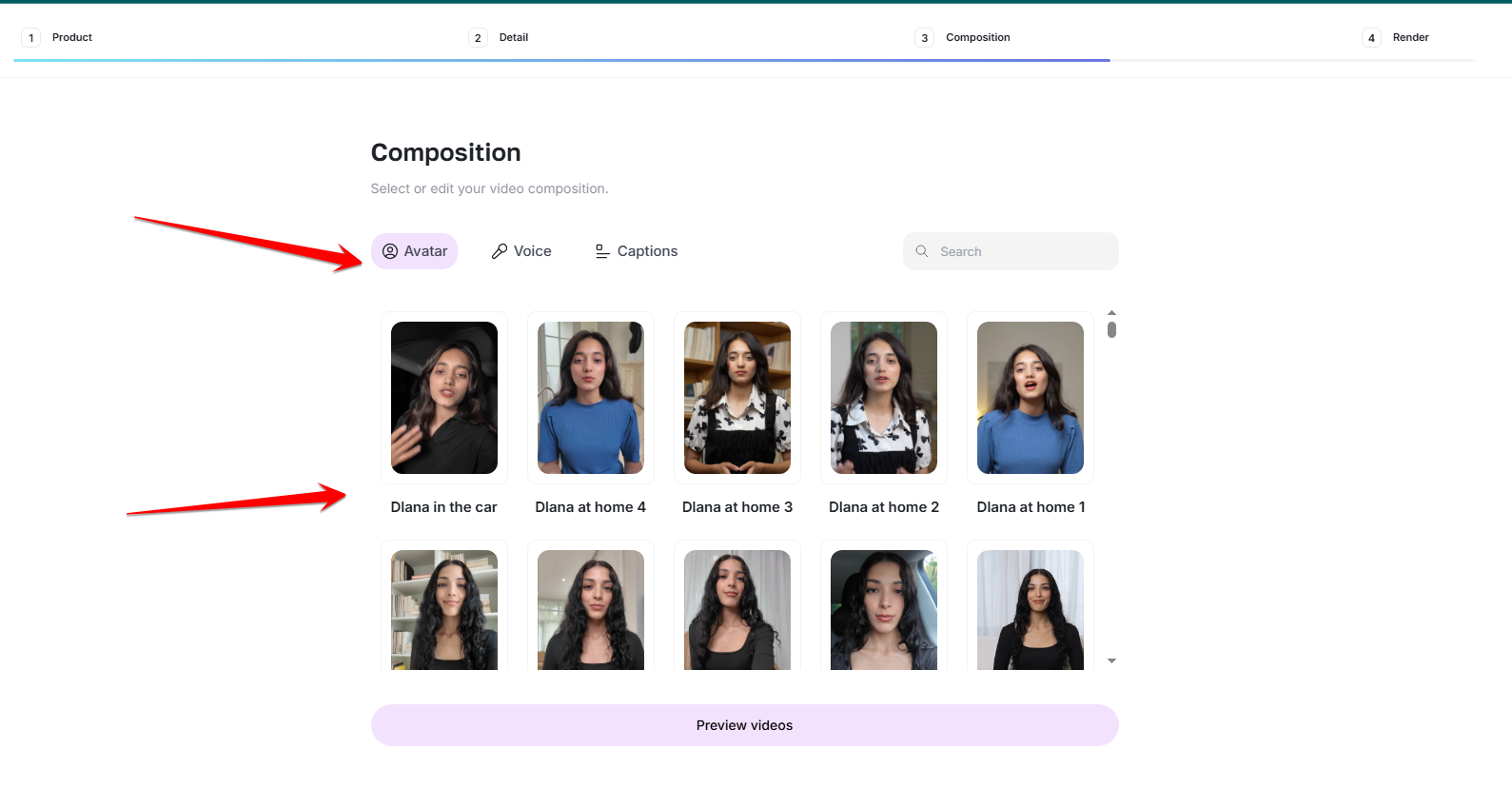
Choose the presenter from the avatar gallery. Choose the voice
Switch to the Voice tab and preview the available voices with the play control next to each name. Pick a voice whose pace and accent match the audience for the ad.
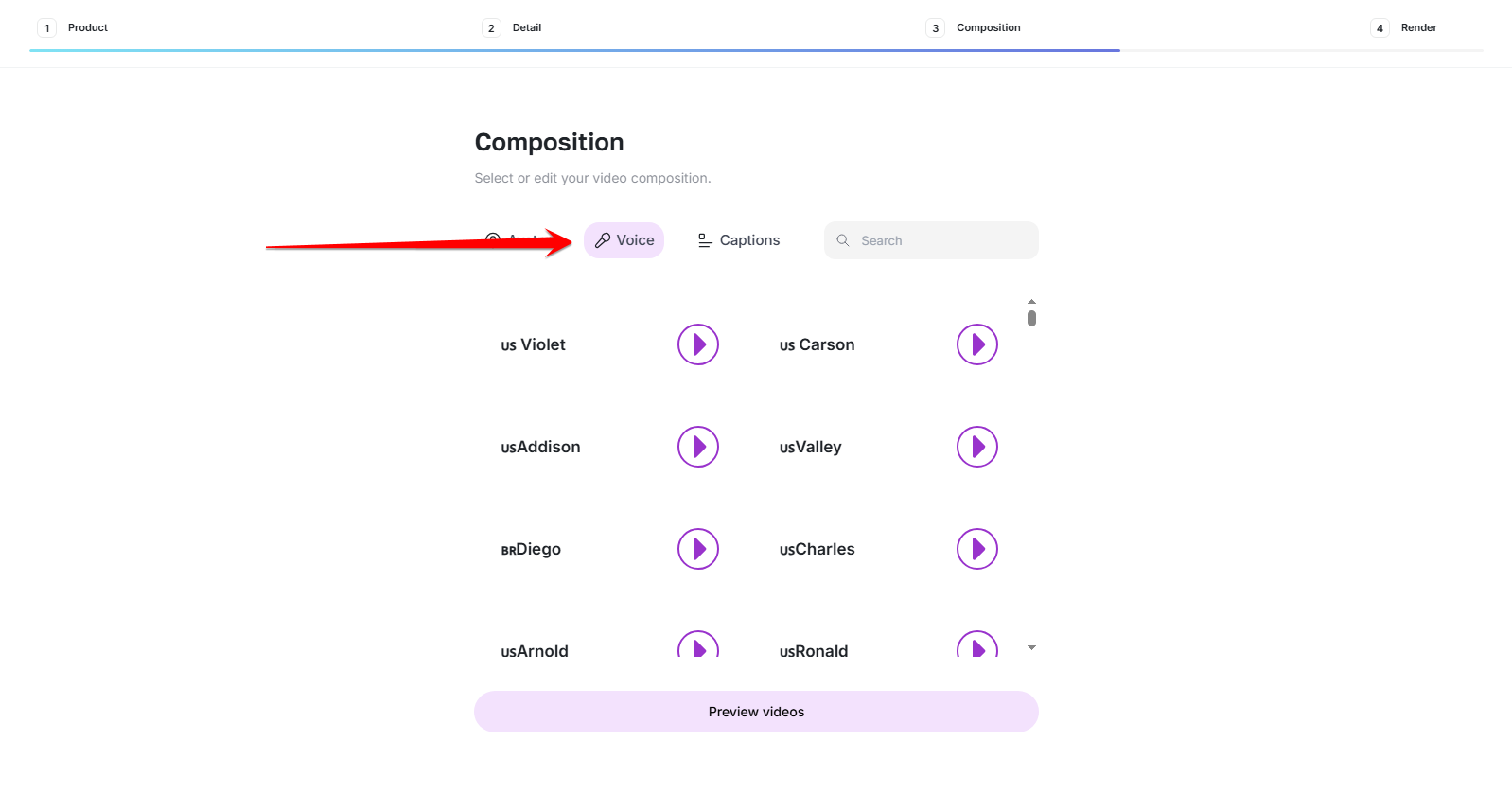
Preview voices before selecting the one that fits the ad. Select the caption style
Open the Captions tab and choose a caption treatment. High-contrast styles read best in silent autoplay feeds. When the avatar, voice and captions are set, select Preview videos.
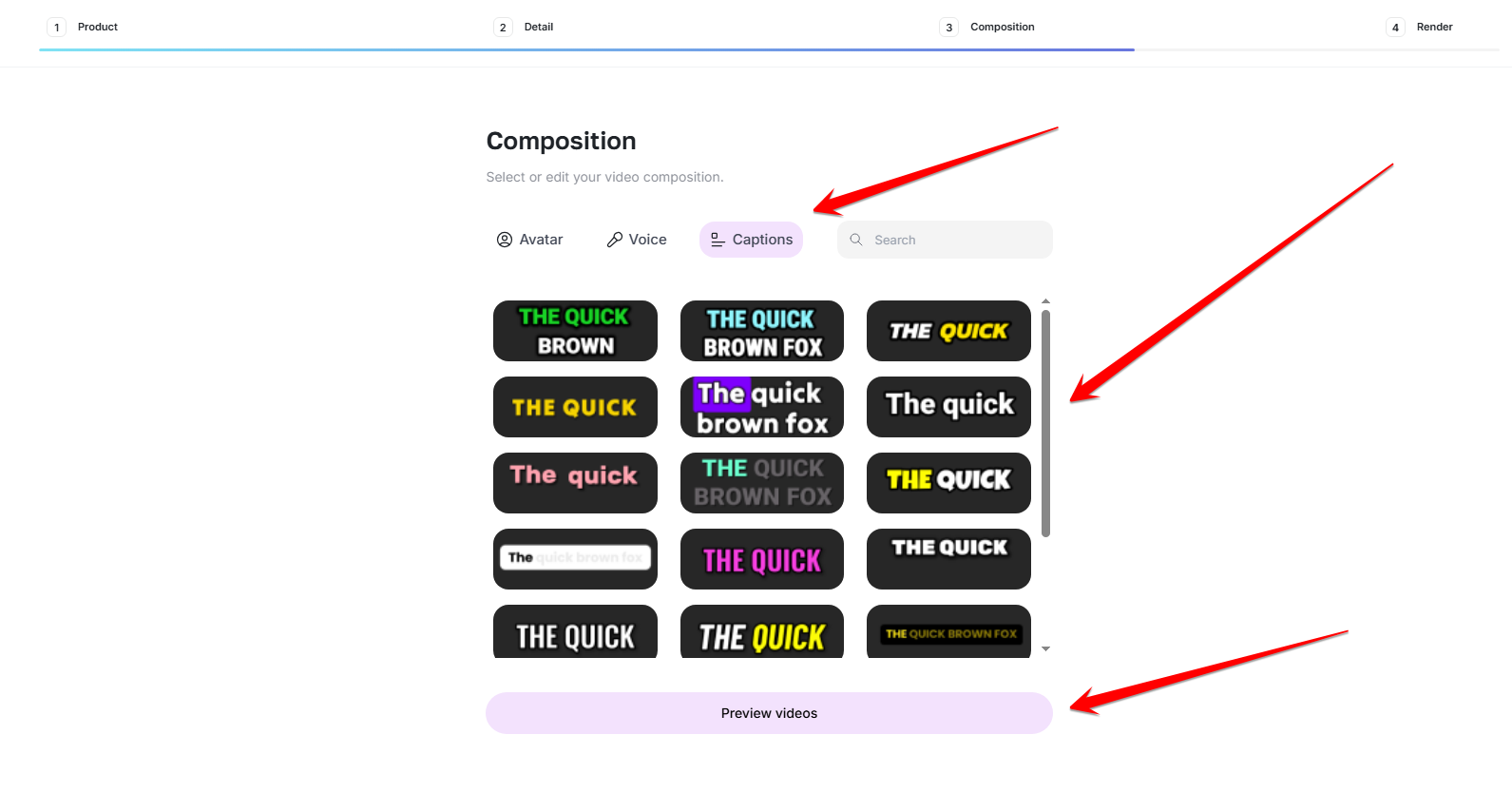
Pick a caption style, then generate the previews. Choose a preview and render
Several preview versions are generated, each with a different hook. Play them, select the one you want, then choose Render Video to produce the finished ad for download.
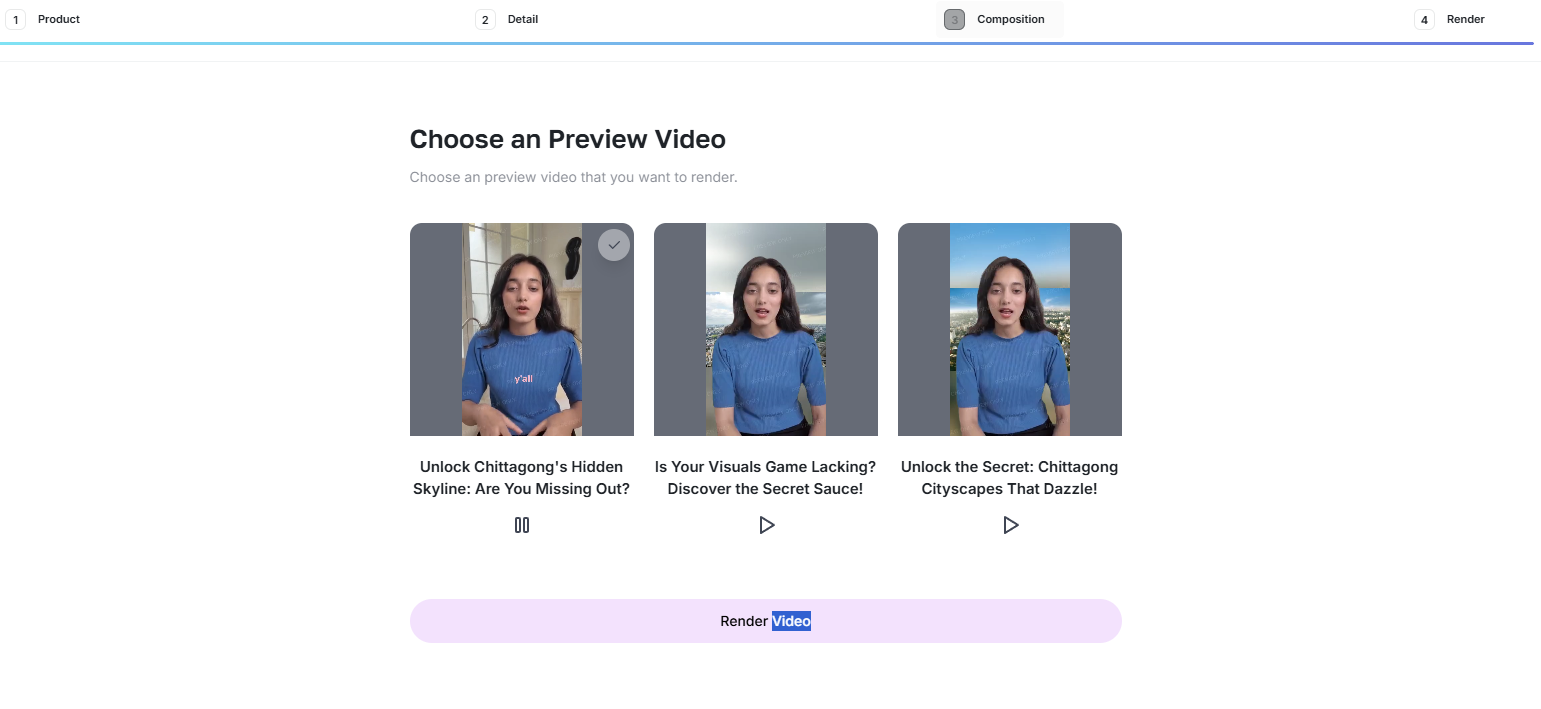
Select the strongest hook, then render the final ad.
What each step controls
| Step | What you decide |
|---|---|
| Product | The source of the ad: a product URL to analyse, or product details and images you upload |
| Detail | Spoken language, target duration and aspect ratio |
| Composition | Avatar presenter, voice and caption style |
| Render | Which generated preview becomes the final video |
Get a better result
- Point the tool at a product page with clear copy and good imagery — the ad is only as accurate as the page it reads.
- Keep the duration at the short end for paid placements and save longer cuts for organic posts.
- Render more than one preview when you plan to test hooks, rather than rewriting the product step each time.
- Match the avatar and voice to the audience rather than picking the first option in the list.
Limits and good practice
- Check every claim in the generated script against the product page before publishing; the script is written from page content and can overstate a feature.
- Review captions for spelling of product and brand names.
- Use avatars and voices only in the ways the platform permits, and do not present a generated presenter as a real customer.
- Rendering takes time, and longer or higher-resolution videos take longer.
Ready to try it?
Try AI URL to Video in AmmarAI