
Chat & Documents
How to use temporary chat
Temporary chat is for conversations you do not want kept. Switch it on and the exchange runs normally, but it is not written to your chat history.
It is a per-conversation switch, not a setting you configure once, so it is easy to turn on for a quick question and forget about afterwards.
When to use this
- You are testing a prompt and do not want the attempt cluttering your history.
- The conversation involves details you would rather not keep on file.
- You want a clean, one-off answer with no follow-up thread.
Turn it on
Open AI Chat Pro
Start a new conversation. The row of icons at the right of the message box holds the extra chat controls, including the temporary chat icon.

The temporary chat icon sits in the message box controls. Select the temporary chat icon
Click it once. The icon fills in and a short notice appears above the message box confirming that the conversation will not be saved to your chat history.
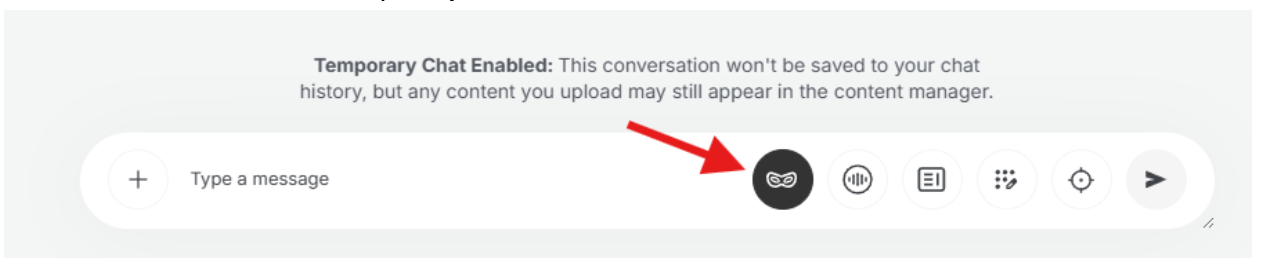
The notice above the box confirms temporary mode is active. Chat as normal
Write your prompt and continue the conversation as usual. Everything else behaves the same; only the saving of the thread changes.
When it switches off
Temporary mode is deliberately short-lived. It stays on until you click the icon again to unselect it, move to another page, or refresh the page — after any of those it turns off by itself and later conversations are saved again.
Ready to try it?
Try AI Chat Pro in AmmarAI