
Video
How to use AI Captions
AI Captions adds animated, styled subtitles to short portrait videos. Upload the source video, preview the available caption templates and generate the captioned result before continuing in the video editor.
When to use this
- You want readable captions for a short vertical social video.
- You want to apply a ready-made animated caption style.
- You want to continue refining the generated result in the video editor.
Open AI Captions and upload the video
Open AI Captions
Choose AI Captions from the AmmarAI side menu. The workspace opens with the video upload area, caption-style selector, Generate action and your previously created videos.
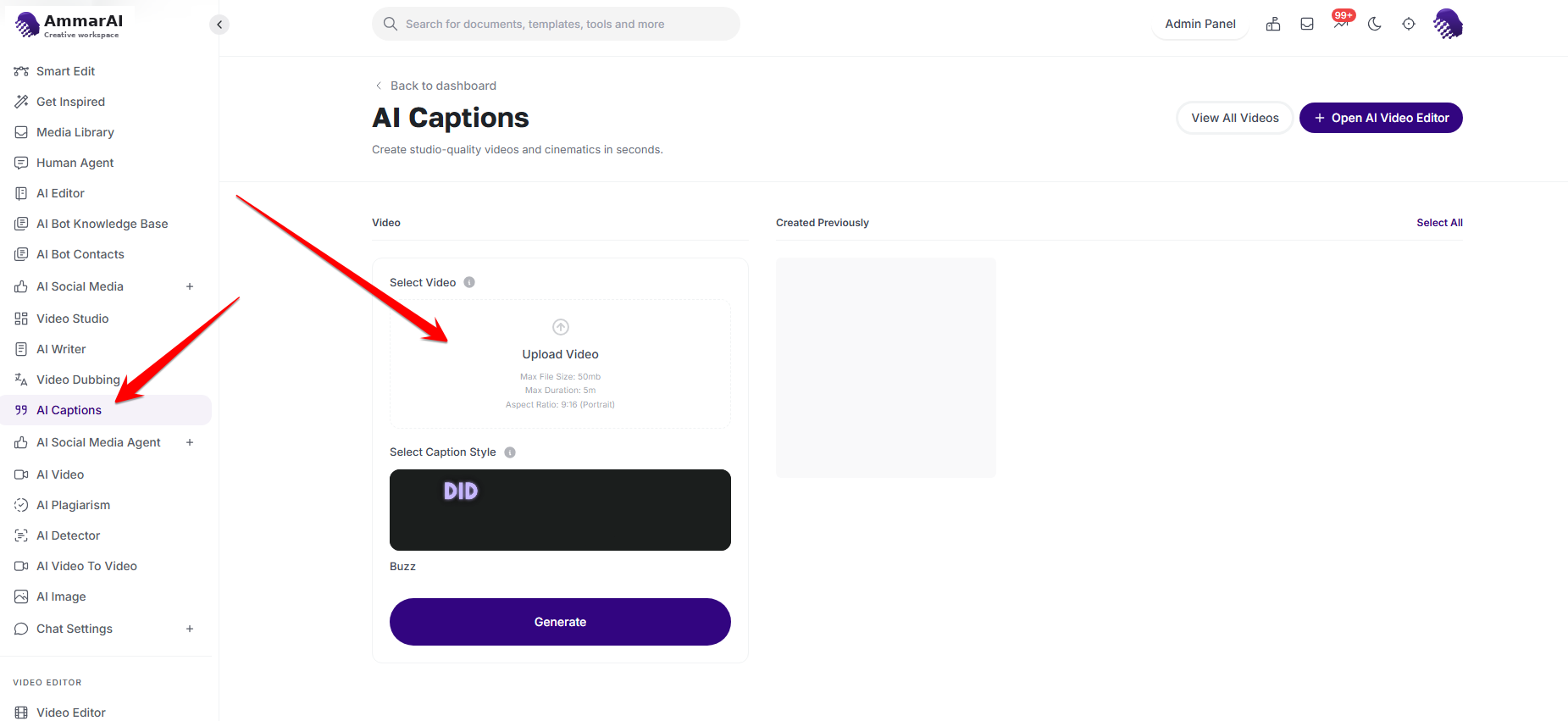
Open AI Captions and upload the source video. Upload a portrait video
Select Upload Video and choose a 9:16 portrait video from your device. The source file can be up to 50 MB and five minutes long.
Choose the caption style
Open the caption-template picker
Select the caption-style preview to open the template picker. Browse the animated previews and choose the treatment that fits the video; available examples include Medusa, line-by-line treatments and other emphasized word styles.
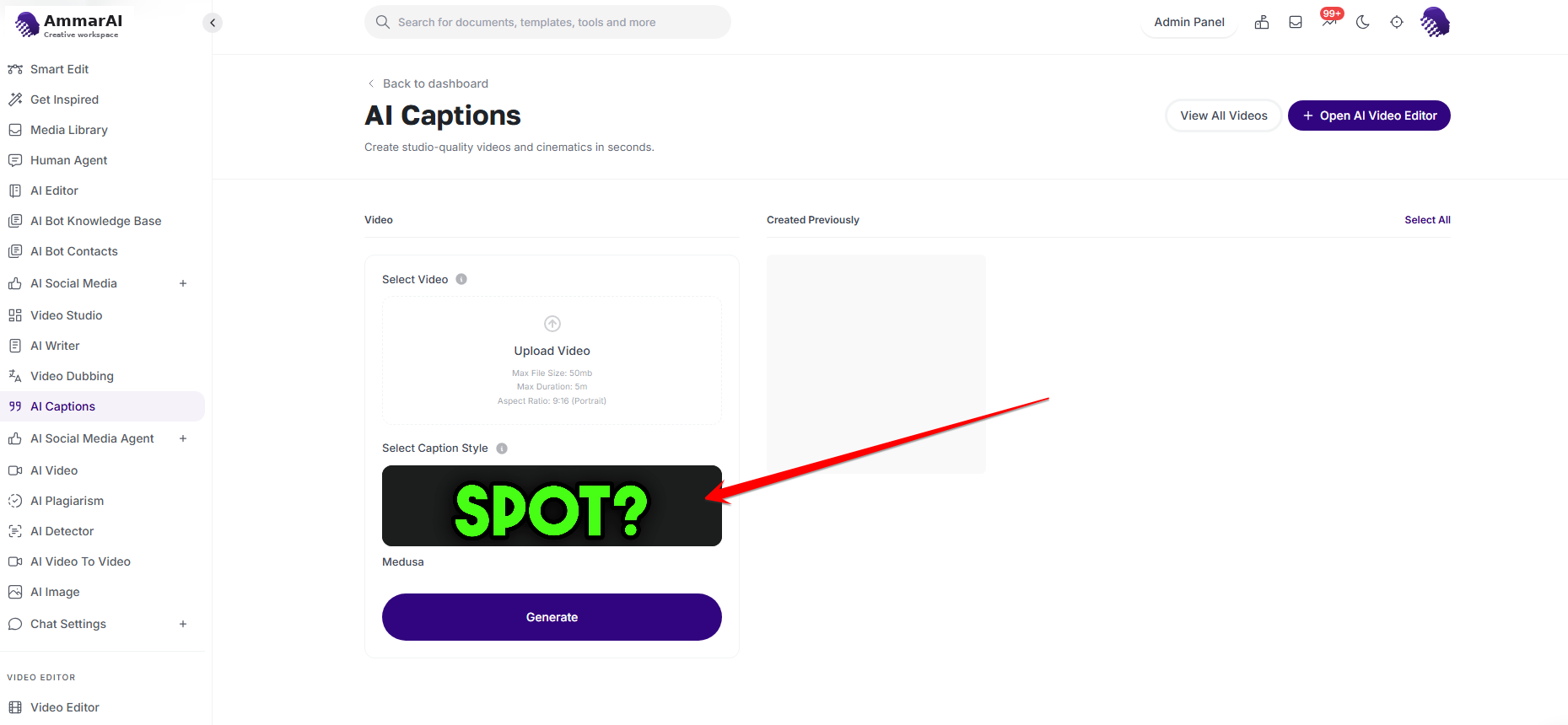
Select the caption-style preview to browse templates. Preview and select a template
Preview the templates in the picker, then select the caption design you want to apply. The chosen template is outlined and its preview plays automatically so you can check the typography and animation before generating.
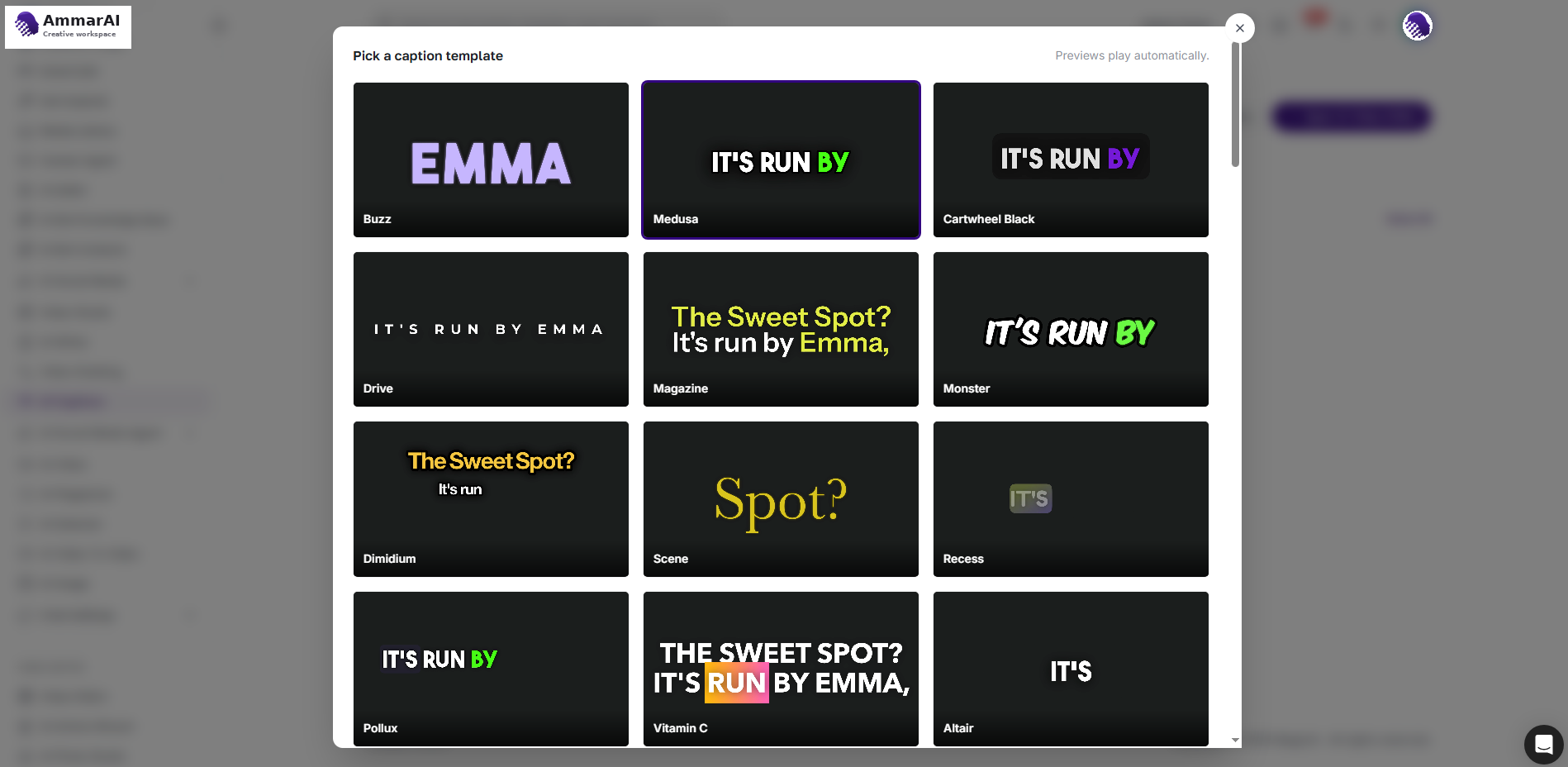
Preview the available designs and select one caption template.
Generate and continue editing
Generate the captioned video
Return to the AI Captions panel and click Generate. AmmarAI processes the upload with the selected caption style and adds the result to the previously created videos area.
Open the result in the video editor
Preview the generated video. When you need further changes, open it in the AI Video Editor and continue editing the captioned result there.
Ready to try it?
Try AI Captions in AmmarAI