
Video
How to dub a video into another language
AI Dubbing translates and re-voices existing videos into other languages automatically. You supply a video by URL or direct upload, choose a target language and speaker configuration, and AmmarAI produces a dubbed version you can preview and download.
This guide follows the regular-user workflow only.
When to use this
- You want to reach an audience in another language with existing footage.
- You have a public video URL or a video file on your device.
- You need a dubbed version you can preview and download.
Getting started
Open AI Dubbing from the side menu. The page shows the dubbing configuration panel and your previously dubbed videos. Monthly usage is tracked and displayed at the top of the page.
Open AI Dubbing
Navigate to AI Dubbing from the side menu to reach the configuration panel and your dubbing history.
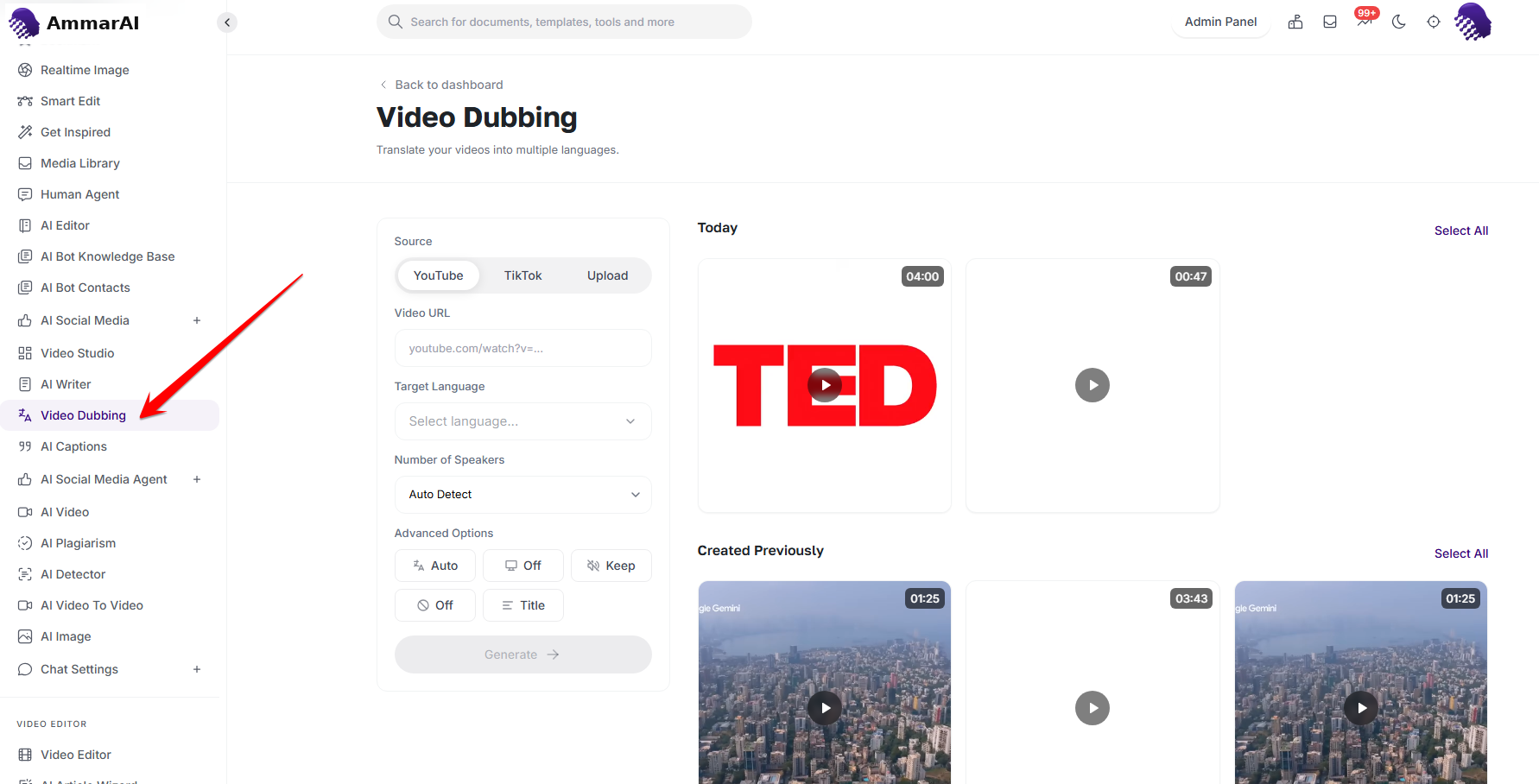
The AI Dubbing workspace.
How to dub a video
Choose the source type
Pick one of the three source tabs: a YouTube video URL, a TikTok video URL, or Upload to add a video file directly from your device.
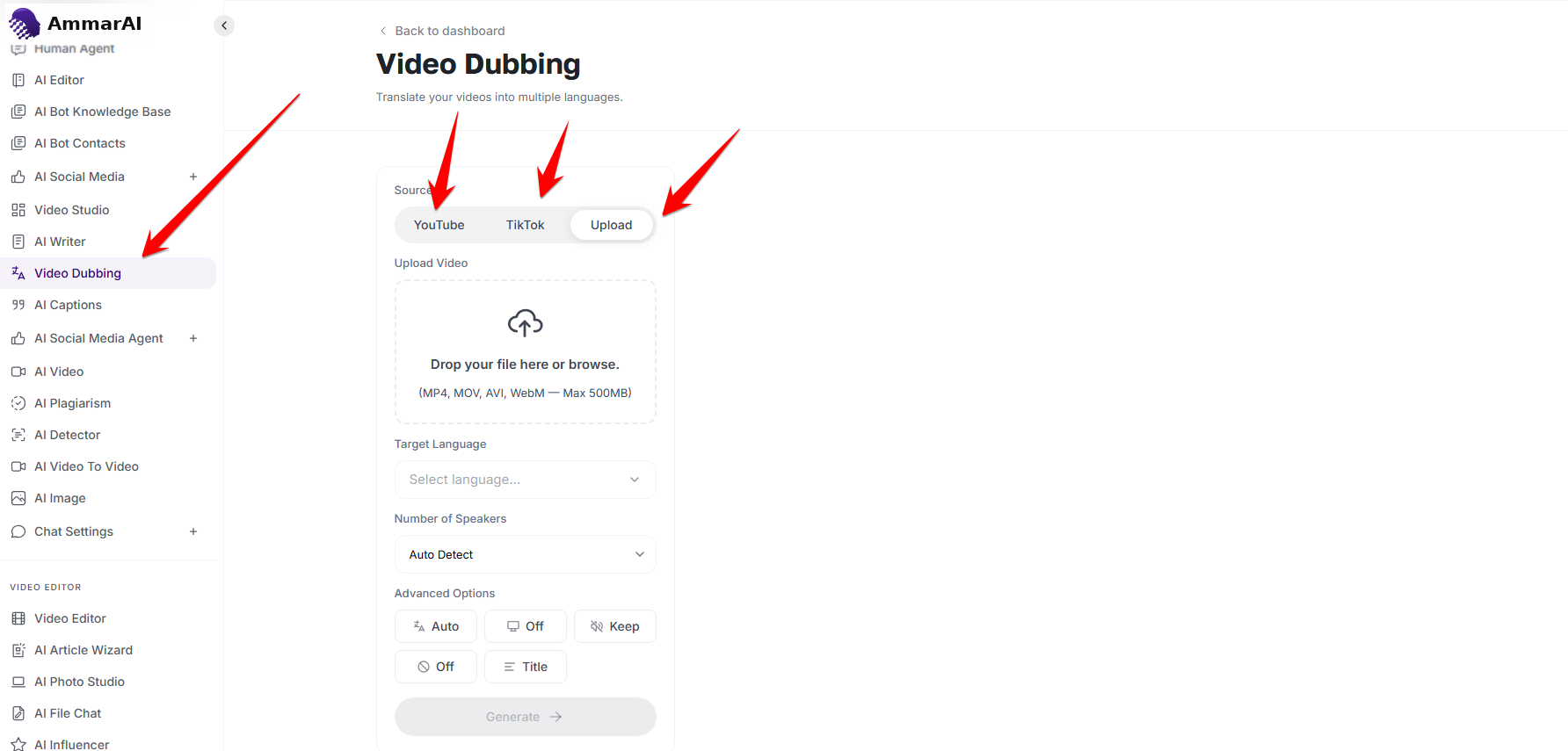
Choose how the source video is supplied. Choose the target language
Select the language to dub the video into from the Target Language dropdown. Available languages depend on the dubbing engine active on your workspace, ranging from a core set of widely used languages to an extended list with regional variants.
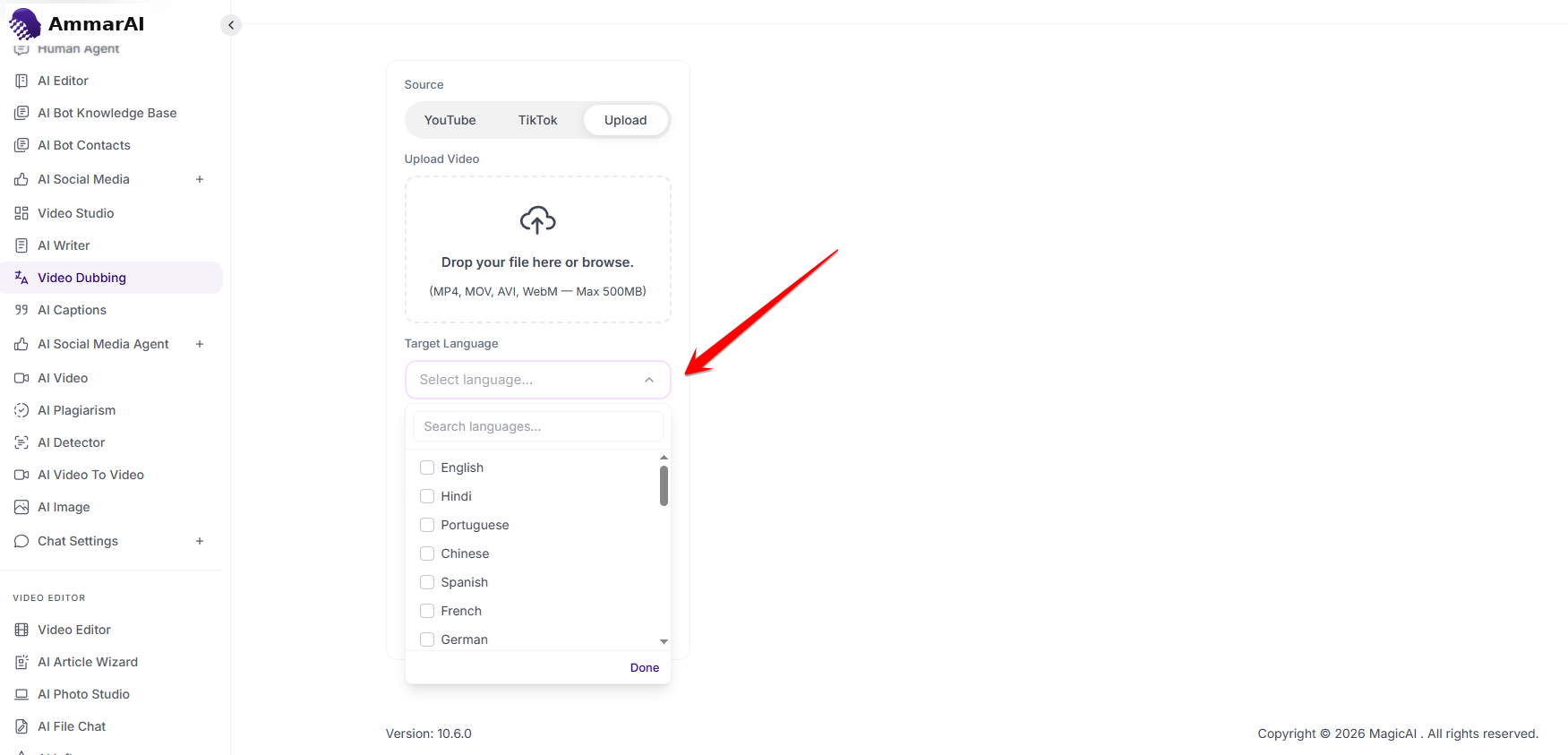
Pick the language for the dubbed version. Set the number of speakers
Use the Number of Speakers field. Choose Auto Detect so the system identifies speakers automatically, or set a value manually between 1 and 10. This preserves voice dynamics in multi-speaker content.
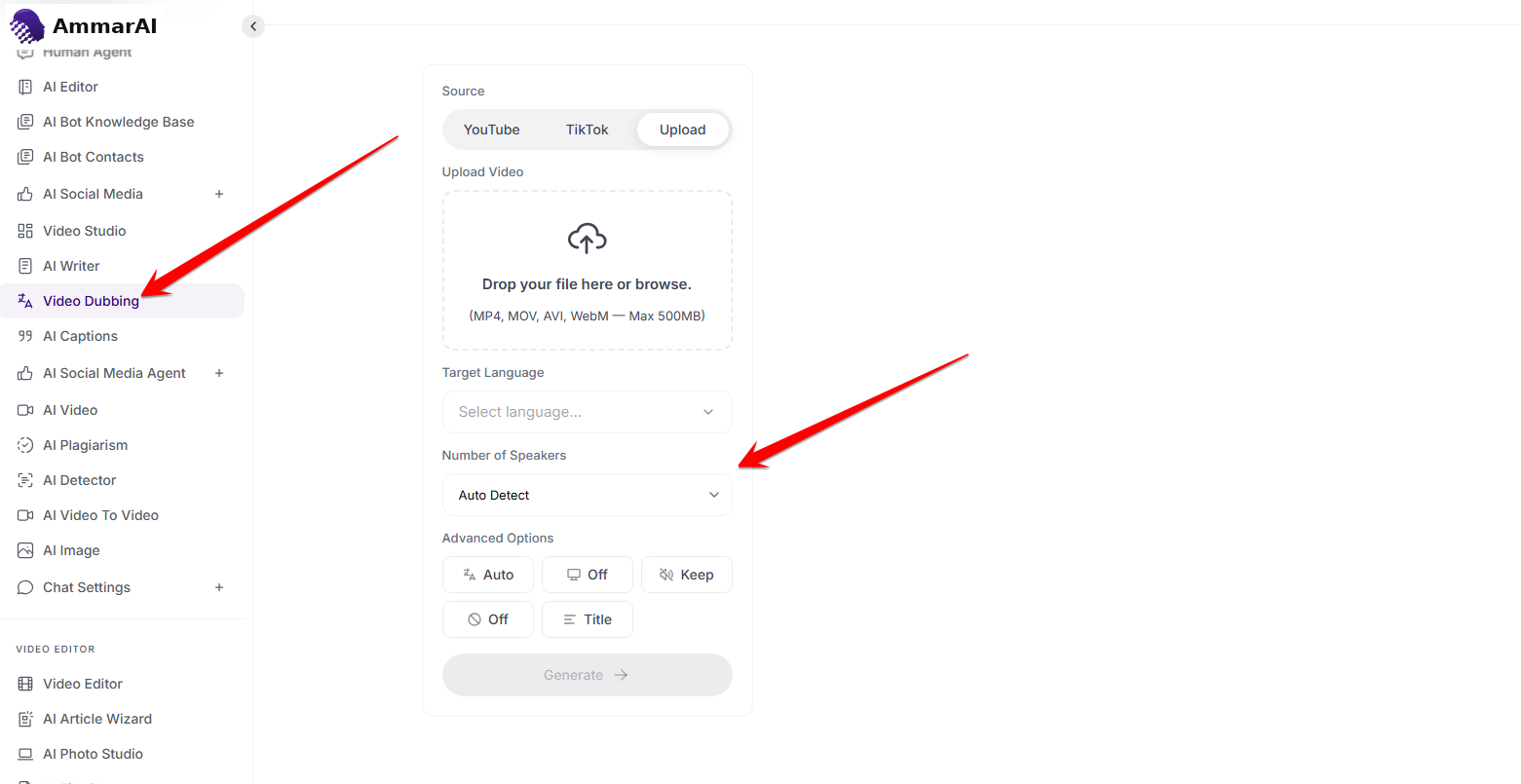
Auto-detect speakers or set the count yourself. Expand the advanced options
Open Advanced Options for extra control. The options shown depend on the active dubbing engine and can include: Source Language — set the original language manually or leave it on Auto; Resolution — a highest-resolution toggle or a quality/fast mode; Background Audio — keep or drop the original music and ambient sound; Profanity Filter — on or off to filter spoken profanity in the dubbed output; Audio-only Translation — translate the audio without processing the video; and Lip-sync — align dubbed speech to the speaker’s mouth movements.
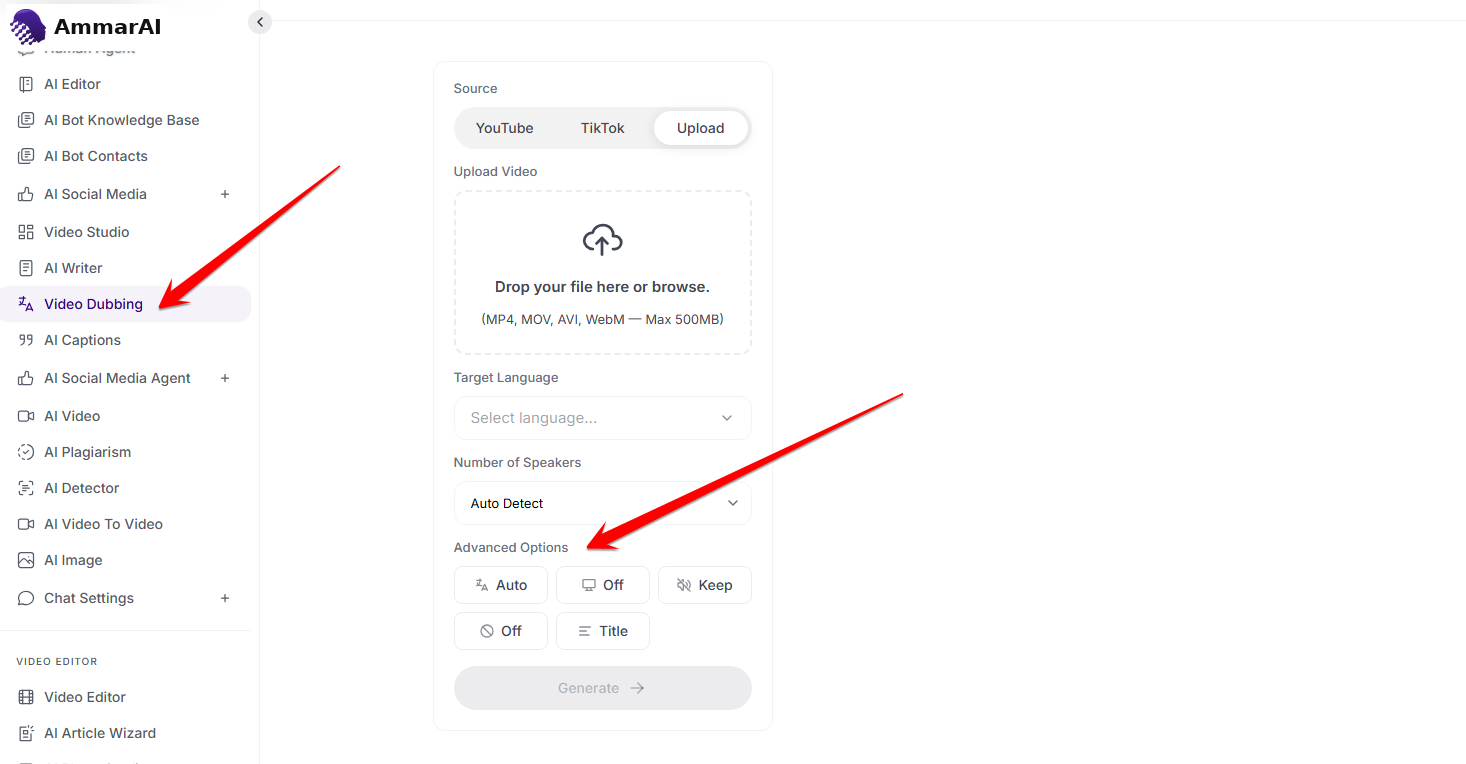
Advanced controls for language, resolution, audio and lip-sync. Title the video and generate
Enter a title in the Title field to identify the dubbed video, then click Generate. The dubbed video is processed and added to the created-previously section below, where you can preview and download it.
Previously dubbed videos
All previously dubbed videos are listed below the generation panel with a thumbnail, duration and target-language label — for example “Dubbed to Turkish” or “Dubbed to Hindi”. Click any video to preview or download it.
Ready to try it?
Try AI Dubbing in AmmarAI