
Image
How to use the AI Creative Suite
The AI Creative Suite joins image generation and design editing in one canvas. You generate a visual with the engine you prefer, then refine it with type, colour, layout and export controls without leaving the workspace.
This guide follows the everyday design flow: generate, choose a starting layout, edit on the canvas and export the finished artwork.
When to use this
- Marketing, product or social visuals need text and layout on top of a generated image.
- A campaign needs several sizes of the same design.
- You want a reusable project file rather than a one-off image download.
Generate the base image
Choose the AI engine and describe the image
Open the Creative Suite and write what the image should show. Select the generation engine you prefer for the subject, then generate. Different engines favour different results, so it is worth trying more than one for the same brief.
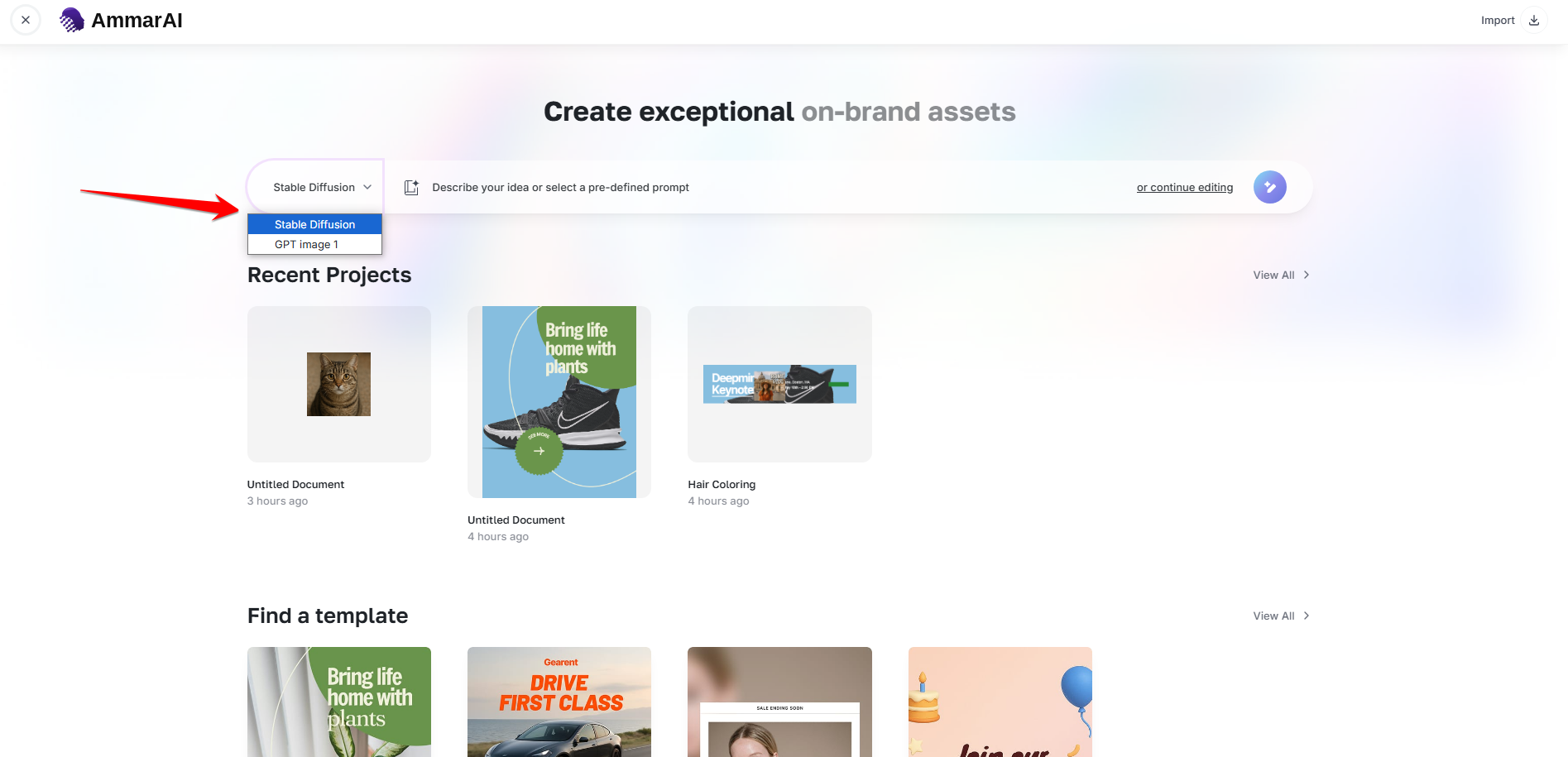
Pick the engine that suits the subject, then generate the base image. Bring the result onto the canvas
Add the generated image to the canvas. You can keep generating alternatives and add more images to the same project, so several options can be compared side by side.
Start from a template or artboard
Use a predefined template
Templates give you a finished composition with type, spacing and colour already arranged. Choose one that matches the message, then replace the imagery and wording with your own.
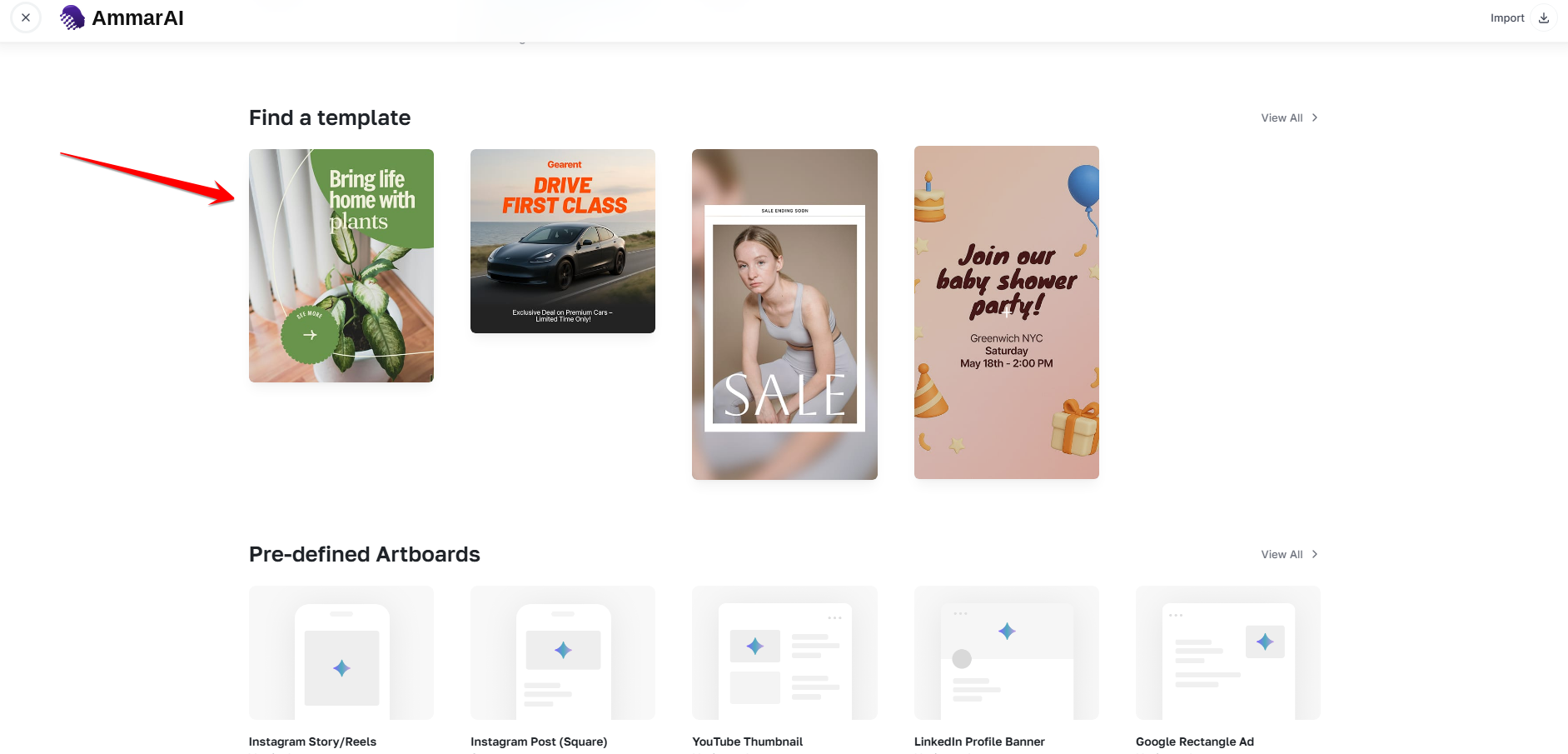
Templates give a complete layout you can adapt. Pick a predefined artboard
Artboards set the canvas to a standard size for a specific destination, such as a social post or an advertisement. Choosing the right artboard first keeps every element correctly positioned for the final format.
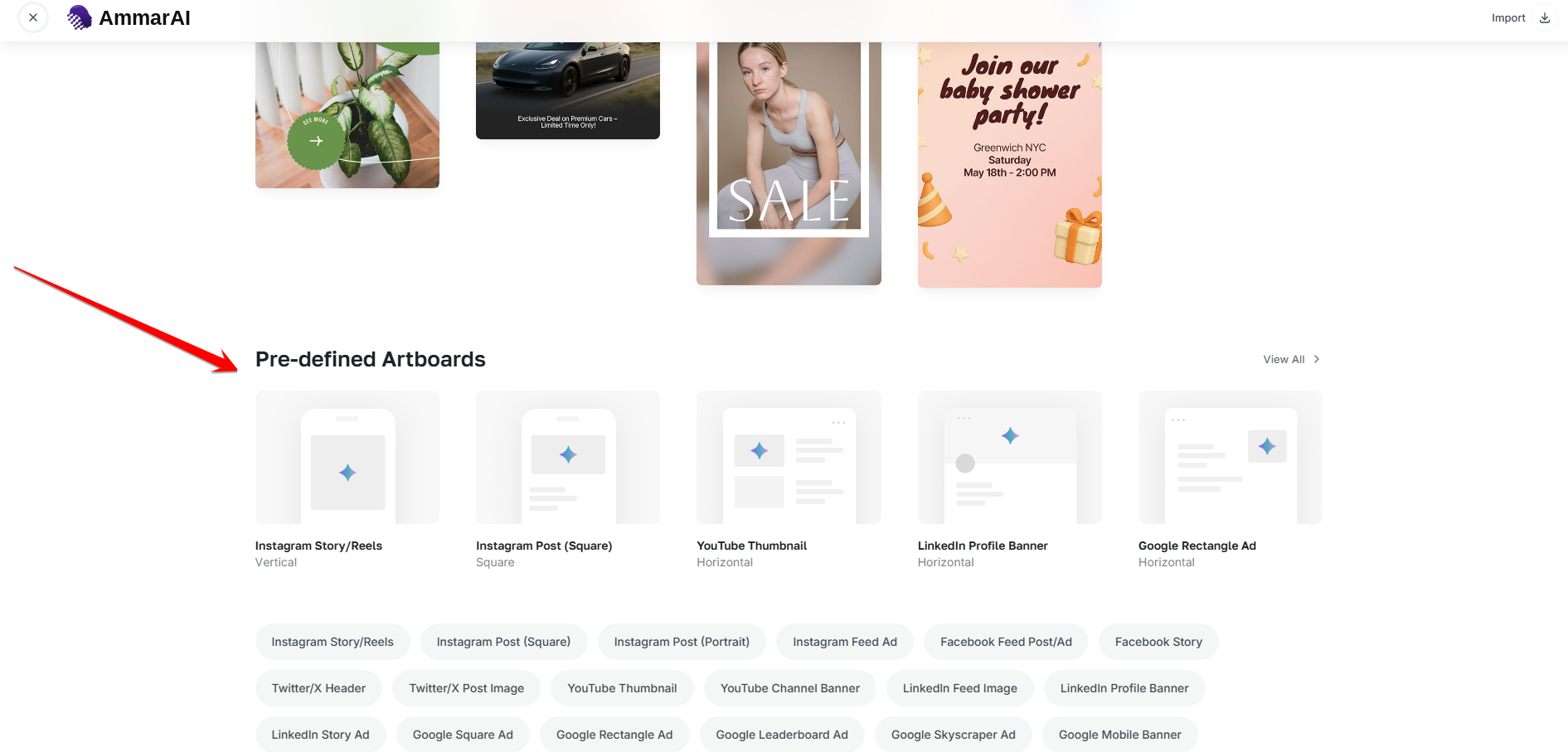
Set the artboard so the design matches its destination from the start.
Edit the design on the canvas
Set type, colour and alignment
Select any text element to change the font, weight, size, spacing, colour and alignment. The left rail gives access to library assets, text, images, shapes, sizing and layers, so the whole composition is edited in one place.
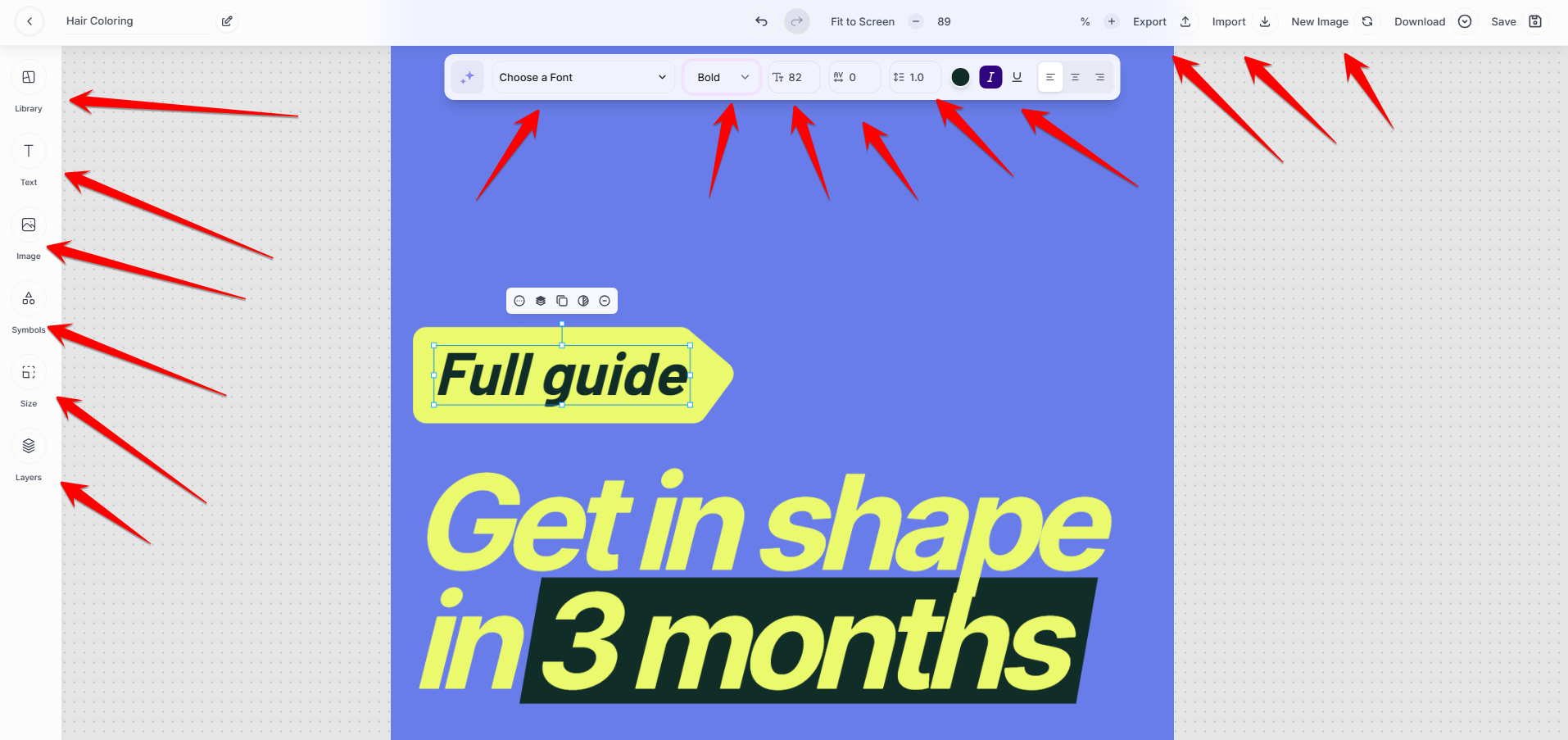
Type, colour, size and layer controls sit around the canvas. Add more images and arrange layers
Add further generated or uploaded images, then use the layer controls to set what sits in front of what. Keep important text clear of busy areas of the image so it stays readable.
Export and reuse the project
Export the finished artwork
Export the design when it is complete. Check it at the size it will actually be viewed, particularly small text on mobile feeds.
Export and import projects
Projects can be exported and imported again later, which makes it straightforward to reuse an approved layout for the next campaign rather than rebuilding it.
Ready to try it?
Try AI Creative Suite in AmmarAI