
Fashion
How to use Fashion Studio
Fashion Studio is AmmarAI’s creative suite for visualising, styling and marketing apparel. Whether you run an e-commerce brand, style digitally or create content, it brings photoshoots, try-on, model swaps, editing and video into one workspace.
Fashion Studio uses the existing credit system. Image actions — model and background generation, photoshoots and edits — draw on your image credits, and video creation draws on your video credits.
When to use this
- You need editorial product imagery without booking a physical set.
- You want to see how a garment looks on a real human figure before shooting it.
- You want to animate a static fashion image into a short cinematic clip.
The Fashion Studio dashboard
The dashboard is your creative headquarters. Built for speed and precision, it gives immediate access to the core generative tools, so you can define your brand aesthetic, animate your designs and preview garments from one screen.
Open the Fashion Studio dashboard
Open Fashion Studio from the side menu to reach the model, style, video and try-on tools.
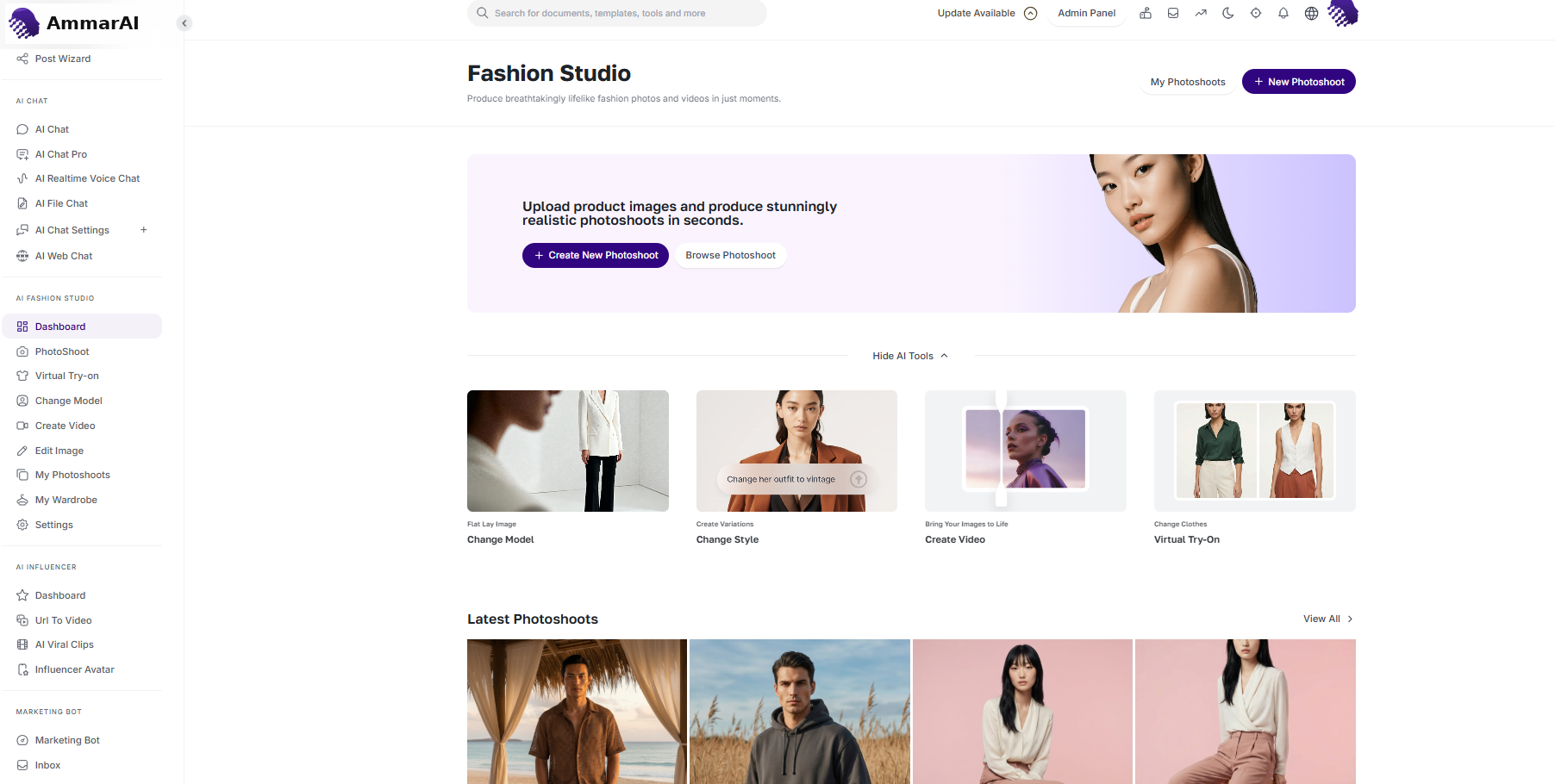
The Fashion Studio dashboard.
- Model selection: choose from a diverse library of AI models, filtering by ethnicity, age and body type so your brand representation is inclusive and accurate.
- Style customisation: control the look with the style editor, adjusting hair, makeup and lighting environments to match the campaign mood.
- Video generation: bring static images to life with cinematic catwalks or 360-degree product showcases for social media and high-impact ads.
- Virtual try-on: drag a garment from your wardrobe onto a selected model for an instant, high-fidelity preview of fit and fabric drape.
AI Photoshoot
The AI Photoshoot module creates high-end editorial imagery without the logistics of a physical set. You can combine existing assets, your own products and AI-generated designs in a single scene.
1. Product selection — library products
You can feature up to three products in one photoshoot. Select items from the curated catalogue already available in the system.
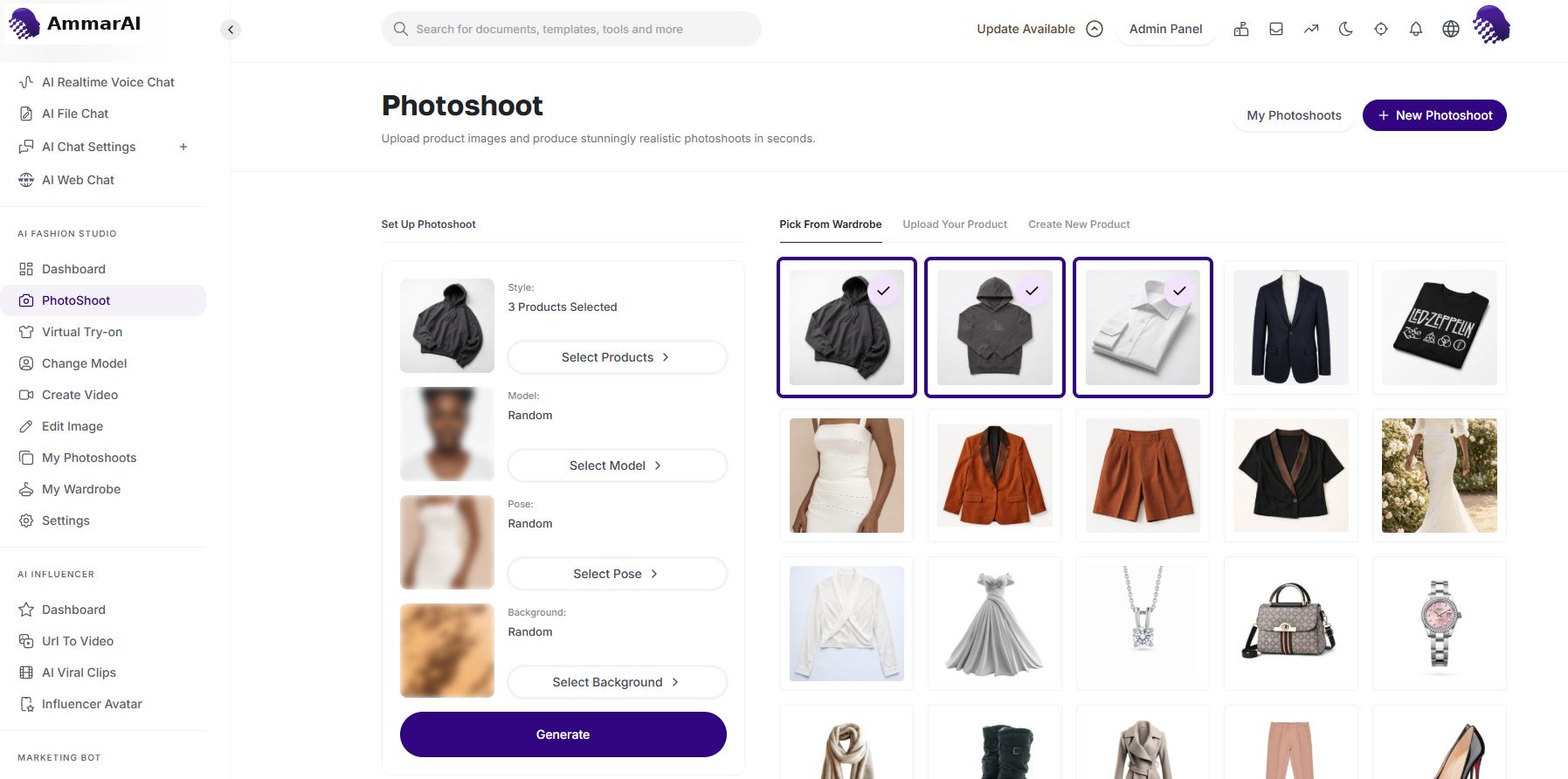
Choose products from the built-in catalogue. 1. Product selection — upload your own
Import your own product photos or flat lays to see them modelled in three dimensions.
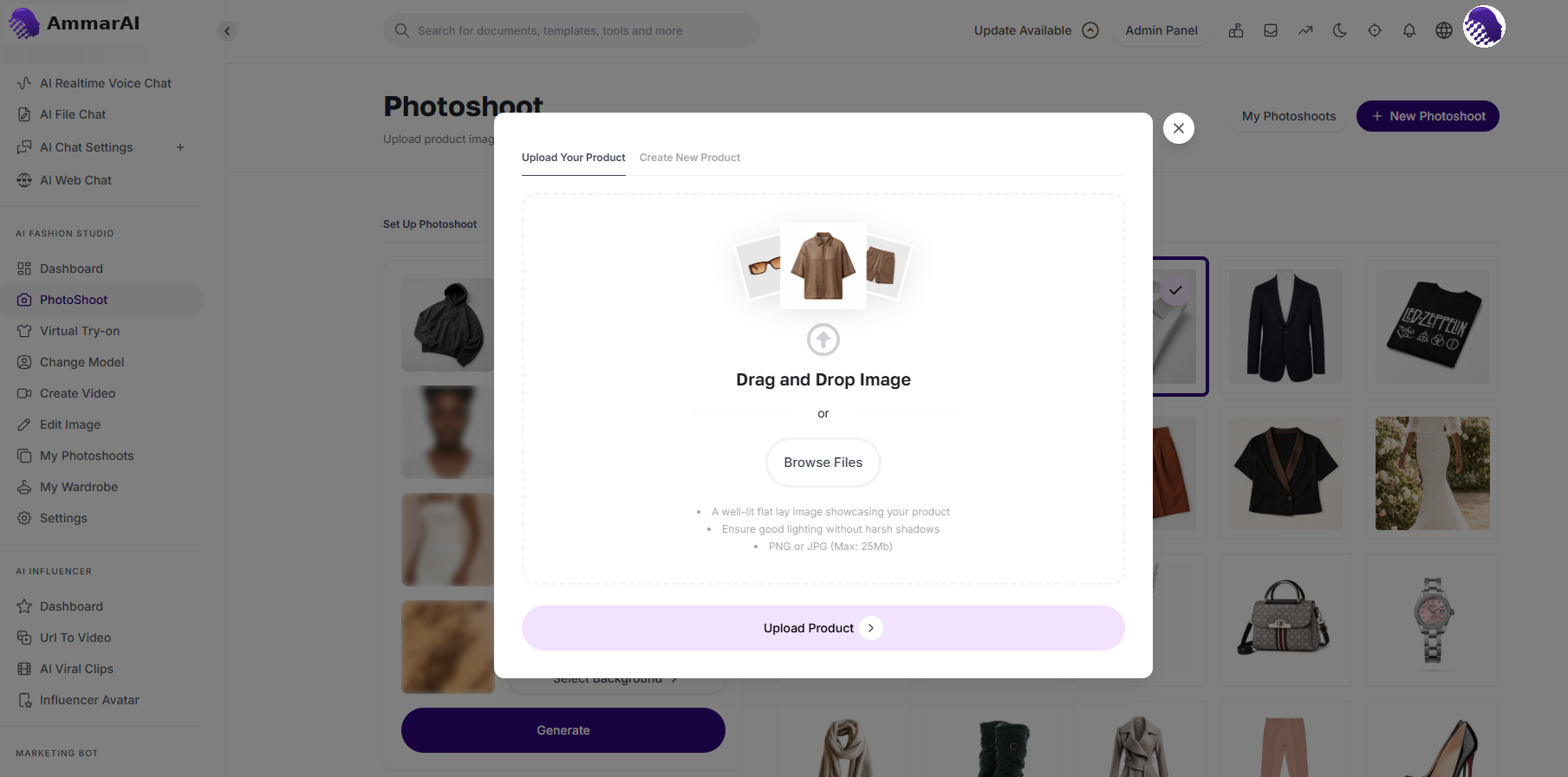
Upload your own product photos or flat lays. 1. Product selection — prompt to product
If you do not have a physical item yet, describe a garment — for example, “A silk emerald green midi dress with puff sleeves” — and the AI generates it for the shoot.
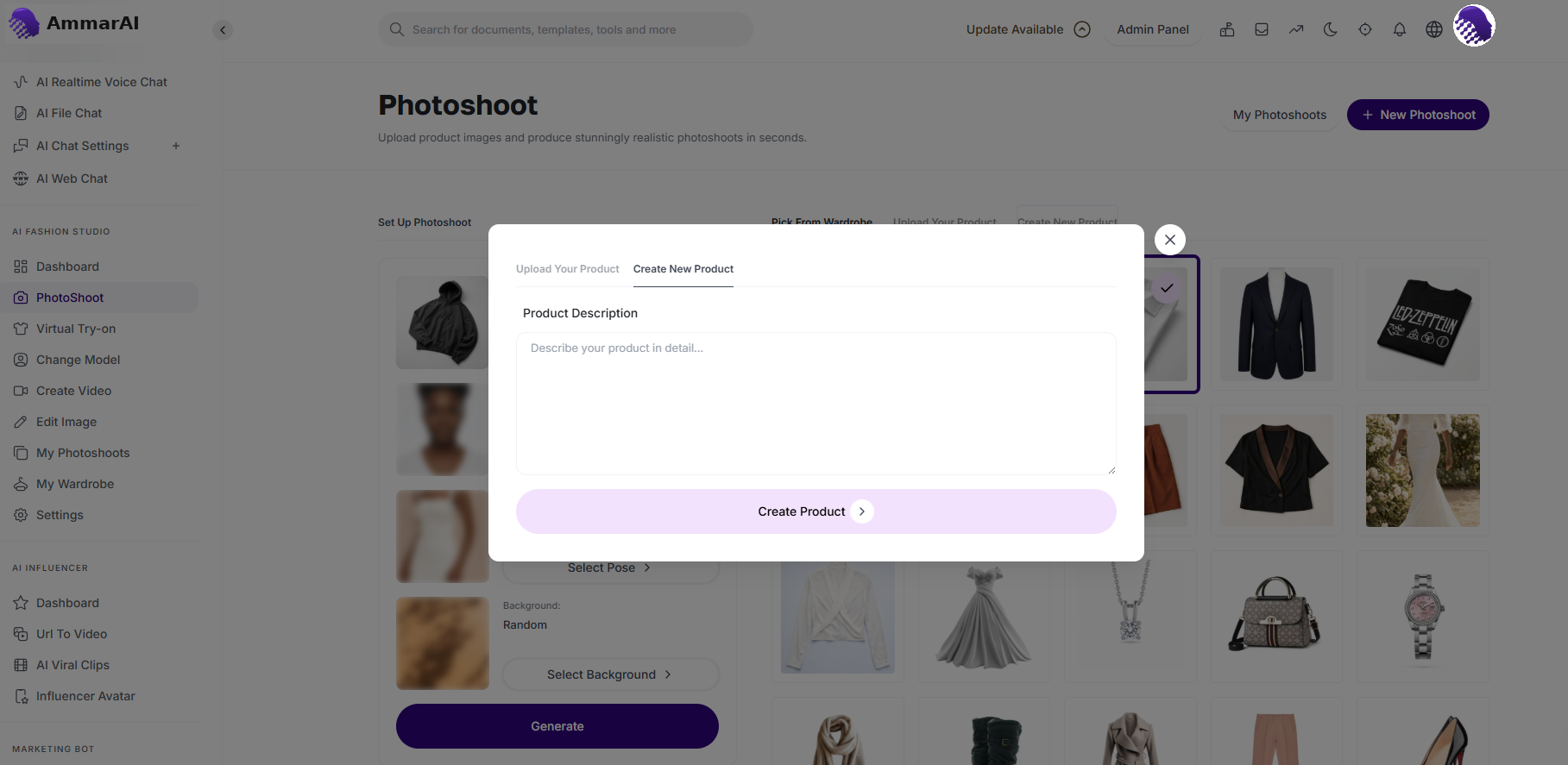
Describe a garment and generate it for the shoot. 2. Model & style — select a model
Once your products are set, choose who will wear them. Pick a specific model from the diverse library to keep brand consistency.
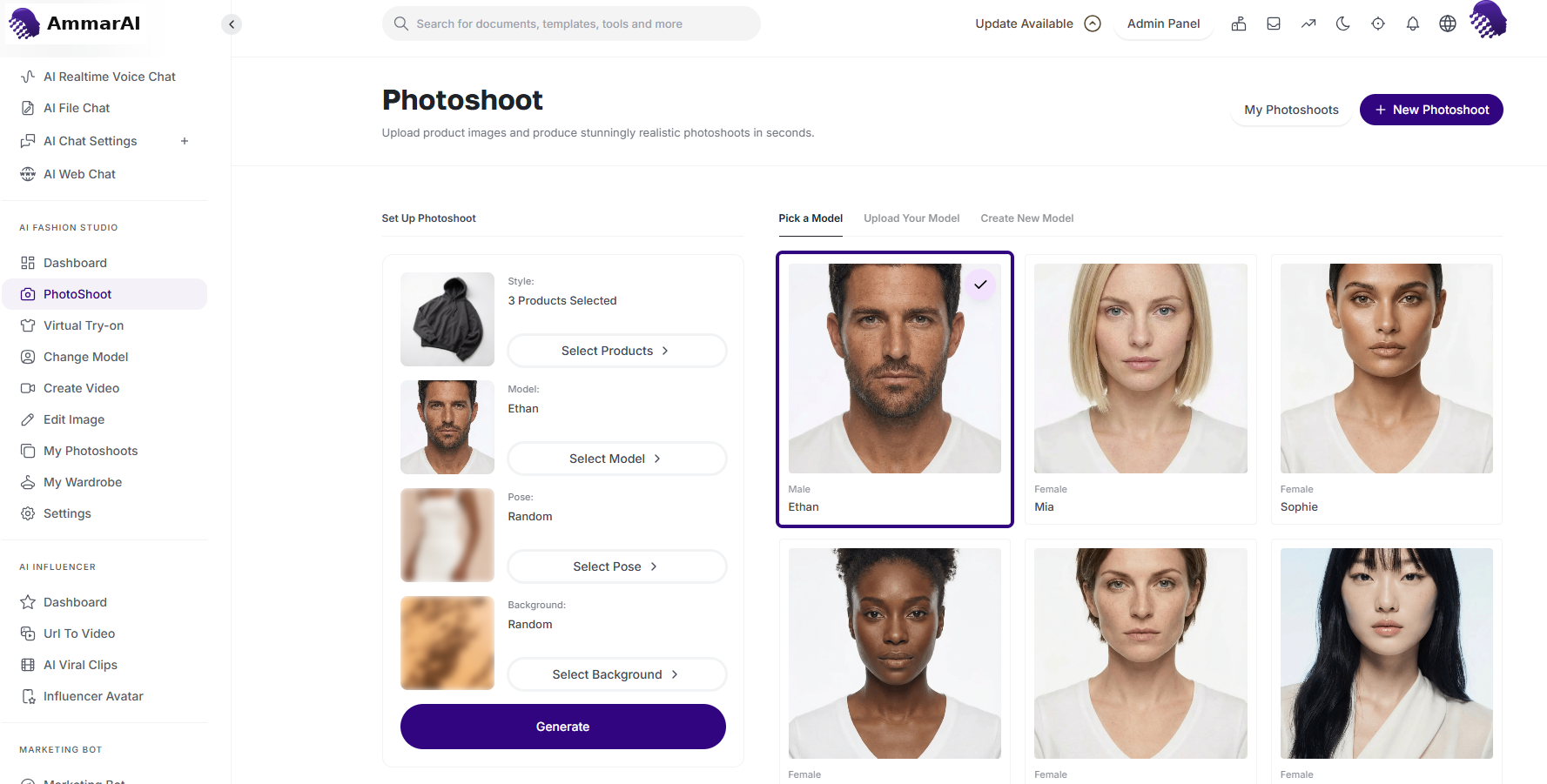
Select a model from the library. 2. Model & style — randomised selection
If you do not select a model, the system intelligently chooses a random model that best fits the garment style.
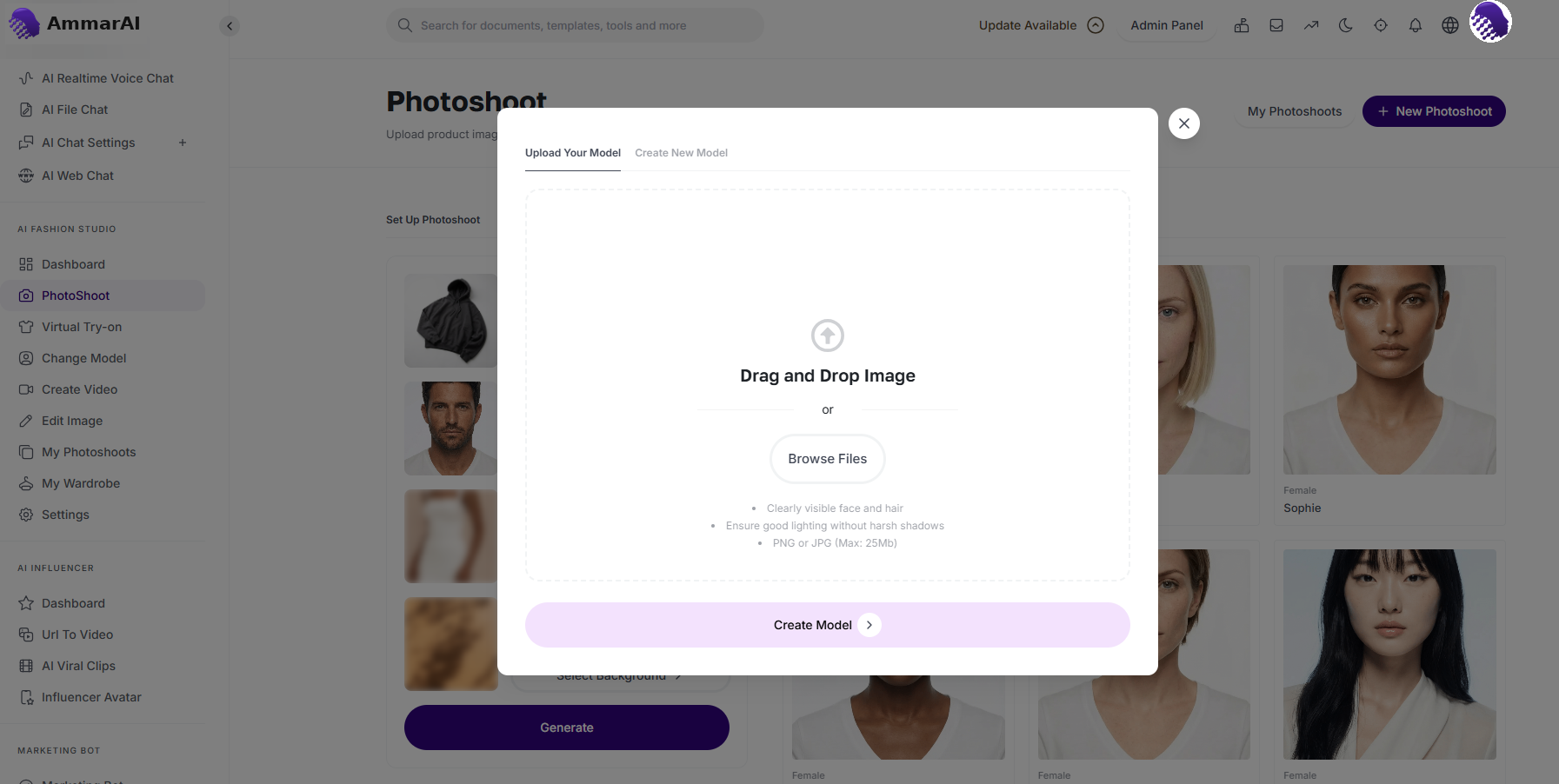
Leave the model unset for an automatic match. 2. Model & style — style editor
Adjust the model’s look with the style controls to match the campaign mood.
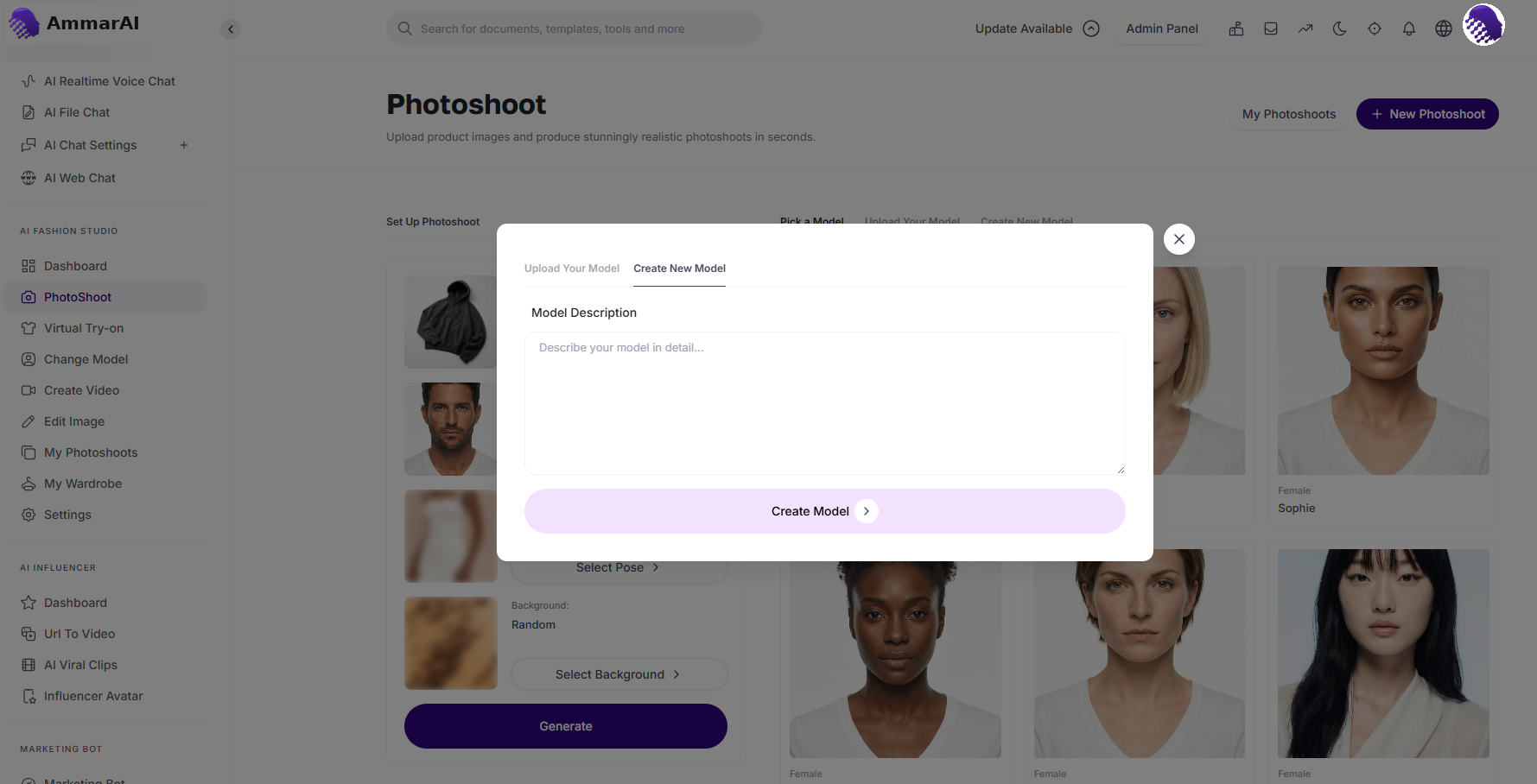
Refine hair, makeup and lighting for the shoot. 3. Posing & composition — manual pose
Select from a variety of poses — from high-fashion editorial to casual walking — to highlight specific product details.
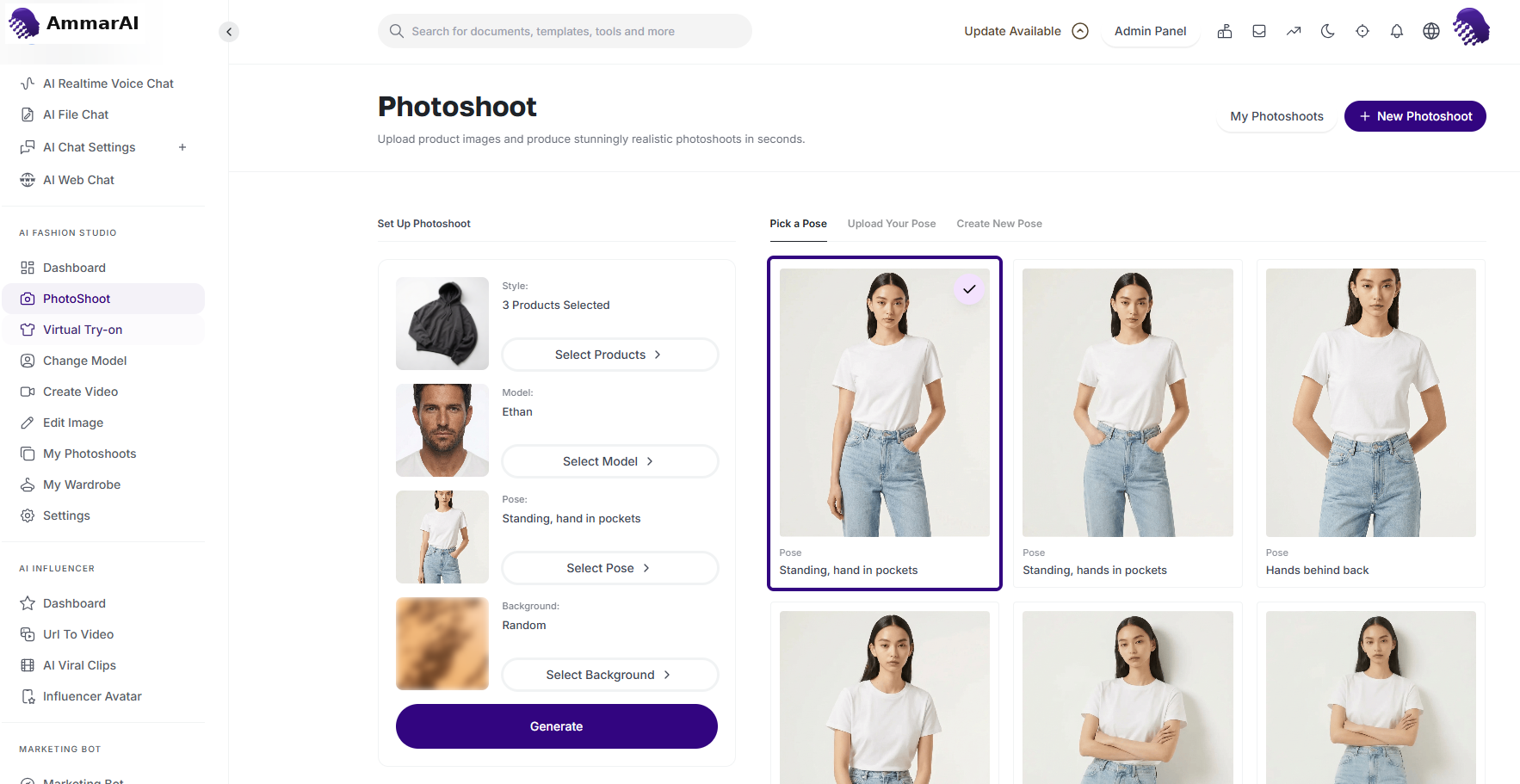
Choose a pose that shows the product best. 3. Posing & composition — dynamic posing
If no pose is selected, the system defaults to a random pose, giving you a fresh perspective every time.
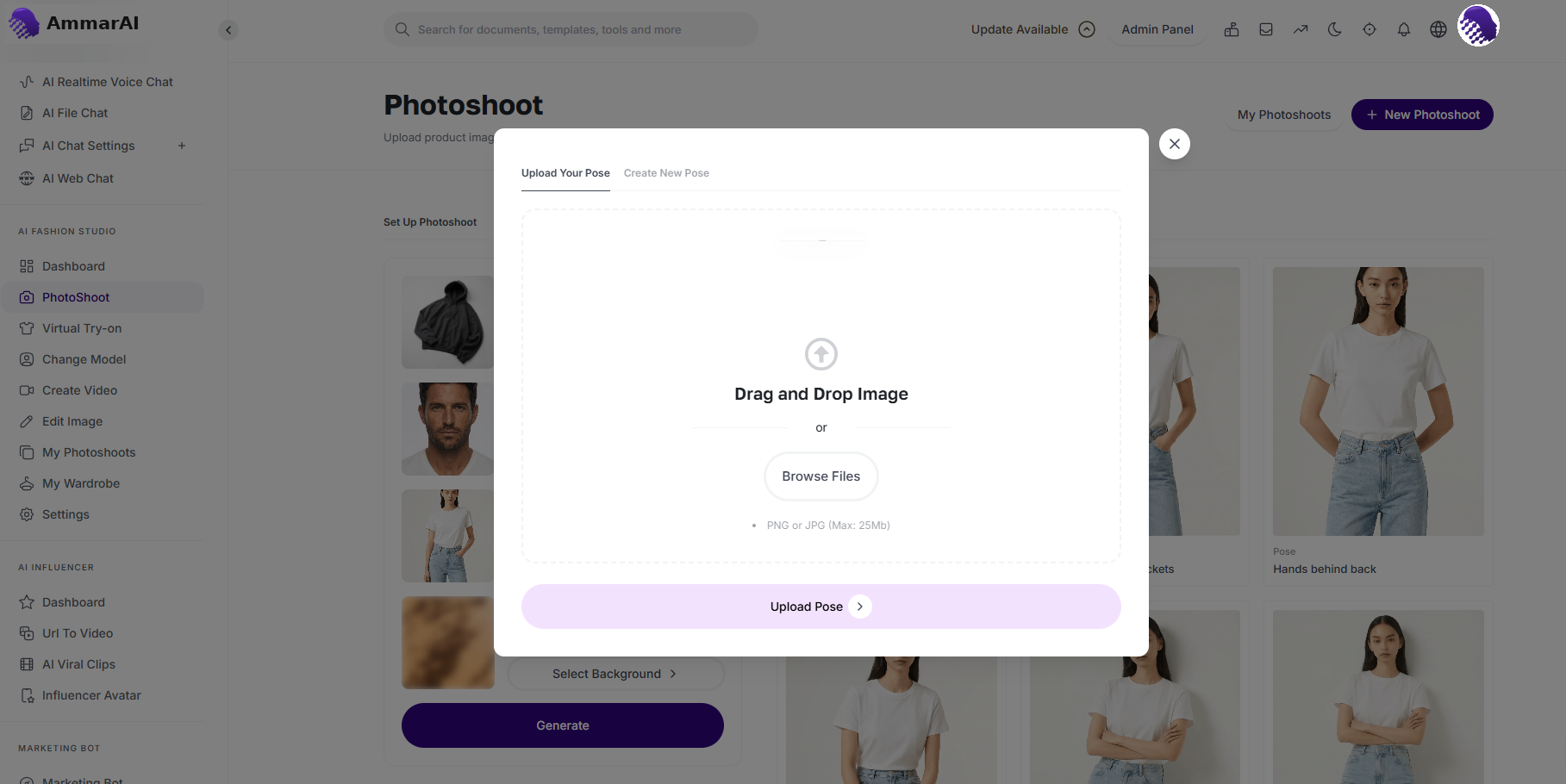
Leave the pose unset for a new perspective each run. 3. Posing & composition — compare results
Review how the chosen pose changes the composition before moving on to the background.
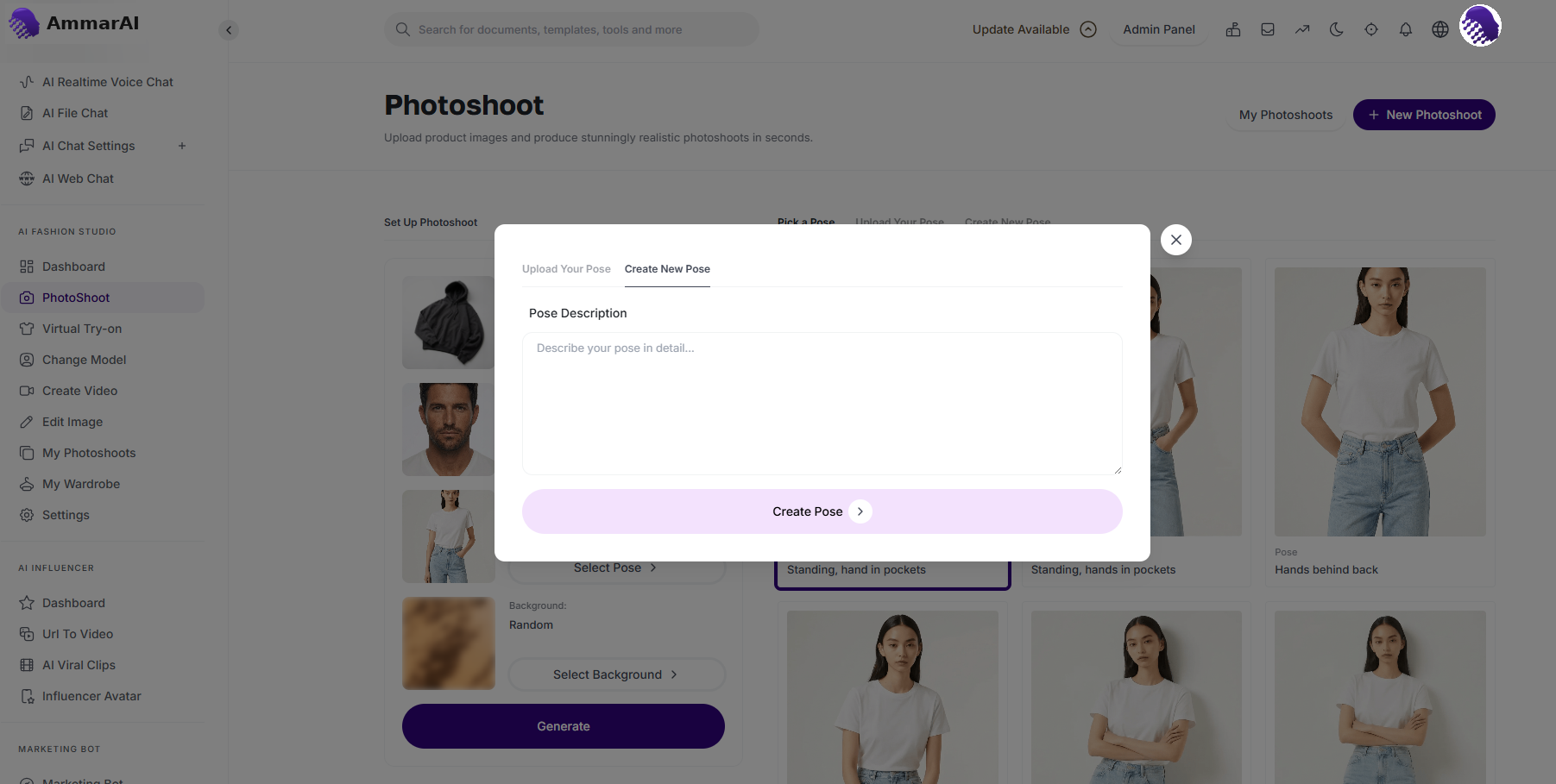
Check the composition before continuing. 4. Background & environment — custom backgrounds
Choose from the environment presets, such as Milan streetwear, luxury minimalist studio or tropical beach.
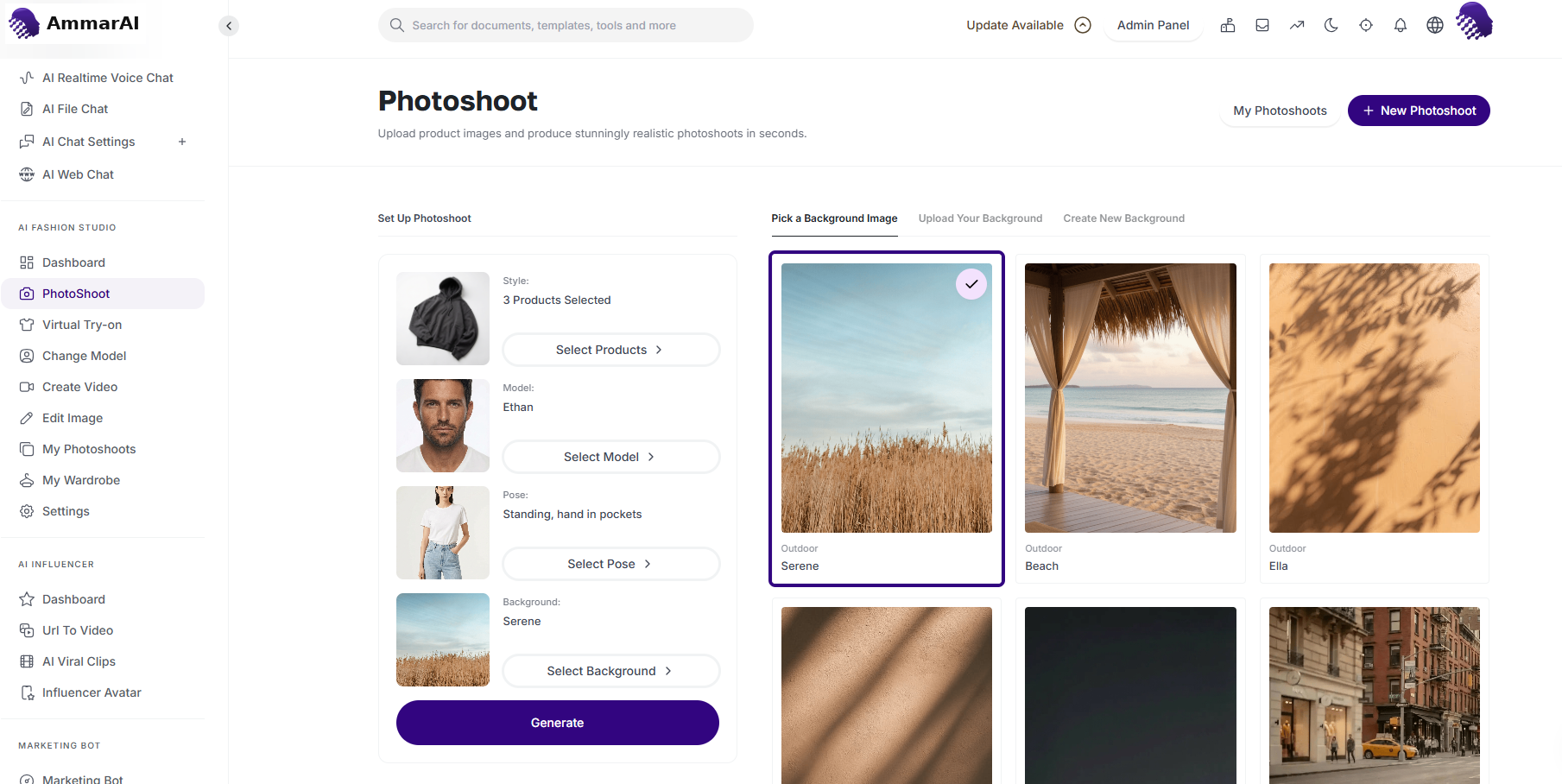
Pick an environment preset for the scene. 4. Background & environment — AI environments
Leave the background blank to let the system generate a random background that complements the lighting and colours of your chosen products.
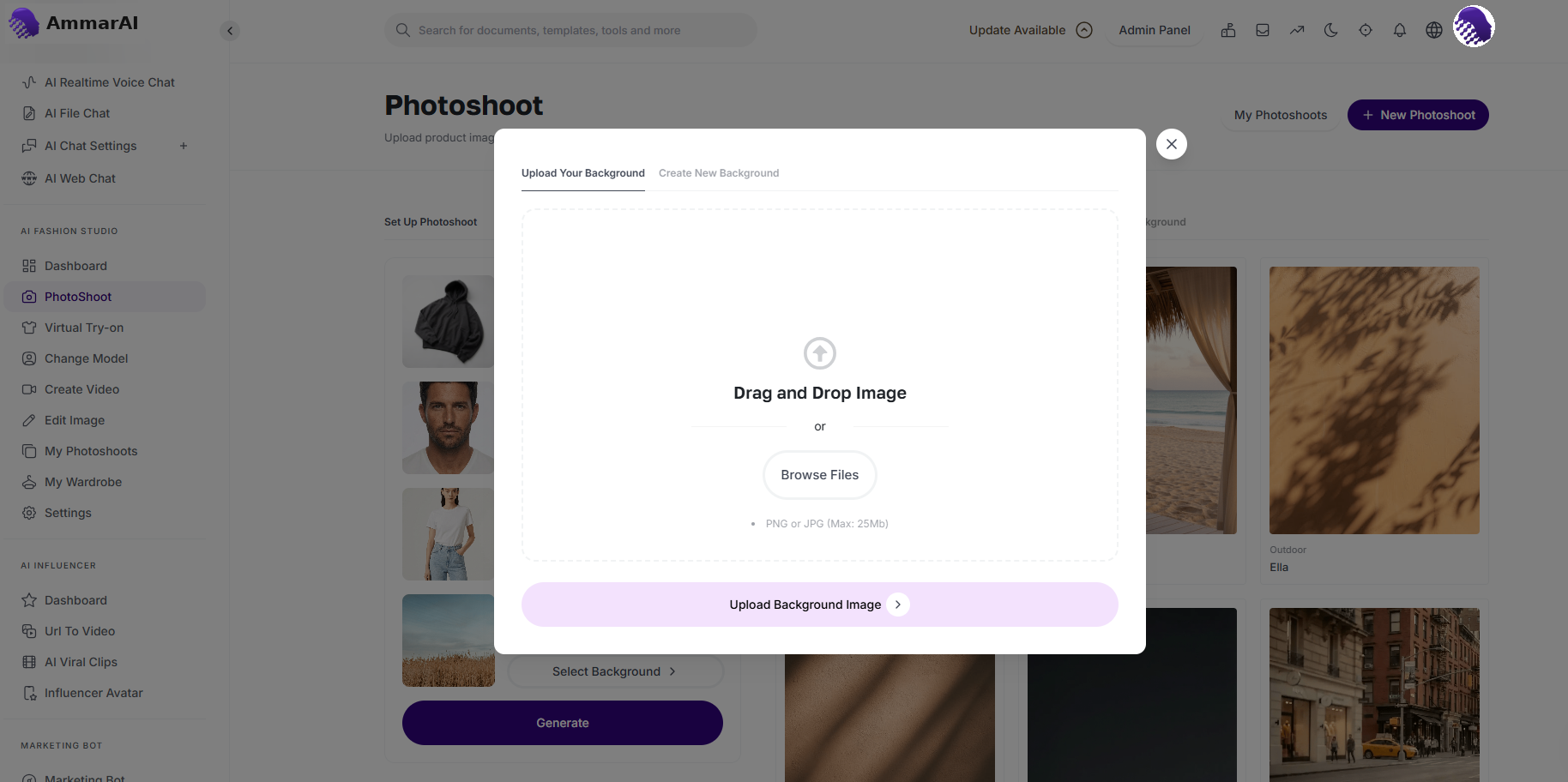
Leave it blank for an automatically matched background. 4. Background & environment — review the scene
Confirm the final combination of products, model, pose and environment before generating the photoshoot.
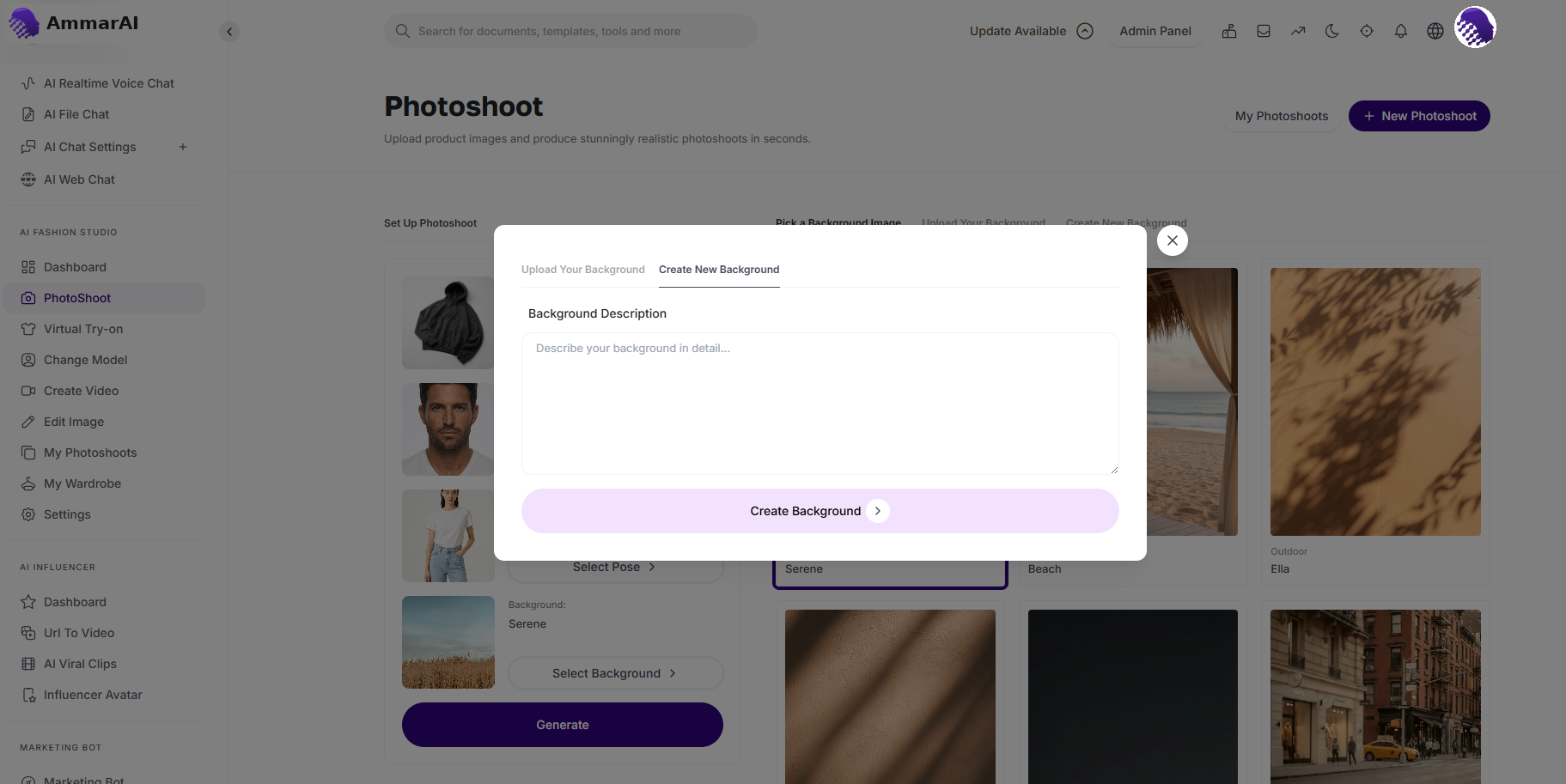
Review the full scene before you generate.
Virtual Try-On
Virtual Try-On is a visualisation tool that shows how any garment looks on a real human figure. By pairing a model image with a clothing image, the AI drapes the fabric precisely, accounting for proportion and fit.
The process is a simple three-step pair-and-generate workflow.
Pair the model and garment, then generate
Upload a high-resolution photo of a person — for the most accurate results use a ghost mannequin or a model in a neutral pose against a plain background. Upload a clear image of the garment you want to try on; this can be a flat-lay photo, a product packshot or even a cropped image of a specific texture or pattern. Then click Generate, and the AI analyses the model’s proportions and the garment’s dimensions to produce a realistic composite image.
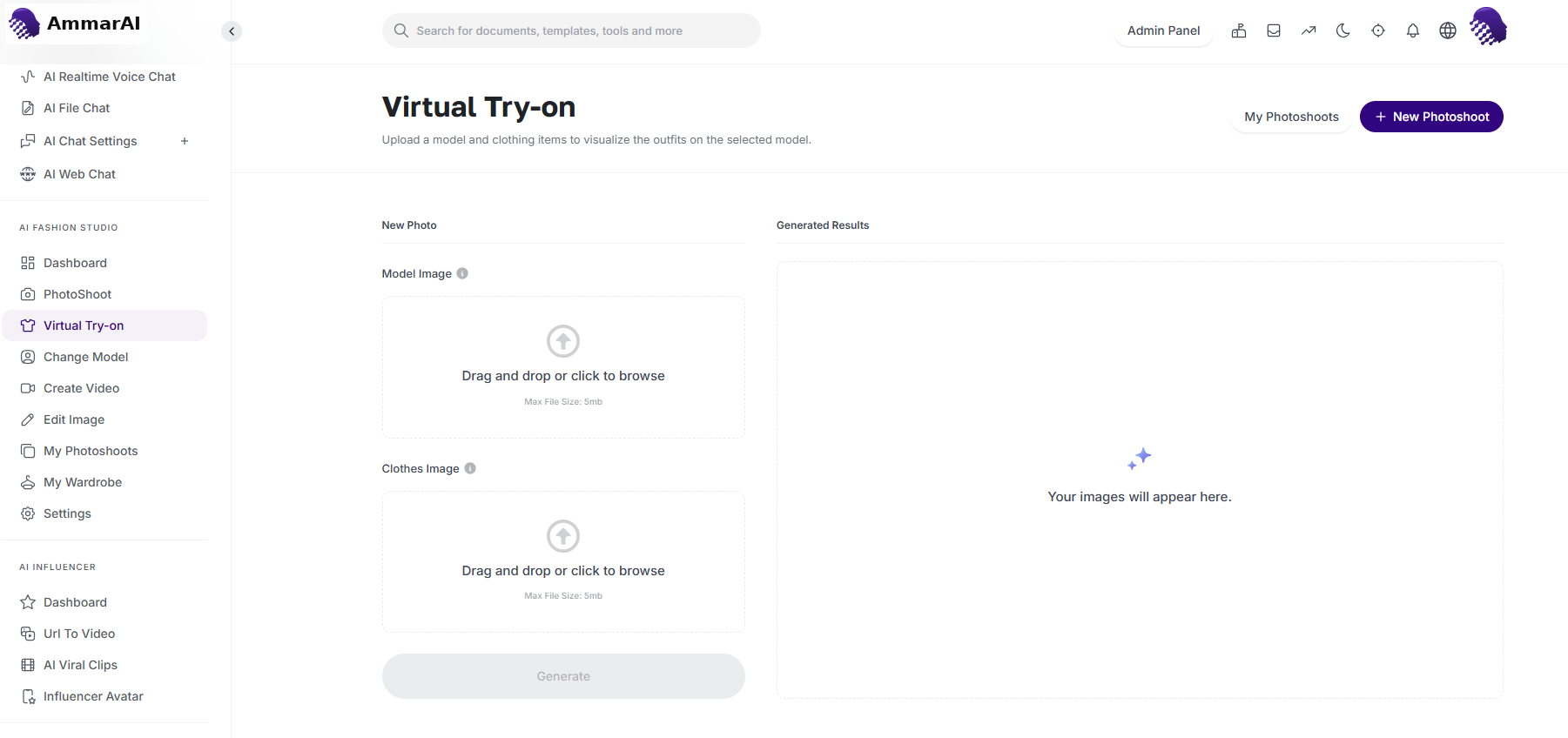
Pair a model image with a garment image and generate.
Change Model
Change Model swaps the person in an existing fashion photograph while keeping the original clothing and setting intact — ideal for refreshing brand aesthetics or diversifying a campaign. You need two images: the source image containing the model you want to replace (the AI detects the garments so they are preserved), and the target image of the new model, whose features, skin tone and body structure are analysed for a seamless fit.
Upload the original, add the new model and process
Drop your current campaign or product photo into the source slot, drop the image of the desired model into the replacement slot, then click Change Model. The system transfers the clothing from the original photo onto the new model, maintaining the original lighting, background and garment details.
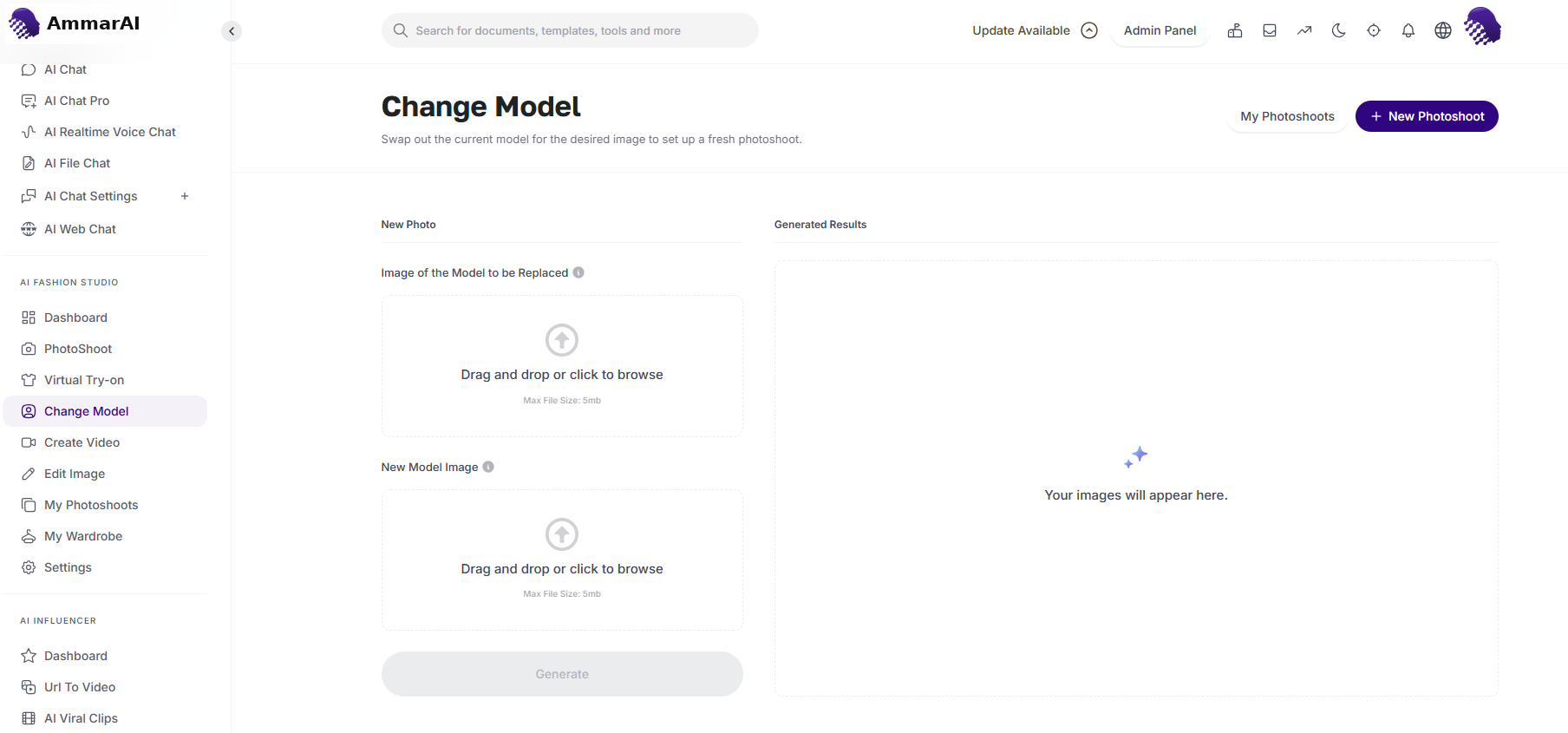
Swap the model while keeping the clothing and scene.
Edit Image
Edit Image lets you modify existing visuals with plain language. Instead of starting from scratch, take a generated or uploaded photo and instruct the AI to change specific elements.
Upload, describe the changes and generate
Start by uploading the photo you want to modify — a photoshoot result, a product shot or a personal image. In the prompt box, type exactly what you want to change. The AI analyses your request and applies the edits while maintaining the original composition and lighting.
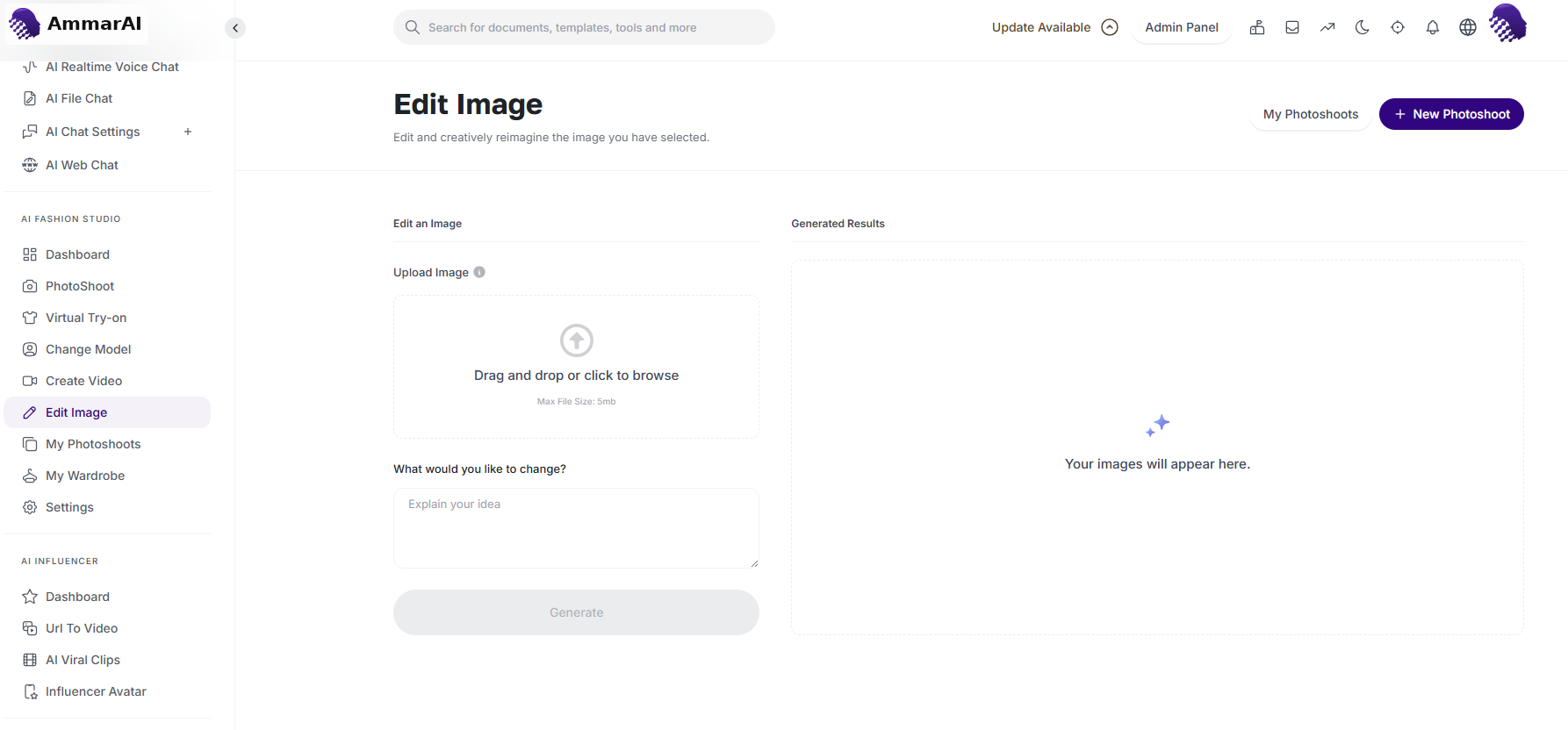
Describe the change and let the AI apply it.
My Photoshoots
My Photoshoots is your cloud-hosted gallery where every creation is archived, so your creative history stays available.
Browse your generated images
Open My Photoshoots to see every image you have created in the studio.
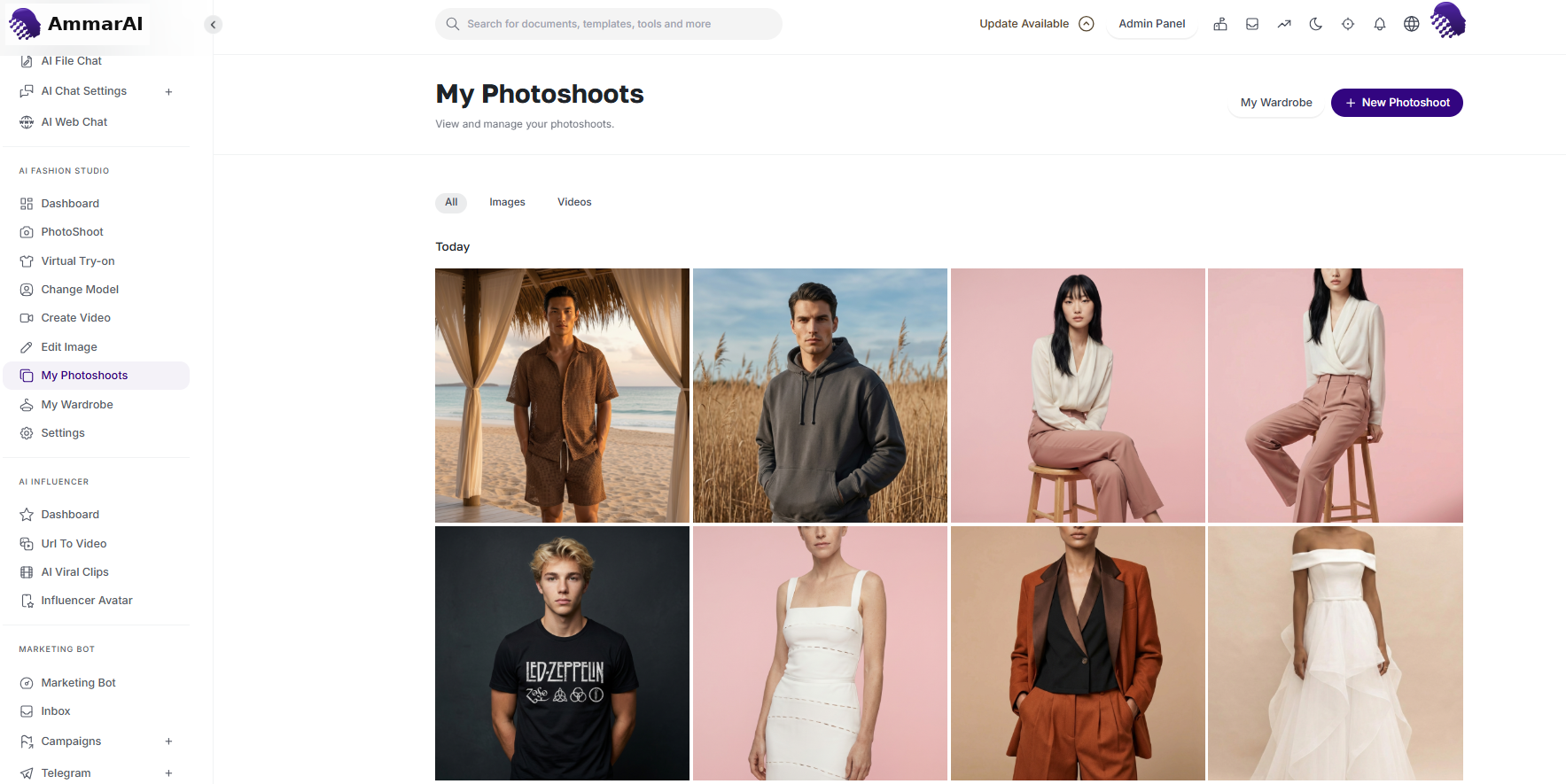
All generated images in one library. Preview a result
Select any asset to preview it at full size before downloading.
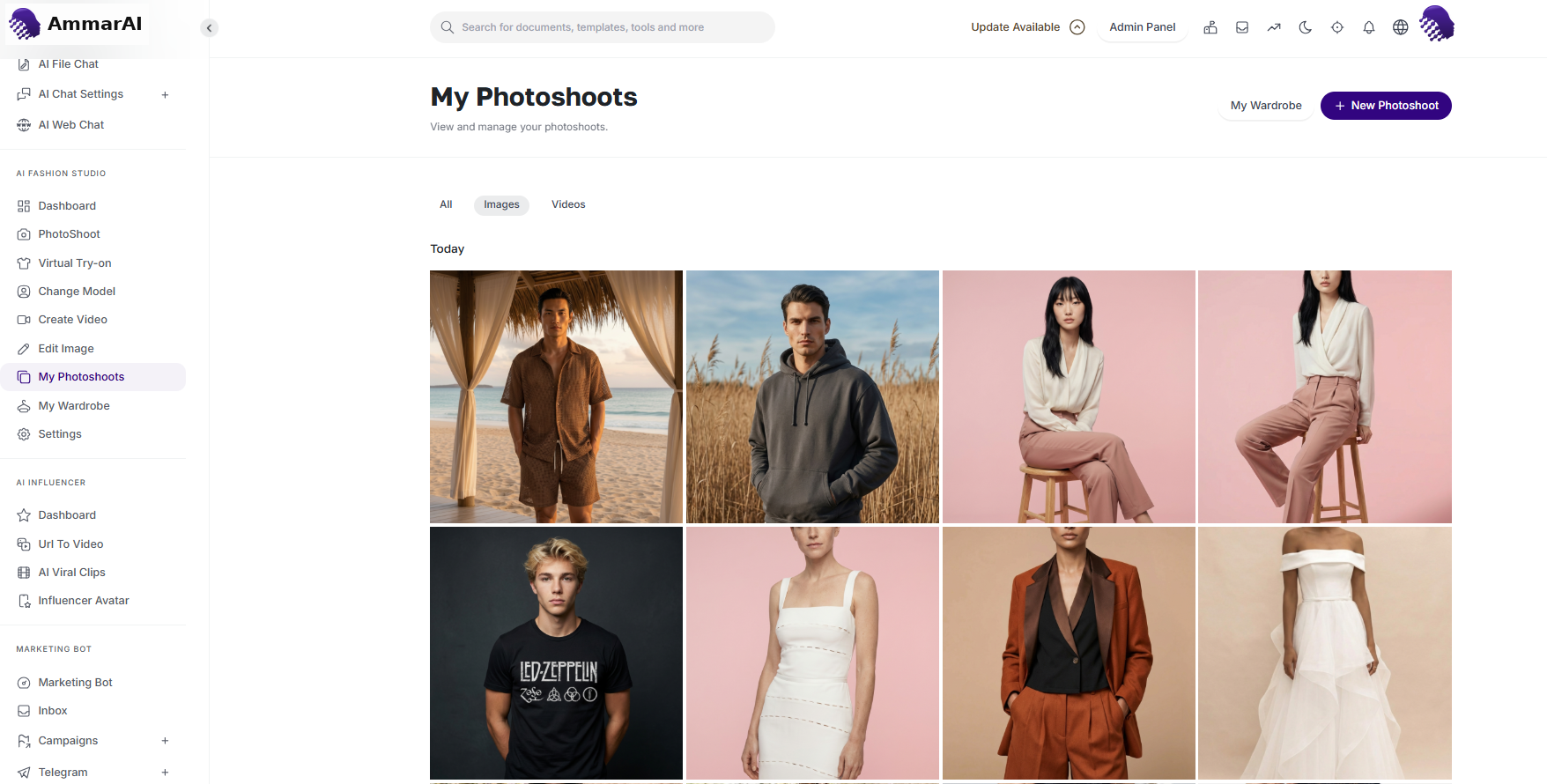
Preview any result in place. Open the video archive
Switch to the video results to preview and download generated clips.
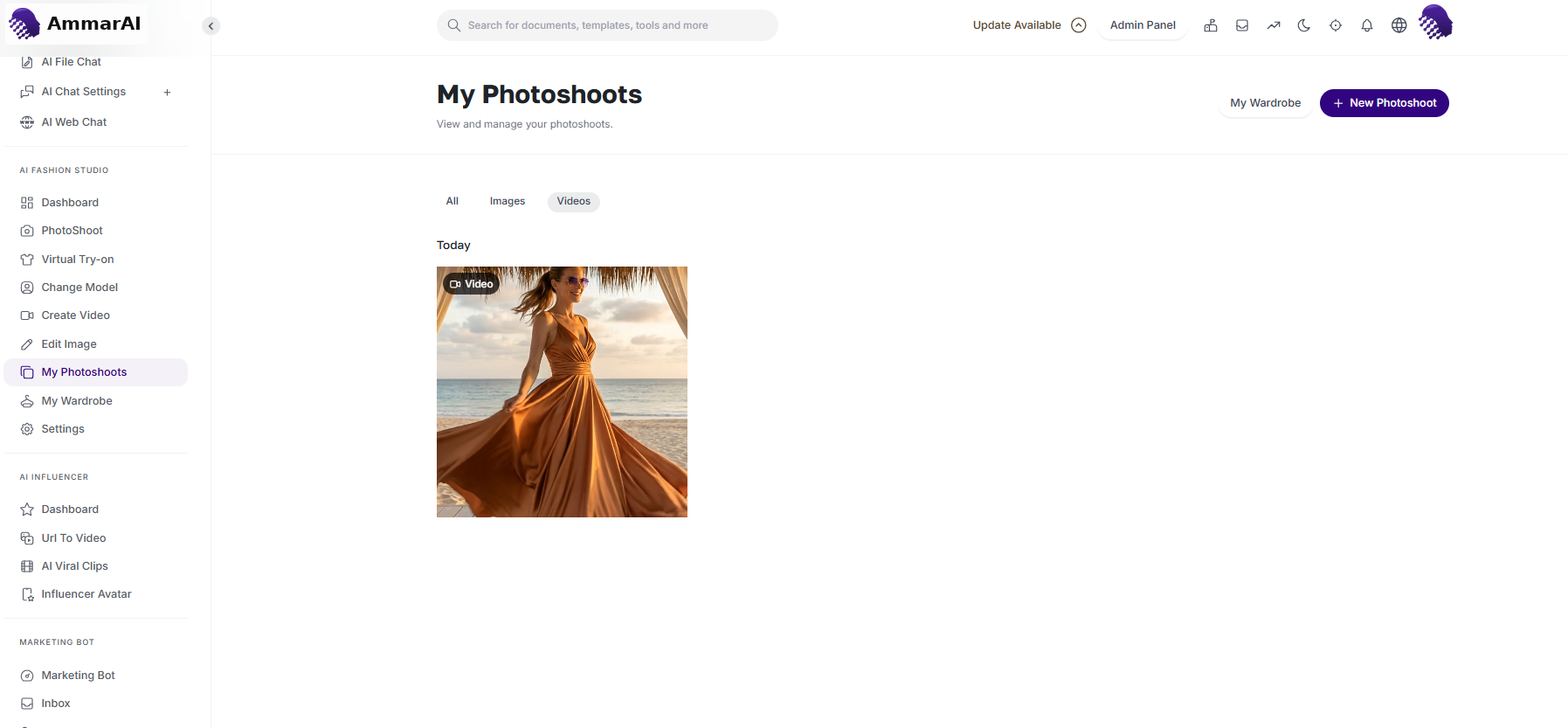
Generated videos are archived alongside images.
- Unified library: all your AI photoshoots, virtual try-on results and edited images are stored in one place.
- Video archive: access AI-generated catwalks, 360-degree views and cinematic clips, previewable directly in the dashboard.
- High-resolution downloads: every asset is available for high-quality export for social media, e-commerce sites or marketing presentations.
My Wardrobe
The Wardrobe is your centralised asset library, bridging your real-world inventory and your digital creations so you can organise, preview and reuse products across Fashion Studio. It is organised into three categories.
Open the predefined products
Browse the curated library of ready-to-use fashion items.
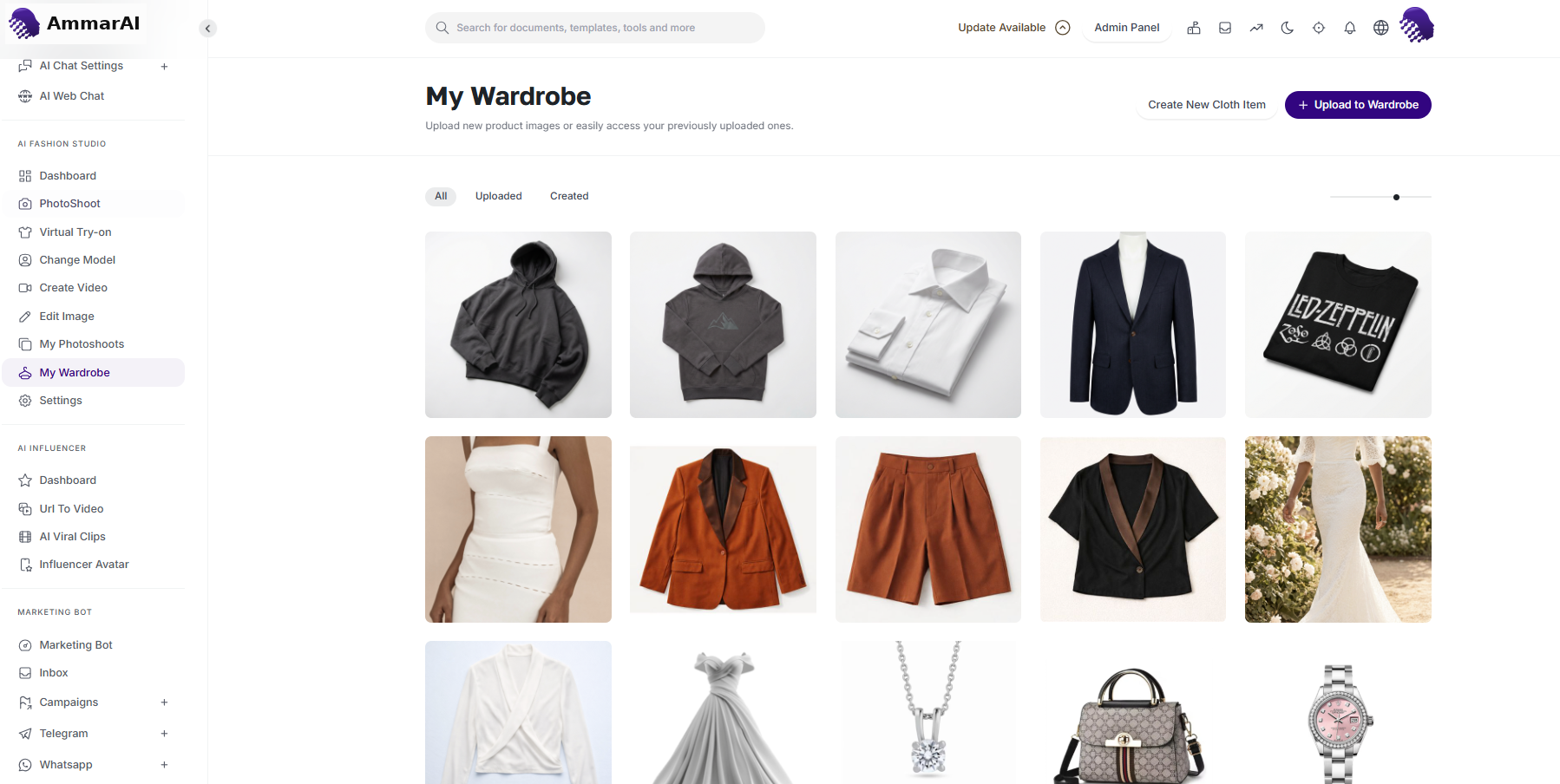
Ready-to-use items for quick prototyping. Review your uploaded images
Find the product photos and reference images you have uploaded, ready to be worn by a model.
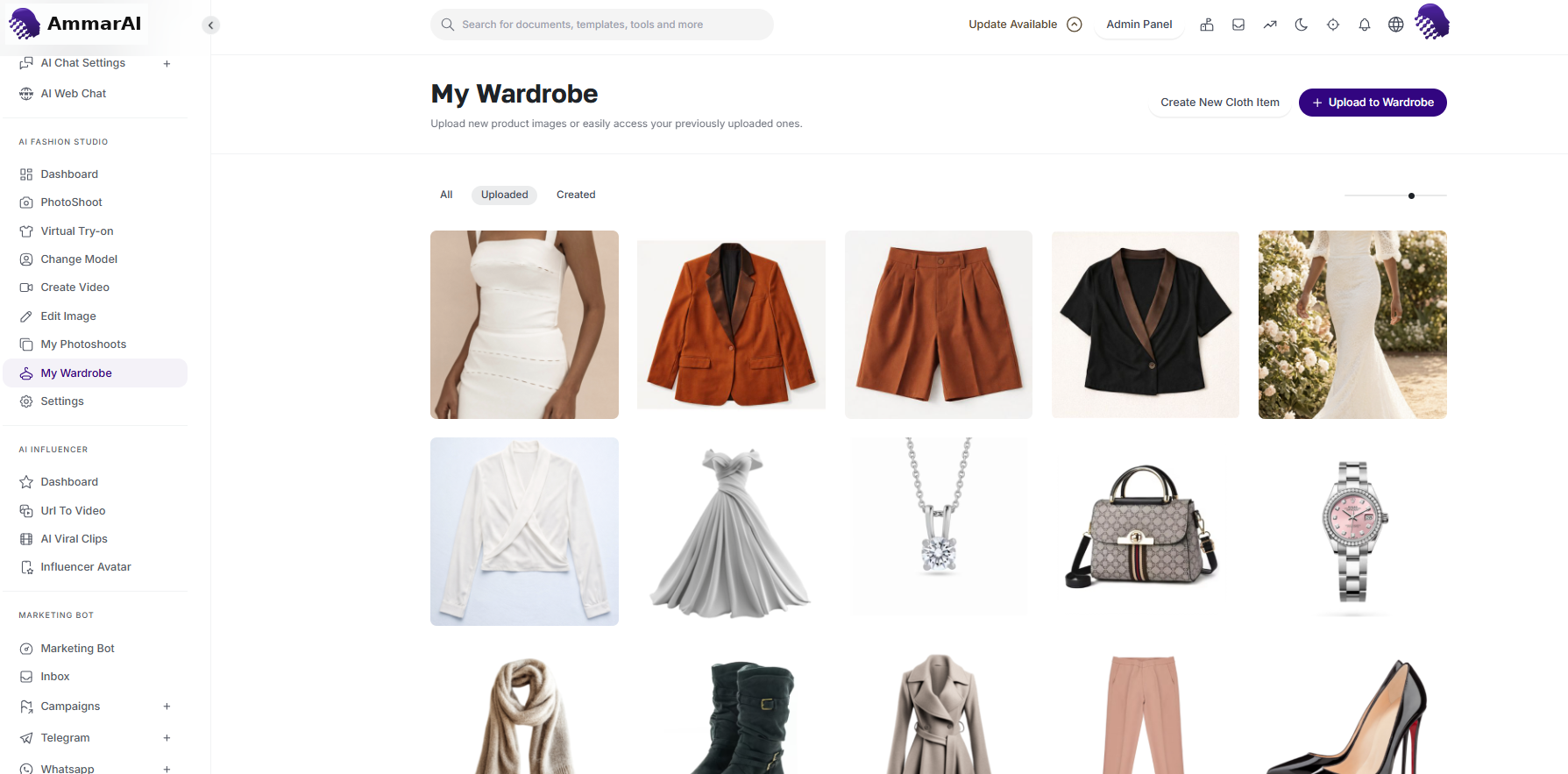
Your own uploaded product inventory. Reuse your created images
Open the created images section to access and re-download your best generated results.
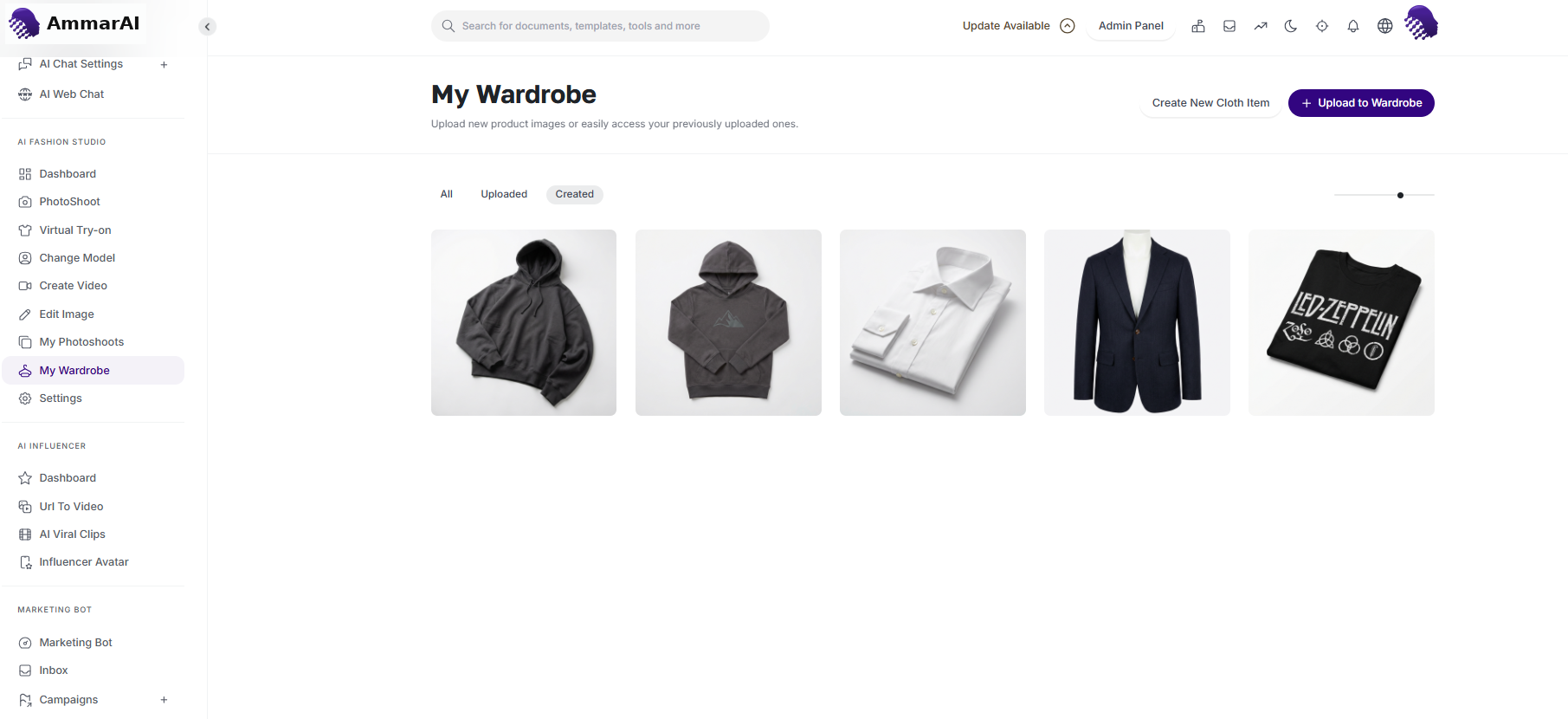
Reuse your strongest generated results.
- Predefined products: a curated library of high-quality, ready-to-use fashion items, ideal for quick prototyping or testing new looks and backgrounds.
- Uploaded images: your personal inventory of product photos, flat lays and reference images, processed and stored so they can instantly be worn by a model.
- Created images: your final AI-generated outputs — successful try-ons and editorial photoshoots — stored for easy access and re-download.
AI video generation
Video generation brings fashion photography to life. Combine a static image with a descriptive prompt to turn a still portrait into a cinematic video, such as a model walking.
Upload a base image, enter a motion prompt and generate
Choose a high-quality photo from your device or select a previously generated image from My Photoshoots; this is the starting frame and visual anchor for your video. In the video prompt field, describe the movement or action you want — for example, “Model walking towards the camera on a windy city street, hair blowing naturally,” or “A 360-degree slow-motion pan around the model to showcase the dress texture.” Then click Generate Video, and the AI analyses the garment’s physics and the background to create a seamless, high-definition clip.
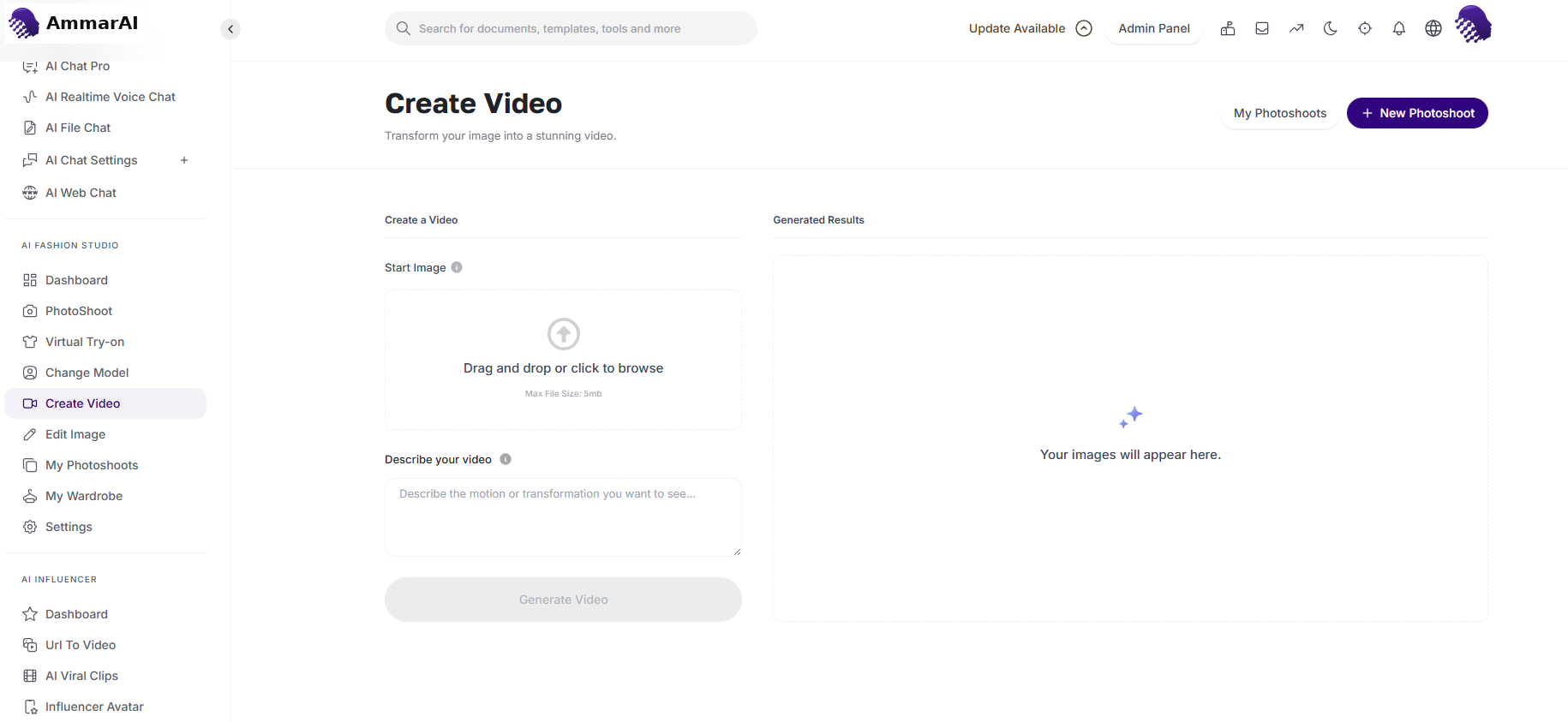
Animate a still image with a motion prompt.
Photoshoot settings
The photoshoot settings panel gives you control over the technical output. Before you generate, use these settings so the images meet the requirements of your channel.
Set the output options
Open the settings panel and set the number of images, resolution and aspect ratio before generating.
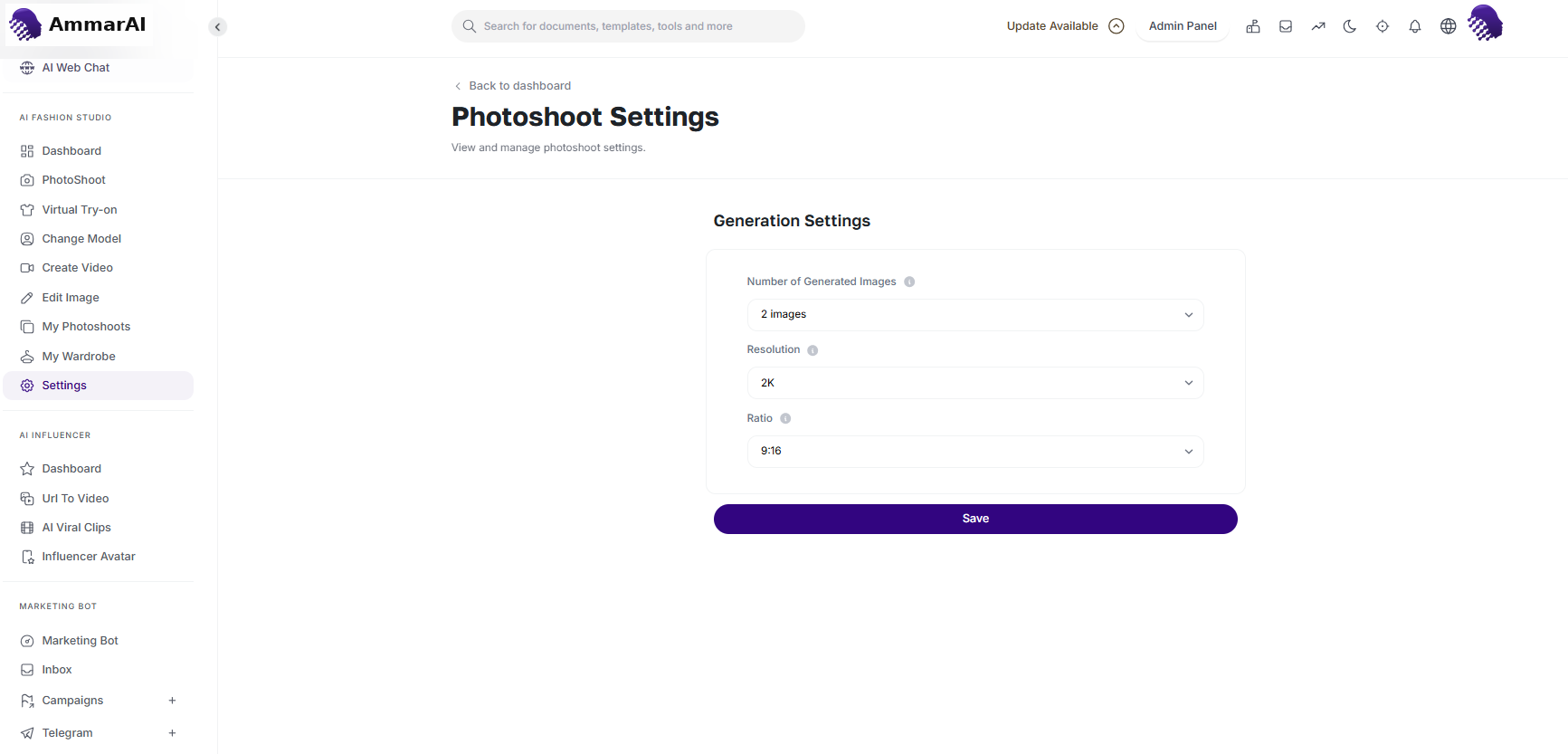
Match the output to your destination channel.
- Number of images: choose how many variations to generate in one batch (for example 1, 2 or 4). Multiple variations let you compare lighting and pose nuances to find the best result.
- Resolution: standard is best for quick previews and social media drafts; high definition is ideal for website assets and professional lookbooks.
- Aspect ratio: portrait (2:3 / 9:16) for Stories, TikTok and mobile shopping apps; square (1:1) for social feeds and e-commerce thumbnails; landscape (16:9 / 3:2) for website hero banners and cinematic presentations.
Ready to try it?
Try AI Photoshoot in AmmarAI