
Video Marketing
How to create UGC videos
The AI UGC Generator lets you create realistic user-generated-content videos for social media and marketing without actors, studios or cameras. You write a script, choose a voice, pick a pre-built AI actor and select a scene, and AmmarAI renders the finished video.
When to use this
- You want authentic-looking social ads without a shoot.
- You have a script, a recording or an audio file ready.
- You need several scene variations of the same message.
Getting started
Open the AI UGC Generator from the side menu. The page shows the video creation interface with options for script input, voice selection, actor selection and scene selection. Click View All Videos to browse previously generated videos.
Open the UGC workspace
Navigate to the AI UGC Generator from the side menu to reach the creation interface.
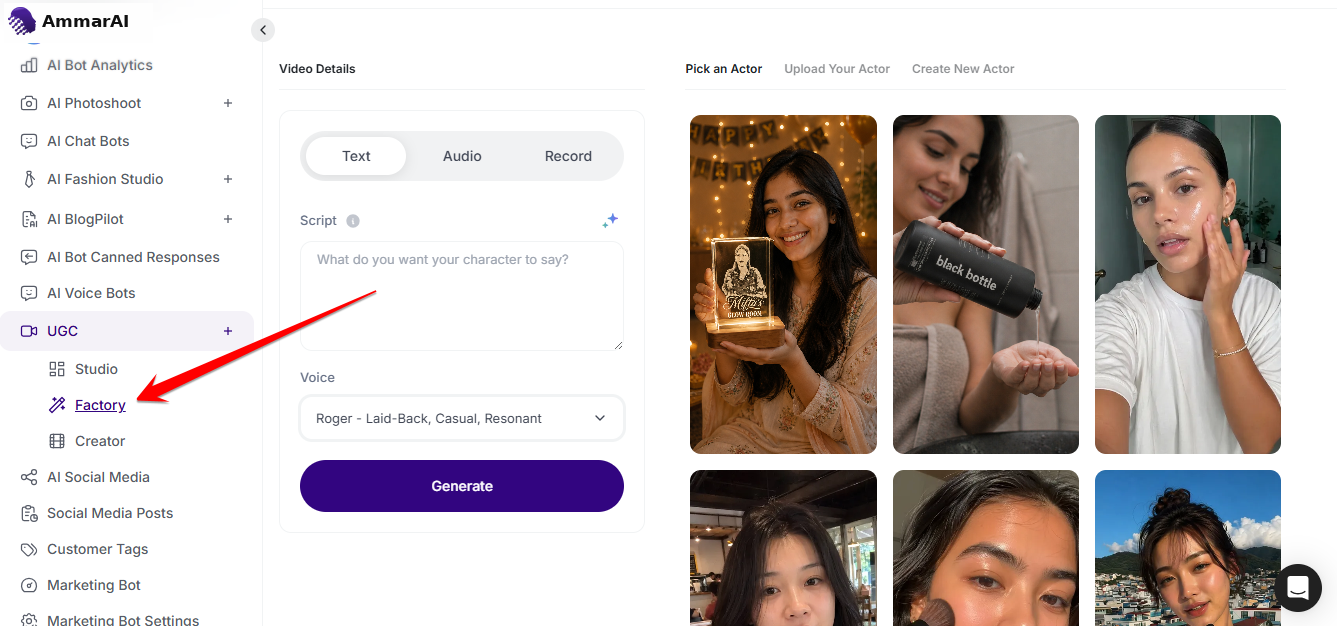
The UGC creation interface.
How to create a UGC video
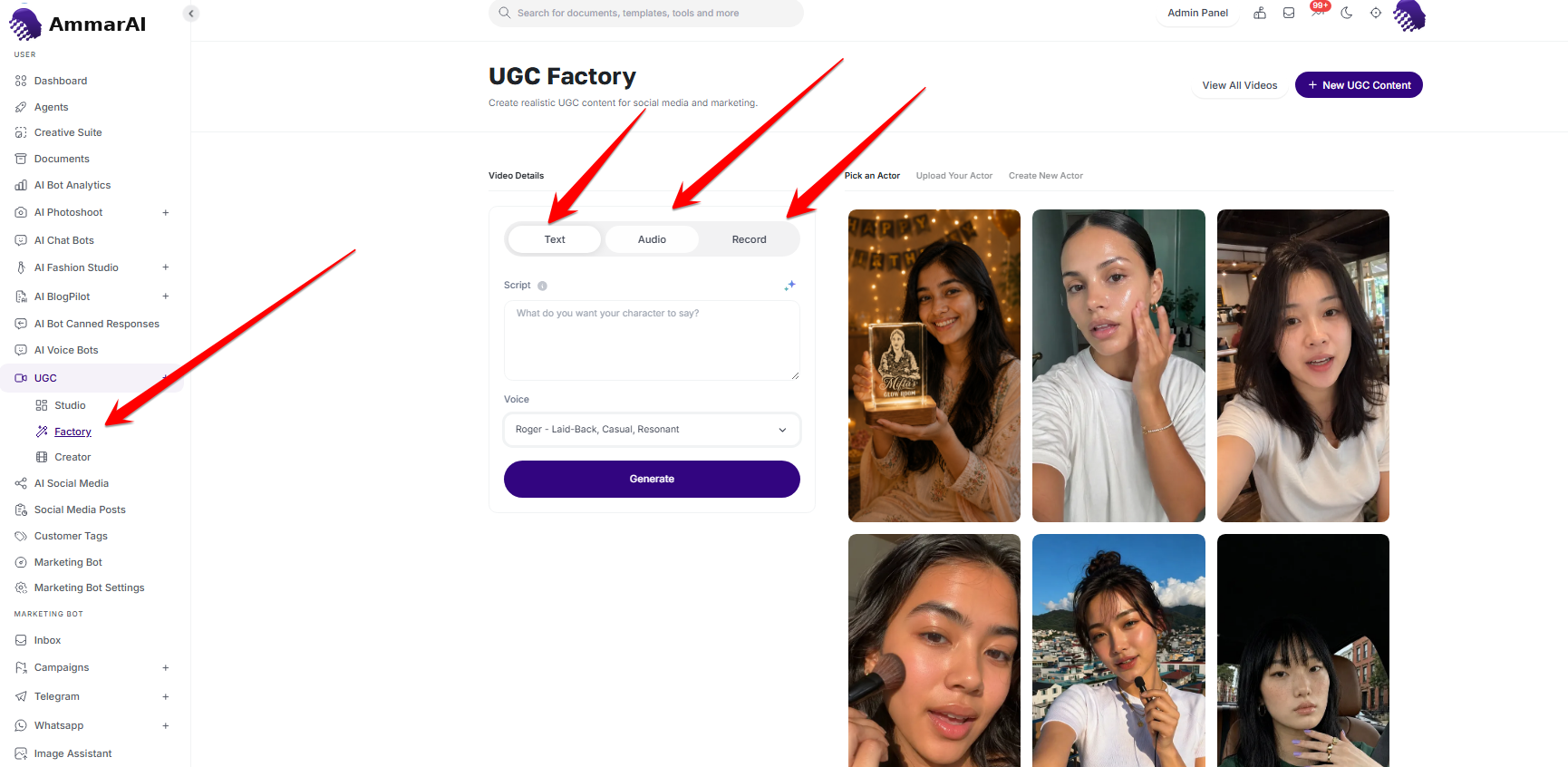
The input panel has three tabs, and only one is used at a time — the active tab determines how the audio for the video is provided.
Text — type or paste your script into the text field; the script is converted to speech using the selected voice. Use this when you want to write the content and have the AI deliver it.
Audio — upload a pre-recorded audio file, which is used directly as the voiceover, bypassing voice selection. Use this when you already have a finished recording.
Record — record your voiceover in the browser with your microphone; the recording is used as-is. Use this when you want to deliver the script yourself in real time.
Provide the audio and choose a voice
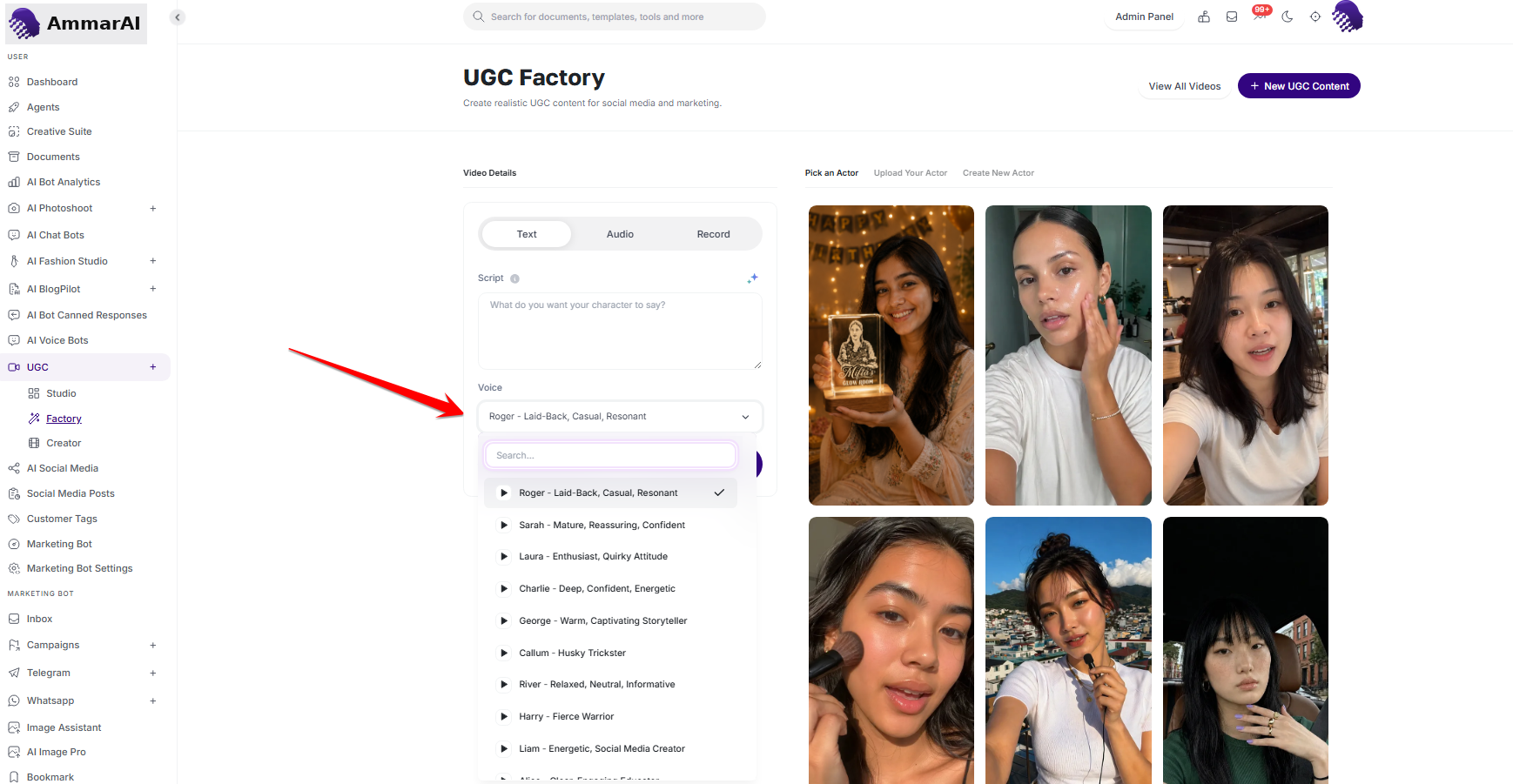
On the Text tab, choose a voice from the Voice dropdown; the selected voice converts your written script to speech in the generated video. Voices are listed with their name and style description, for example “Roger — Laid-back”. Voice selection is not used when the Audio or Record tab is active, because you provide the audio directly.
Write the script and pick the delivery voice. Select an actor
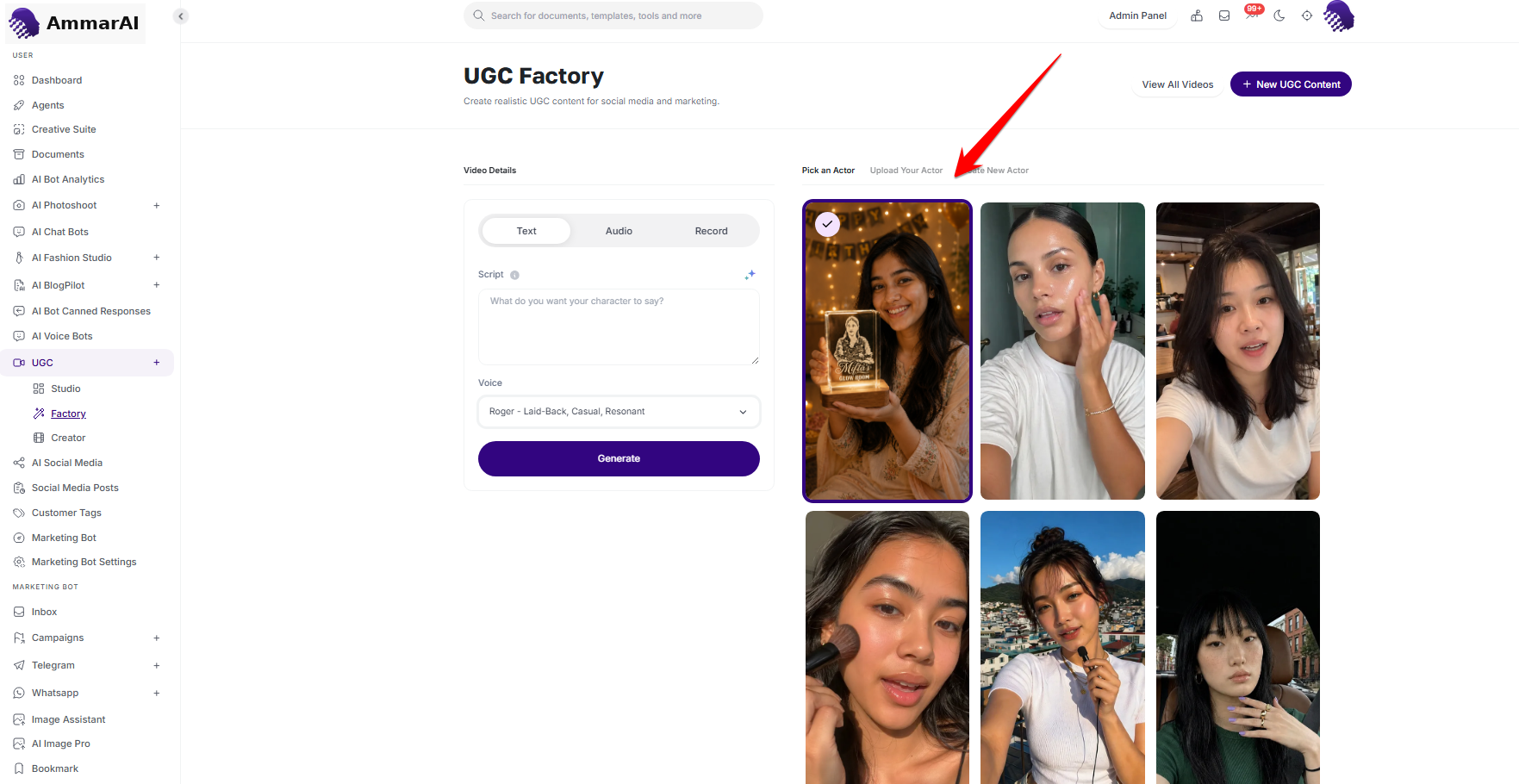
Choose one of three options in the actor panel: Pick an Actor to use the built-in AI actor library, Upload Your Actor to add a custom actor image or video, or Create New Actor to build a new custom actor from scratch. The built-in library includes pre-built actors.
Pick, upload or create the actor. Select a scene and generate
Choose the scene or context the actor appears in — options include a skin-care routine, at the café, while doing makeup, travelling, chatting in the car, in the kitchen, on the way to work, recording a podcast, walking on the street, top view, taking a break at the office, and in a cosy home. Then click Generate to produce the video; the system combines the audio from the active tab, the chosen actor and the selected scene into the final UGC video.
Choose the scene, then generate the video.
Ready to try it?
Try AI UGC Generator in AmmarAI