
Image
How to use AI Image Pro
AI Image Pro turns a written idea into finished visual options. Its generator lets you control the number of results, visual style, aspect ratio and available image model before you create.
When to use this
- You need original campaign, article or social imagery from a written brief.
- You want several visual interpretations to compare before choosing a direction.
- You need an image framed for a specific publishing format.
Create an image
Open the generator and describe the image
Open AI Image Pro and enter a clear description of the visual you want. Include the subject, setting, composition and lighting that matter to the result.
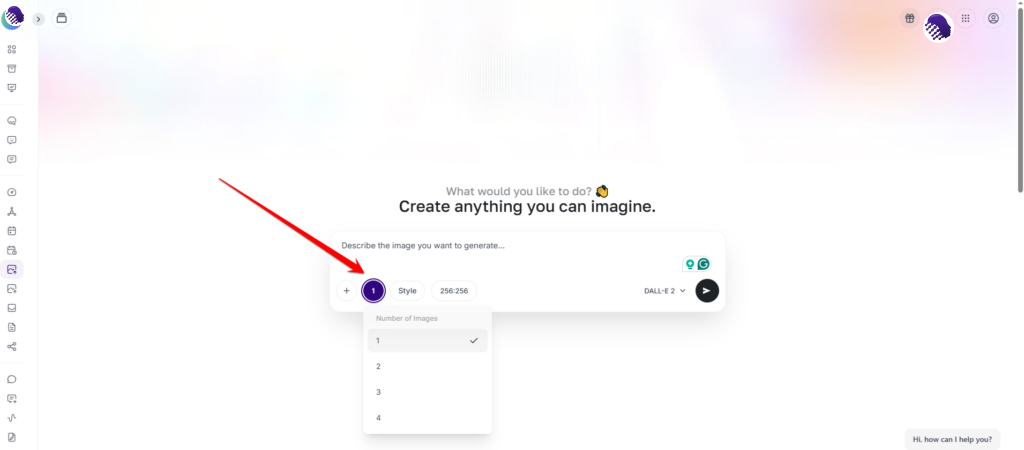
Start with a specific description of the image you want to create. Choose the number of variations
Choose how many versions to create. Generate one result for a focused request or several variations when you want to compare interpretations of the same prompt.
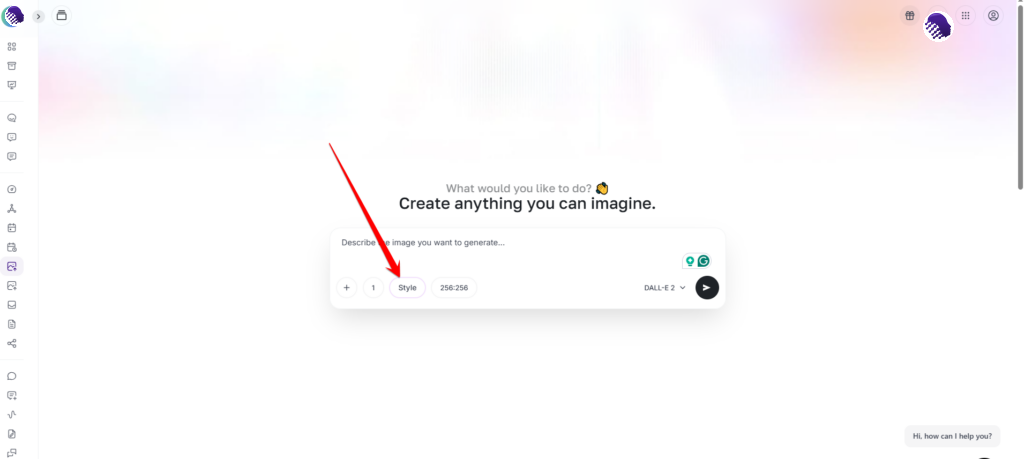
Select the number of variations before generating. Select a visual style
Open the style picker and select the preset that best matches the intended look. The visual presets make it easier to compare directions without adding a long style description.
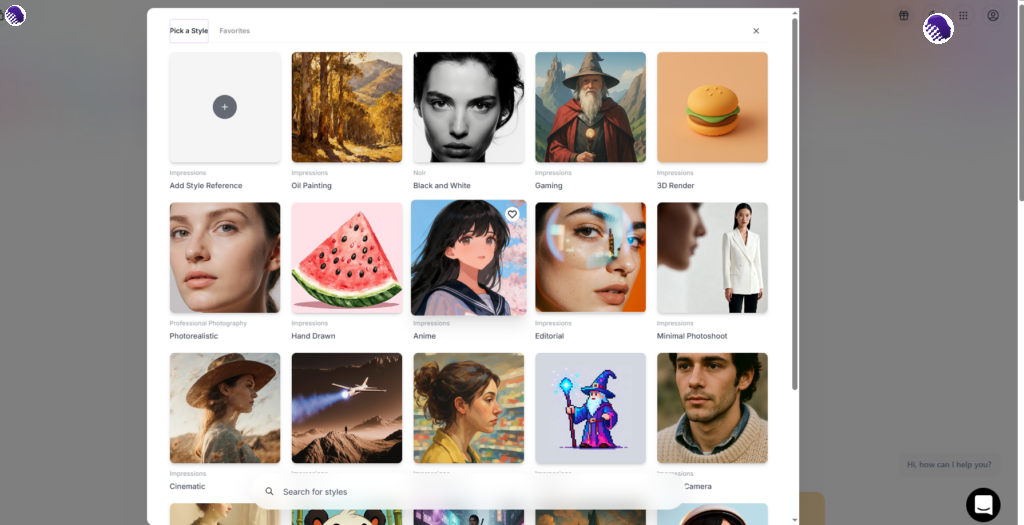
Choose a preset that matches the visual direction you need. Choose the aspect ratio
Select the shape that matches the destination, such as square, portrait or landscape. Setting the ratio before generation helps preserve the intended composition.
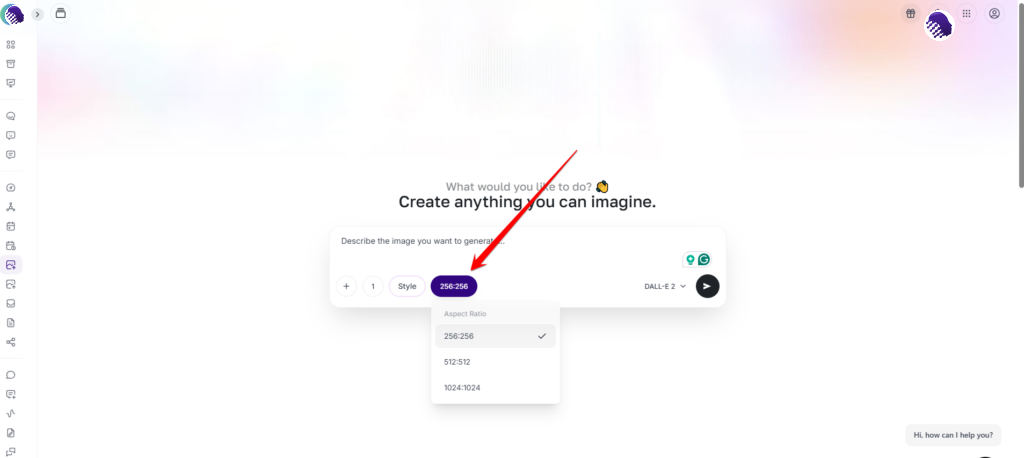
Match the image shape to where it will be published. Choose an available model
Open the model selector and choose an available image model. Model availability can vary, so use the options shown in your AmmarAI workspace.
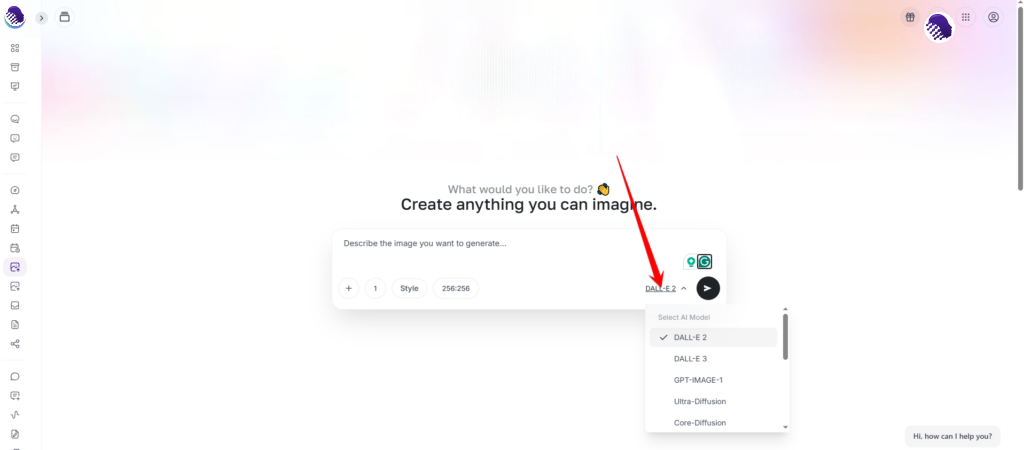
Select the available model for this generation. Generate and review the results
Start the generation, then review the returned images. Compare subject accuracy, composition, edges and small details before choosing a result.
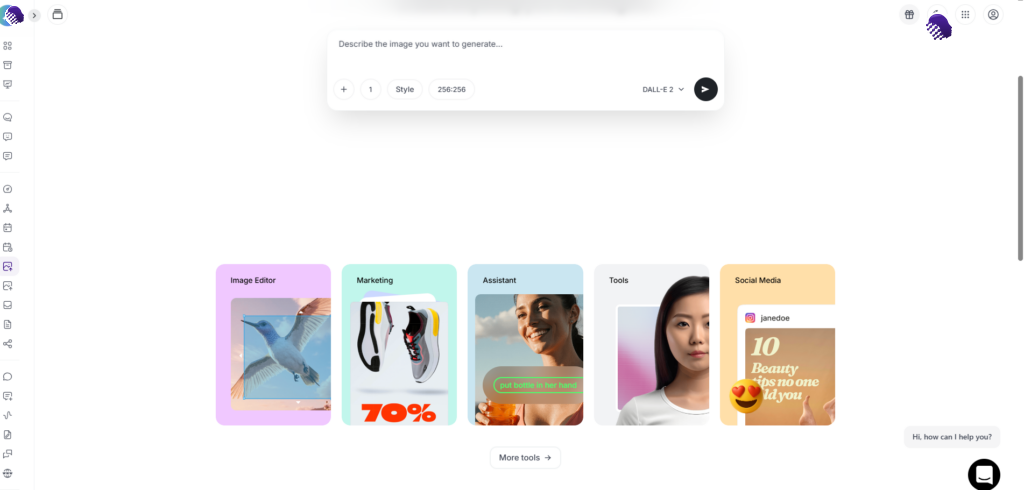
Review the generated options and select the strongest result.
Use the image library
Browse generated and available images
Open the image picker and use its sections to find the visual you need. Select an image after checking that it fits the subject, format and publishing context.
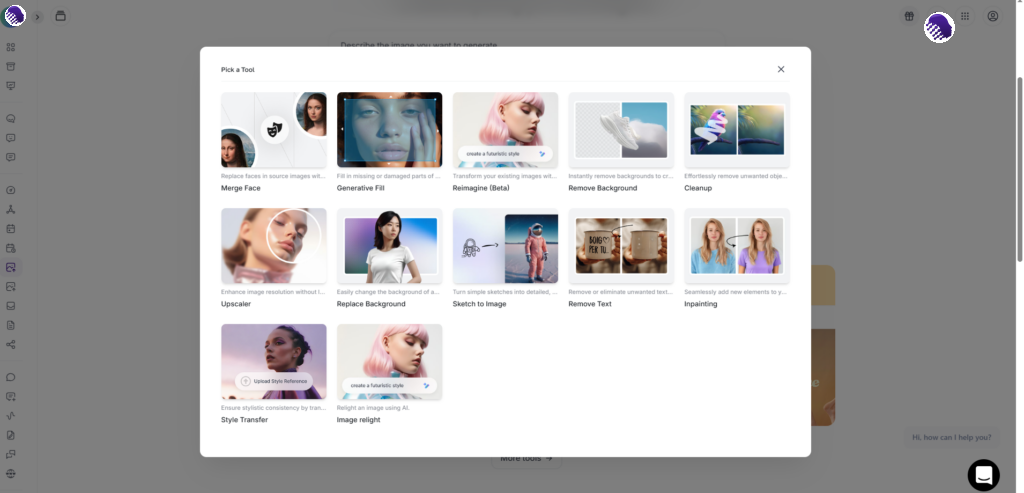
Browse the image library and select a suitable visual.
Controls at a glance
| Control | What it changes |
|---|---|
| Number of images | How many visual variations are returned. |
| Style preset | The broad visual treatment applied to the prompt. |
| Aspect ratio | The shape and framing of the generated image. |
| Model | The available image engine used for generation. |
Limits and good practice
- Review faces, hands, lettering, logos and small details before publishing.
- Use a clear composition and intended format instead of disconnected keywords.
- Do not request protected characters, brand assets or a real person’s likeness without permission.
- Available styles, models and output limits can vary by account.
Ready to try it?
Try AI Image Pro in AmmarAI