
Productivity
How to use the Content Manager media library
The Content Manager is the shared media library that opens wherever AmmarAI offers an upload. Instead of hunting for a file on your computer every time, you upload once and reuse the same image, video or document across chats, editors and video tools.
Everything you generate in AmmarAI is saved here too, so a picture created in one tool can be inserted straight into another. The library also searches free stock photos and stock video, so you can pull in a visual without leaving the screen you are working on.
When to use this
- You reuse the same brand images, product shots or documents across several tools.
- You want to insert something you generated earlier without downloading and re-uploading it.
- You need a quick stock photo or stock clip while you are mid-task.
Use the library
Open the library from any upload button
Select the upload or attach control in the tool you are using. The Content Manager opens as a window over your work, so you never lose the page you were on. The first tab, Upload Files, takes a new file by drag and drop or by browsing your computer; the window lists the accepted file types and the size limit.
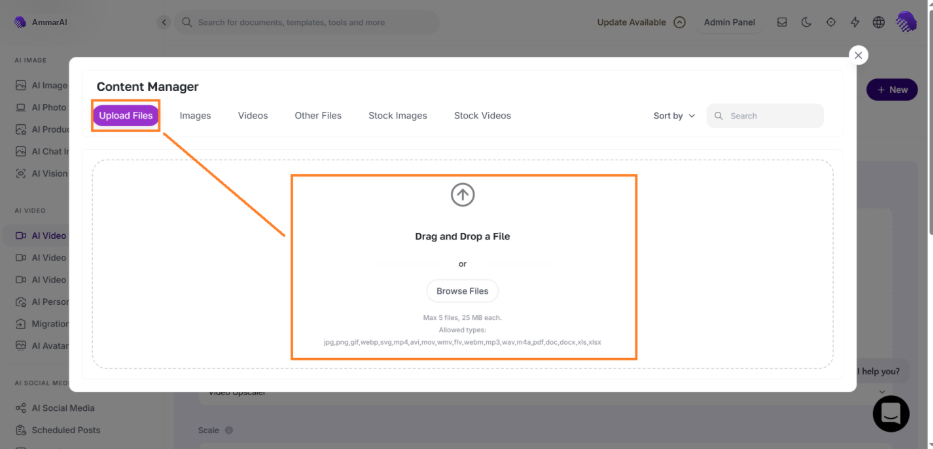
Upload Files accepts drag and drop or a normal file browse. Insert an image you already have
Open the Images tab to see everything you have uploaded or generated. Select a thumbnail to tick it, then choose Insert Selected Image to drop it into the tool you came from.
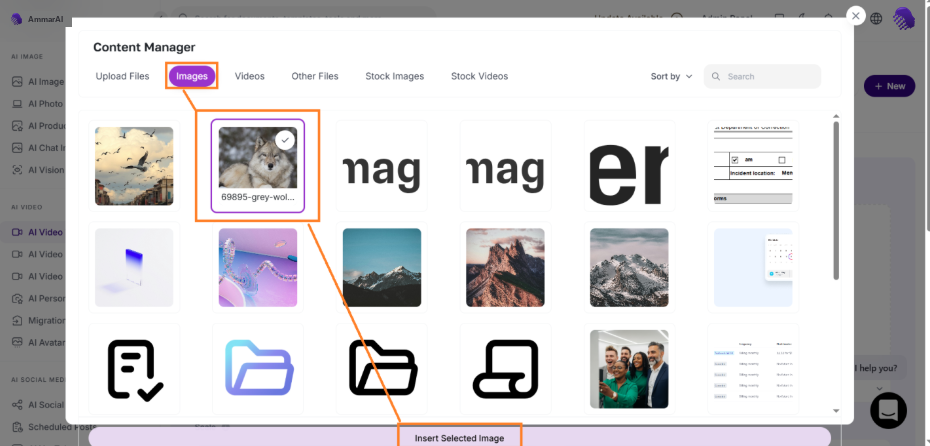
Pick an image and insert it without leaving the tool. Insert a video
The Videos tab works the same way for video files. Select the clip you want and choose Insert Selected Video.
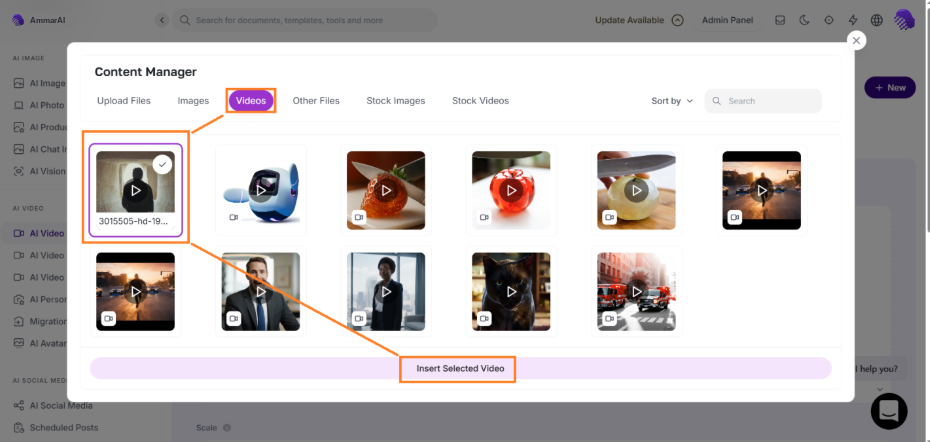
Stored and generated videos live in the Videos tab. Insert a document
Other Files holds documents such as PDFs, with the file size and upload date shown next to each one. Select the document and choose Insert Selected Files to attach it — this is the quickest route when you are asking questions about a document in chat.
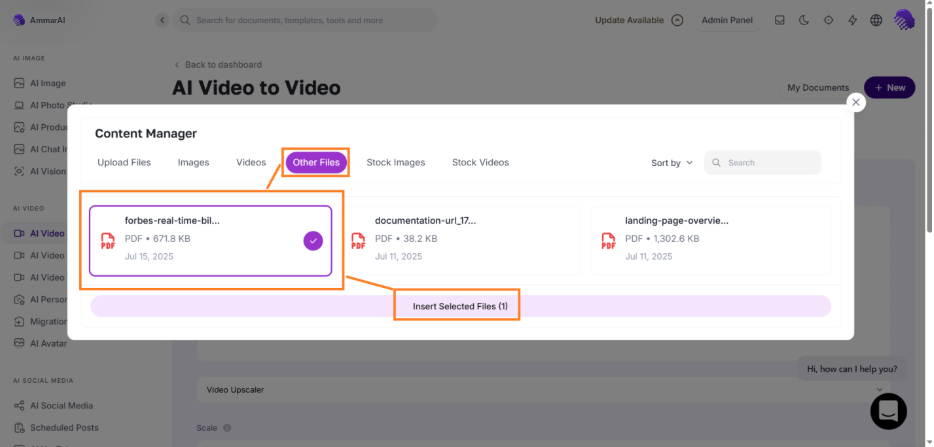
Documents are listed with their size and upload date. Search free stock images
Type a subject into the search box on the Stock Images tab to browse free stock photography. Select the photo you want and choose Download & Insert Selected Image; it is added to your library at the same time, so it is there next time.
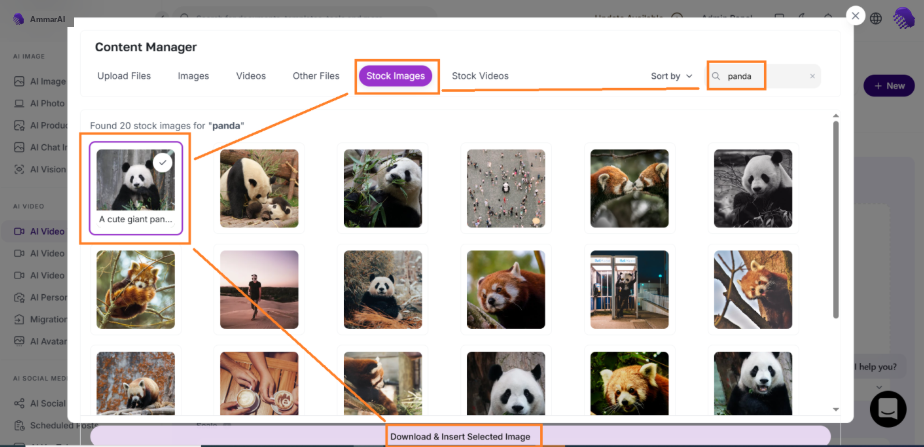
Stock photo results appear as soon as you search a subject. Search free stock video
Stock Videos works in the same way for footage, with the length shown on each clip. Choose Download & Insert Selected Video to bring it into your project and your library.
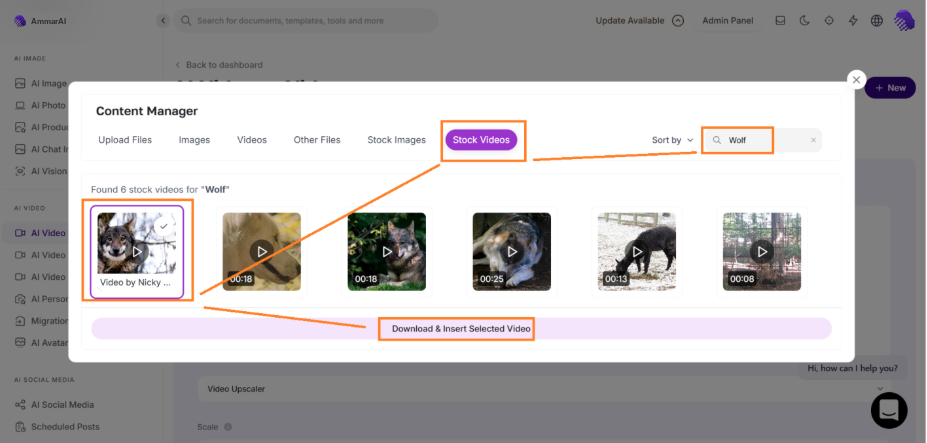
Stock clips show their duration before you insert them.
What each tab holds
| Tab | What you will find |
|---|---|
| Upload Files | Drag and drop or browse to add new files from your device |
| Images | Images you uploaded and images generated in AmmarAI |
| Videos | Video files you uploaded and videos generated in AmmarAI |
| Other Files | Documents such as PDFs and office files |
| Stock Images | Searchable free stock photography |
| Stock Videos | Searchable free stock footage |
Work faster with it
- Use the search box and the sort control instead of scrolling; the library grows quickly once you start generating.
- Generate once and reuse: an image made in an image tool can be inserted into a video or a chat without downloading it.
- Keep file names meaningful when you upload, because the name is what you will search on later.
- Check the stated file-type and size limits before you upload a large video.
Before you publish
- Confirm you have the rights to any file you upload, and follow the licence terms attached to stock media.
- Remove files you no longer need so client or product material is not left sitting in a shared library.
- Check that the file you inserted is the current version, especially when several similar images are stored.
Ready to try it?
Try AI Chat in AmmarAI