
Image
How to edit part of an image with annotations
Broad prompts change more of an image than you intended. Annotations let you draw on the exact area you want changed and attach the instruction to that region, so the rest of the picture is left alone.
This works on any image placed on the Creative Suite canvas.
When to use this
- One detail is wrong and a full re-generation would lose the rest.
- You need to describe a change by pointing at it rather than in words alone.
- Several people are reviewing a design and want to mark up specific spots.
Enter annotation mode
Select the image on the canvas
Click the image element you want to change. A small toolbar appears above it with tabs for the image, replacing the image, and annotating.
Choose Annotate
Select Annotate in that toolbar. The canvas switches to annotation view and a drawing toolbar appears along the bottom of the screen.
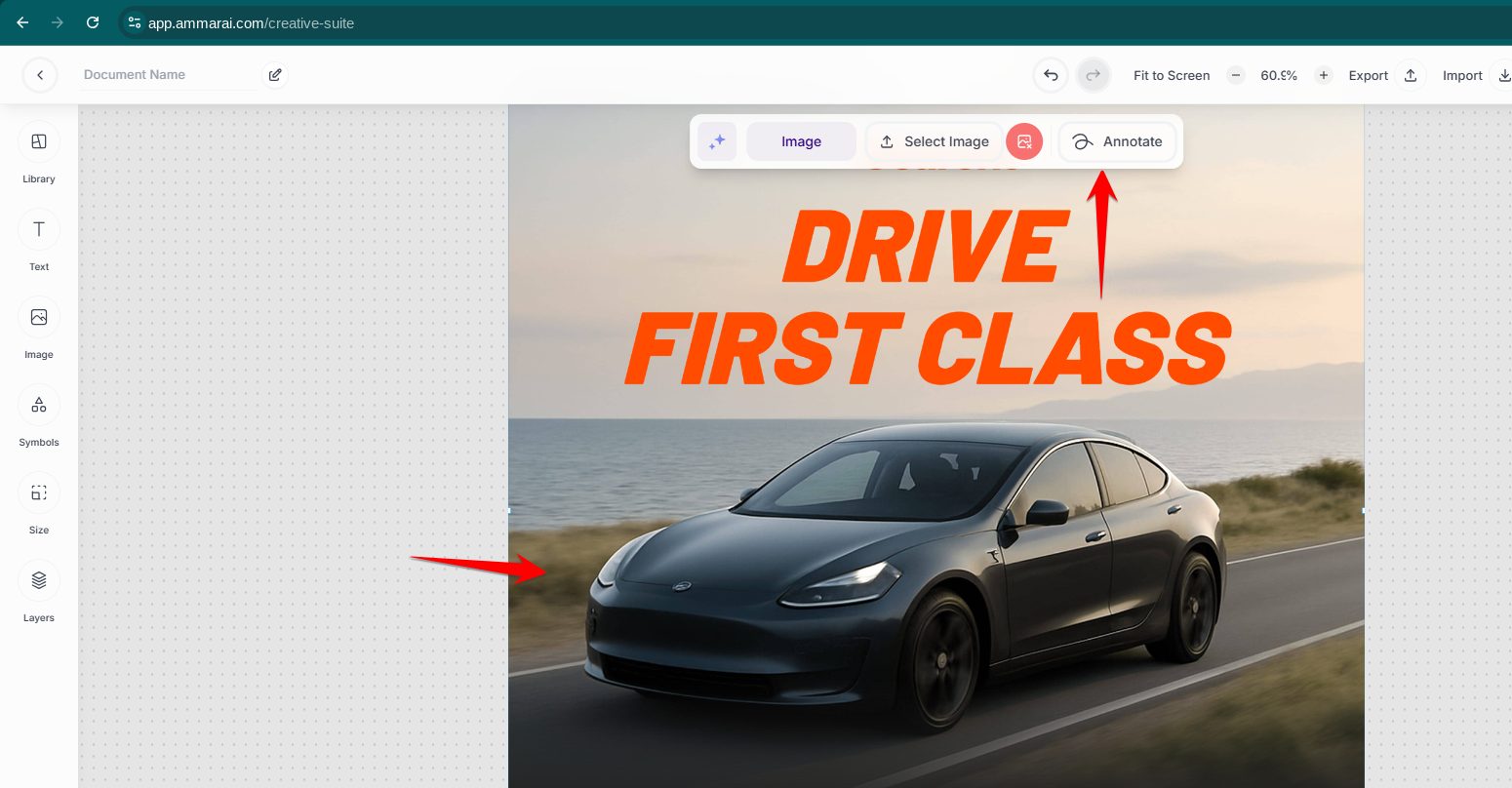
Annotate sits in the toolbar above the selected image.
Mark the area and describe the change
Pick a drawing tool
The bottom toolbar offers a colour picker plus rectangle, oval, freehand brush and lasso shapes, along with comment and speech-bubble markers for notes tied to a point.

Draw with shapes, a brush or a lasso, and add comments to a point. Draw over the region
Draw around the part of the image you want changed. You can place several marks, but only one can be selected for submission at a time; the active one is highlighted.
Write the instruction and submit
With the mark selected, type what should change in that region and choose Done. Only the marked area is re-generated, and the rest of the image is left exactly as it was.
Good practice
- Draw a little wider than the object so edges blend naturally.
- Describe the result you want in the region, not the tool you would use.
- Each submission is a separate AI edit, so it uses credits the same way a generation does.
- Work one region at a time and review between edits rather than stacking marks.
Ready to try it?
Try AI Creative Suite in AmmarAI