
Chat & Documents
How to use Realtime Voice Chat
Realtime Voice Chat turns a normal AmmarAI chat into a spoken conversation. You talk out loud and the assistant answers in voice, without typing or waiting for a full written reply.
When to use this
- You want to think out loud and work through an idea conversationally.
- Your hands are busy and typing is impractical.
- You are rehearsing a pitch, interview or language practice session.
Start a voice conversation
Open a chat
Go to AI Chat and open an existing conversation or start a new one. Realtime voice runs inside a normal chat, so anything already in the conversation stays available as context.
Switch on real-time voice
In the message bar, select the real-time voice control. The chat switches from typed messages to a live spoken session.
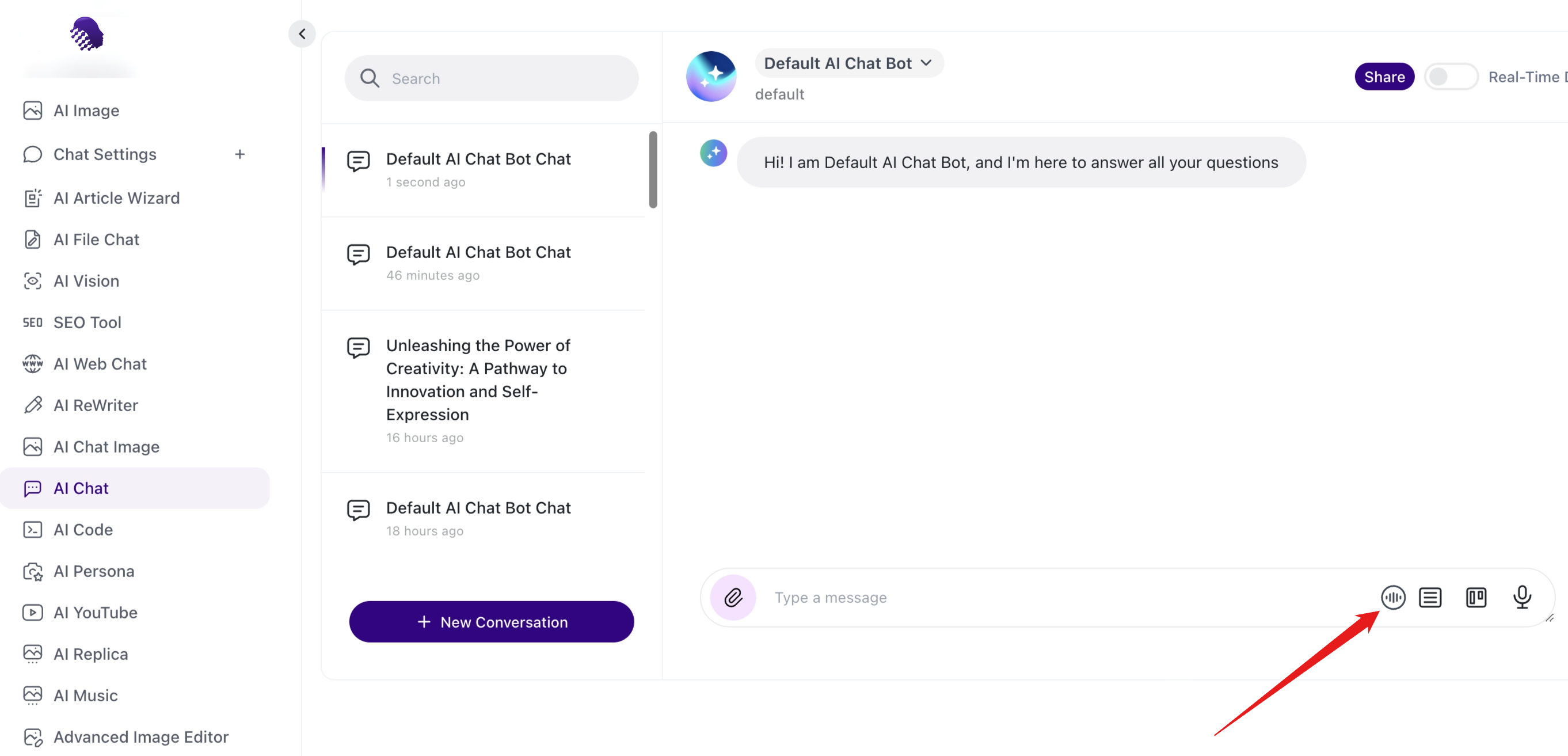
The real-time voice control sits in the message bar of any chat. Allow microphone access
Your browser asks for permission to use the microphone the first time you start a voice session. Accept it, and check that the correct input device is selected if you use a headset.
Hold the conversation
Speak naturally
Talk in ordinary sentences rather than short commands. The assistant listens continuously and answers out loud, so you can interrupt, follow up and change direction as you would with a person.
End the session
Close the voice session when you are finished. The conversation stays in your chat history, so you can return to it or continue in text.
Ready to try it?
Try Realtime Voice Chat in AmmarAI