
Chat & Documents
How to use AI Chat Pro
AI Chat Pro is AmmarAI’s conversational workspace for research, planning, analysis and drafting. You can choose the model that fits the task, add a reusable skill, attach source material and bring current web information into one thread.
When to use this
- You expect to refine an answer through several follow-up messages.
- Your answer needs to use a document, image or other uploaded source.
- You want a saved skill or current web results to guide the response.
Start a focused conversation
Open AI Chat Pro
Open AI Chat Pro from the AmmarAI workspace and begin a new thread. Use a separate thread when the subject or project changes so unrelated context does not affect the answer.
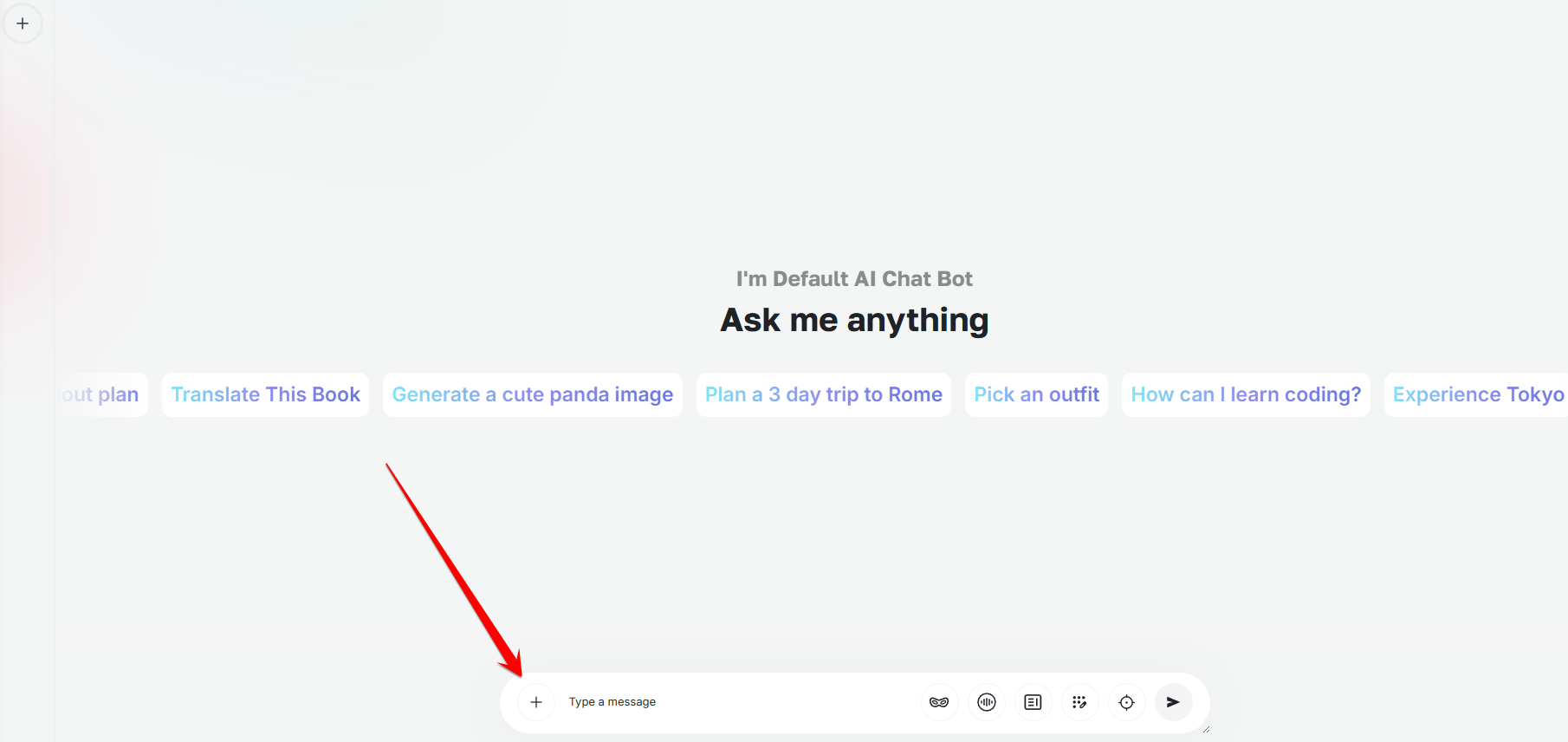
Open a fresh AI Chat Pro thread for each new subject or project. Choose the model
Open the model selector and choose an available model for the job. Keep the default for general work, or switch when you need a different balance of speed, reasoning or writing style.
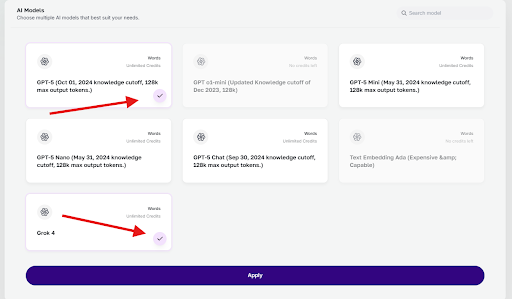
Choose the model that best fits the request, then apply the selection. Add the tools the message needs
Open the add menu in the message area. Select a saved skill, upload source material, turn on web search, add brand context or choose another available chat tool. Active tools remain visible with the message and can be removed before sending.
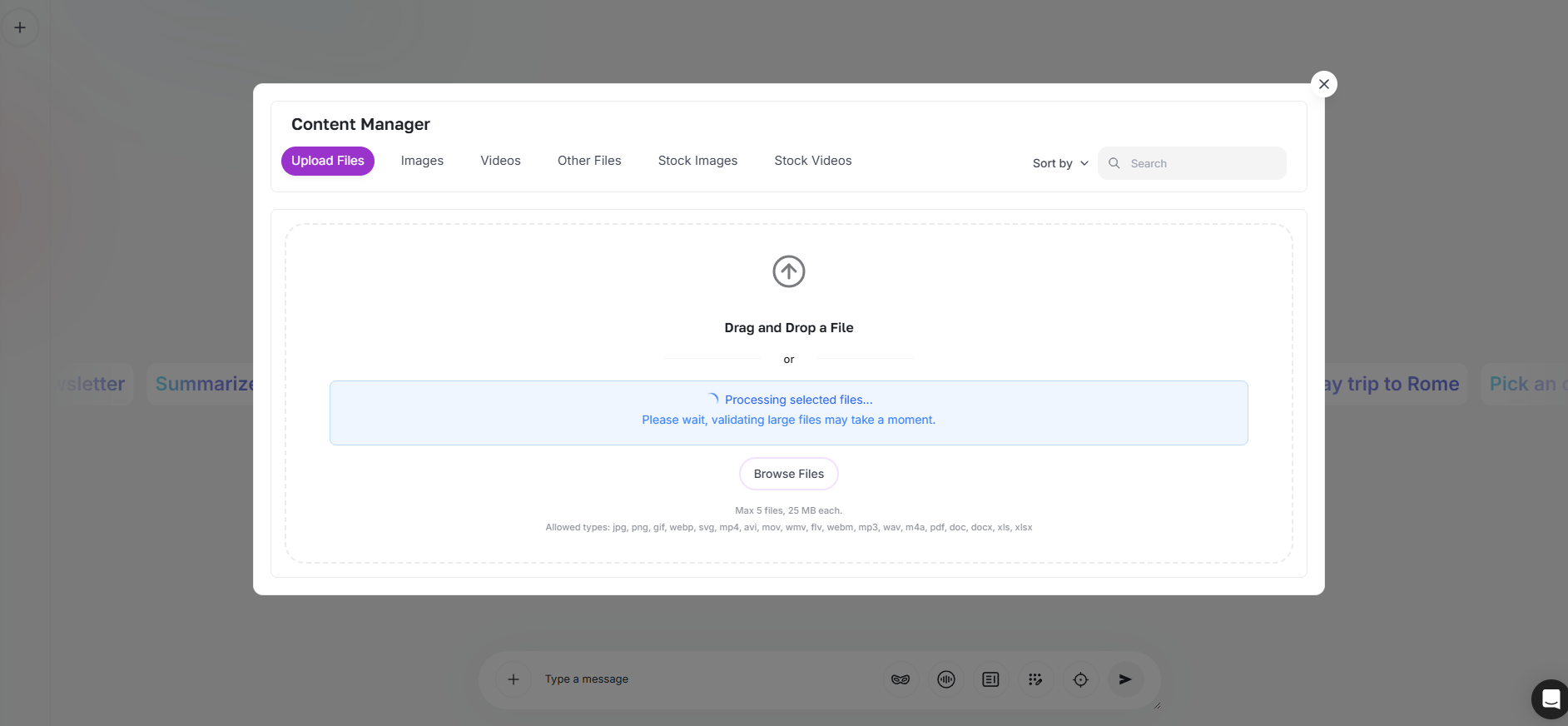
The add control opens files and other content that can be used in the conversation. Write and send the request
State the goal, the important constraints and the format you want back. If you attached a source, tell the assistant to base its answer on that material rather than general knowledge.
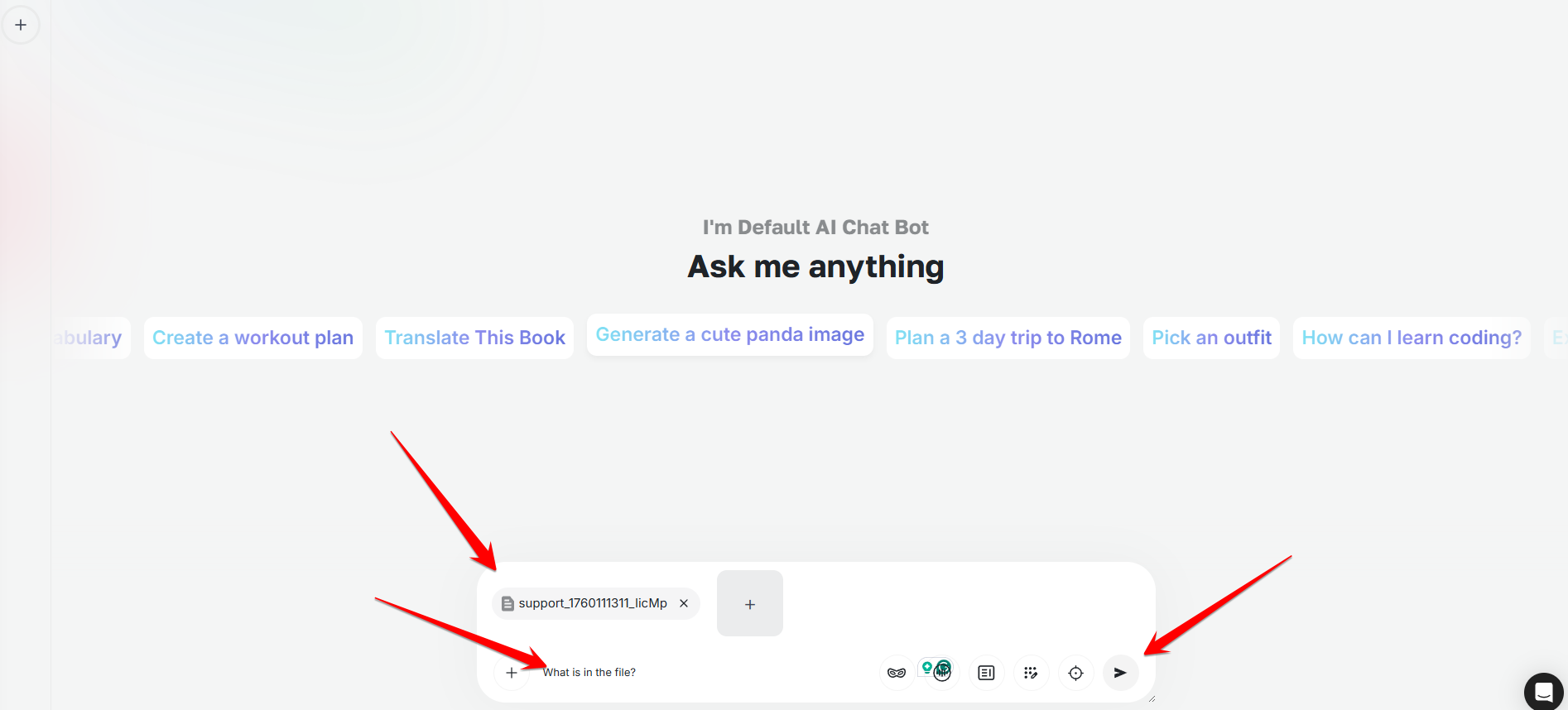
Attach the source, write a specific request and send it from the same message field. Refine in the same thread
Ask follow-up questions, correct assumptions or request a different format. Keep the conversation together while it is serving the same goal so Chat Pro can use the earlier context.
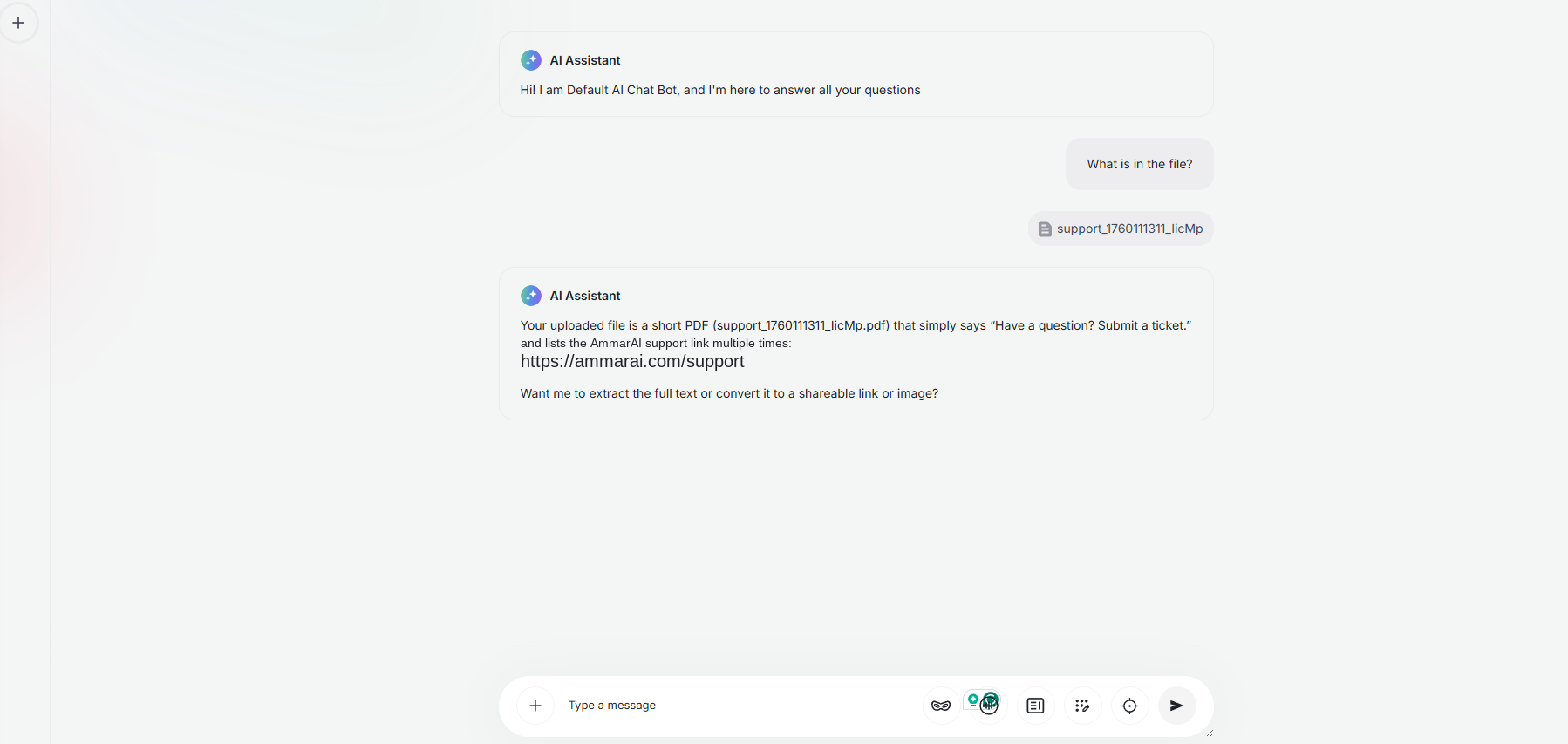
Continue in the same thread when the follow-up depends on the earlier request or source.
Use a reusable skill
Skills package repeatable instructions for jobs you perform often. Open the skills list from the chat input, select the skill you need and confirm that its name appears with the active message tools before sending.
- Choose a skill manually when you need a specific workflow or output format.
- Use one focused skill rather than combining overlapping instructions.
- Review the active skill before sending confidential or high-stakes work.
Work with files and current information
| Need | Chat Pro action |
|---|---|
| Answer from your material | Upload the relevant file and name it in the request. |
| Current public information | Enable web search and ask for links to the sources used. |
| Consistent brand language | Add the saved brand context before sending the message. |
| A reusable procedure | Select the relevant skill from the message tools. |
Practical example
To review a campaign brief, start a new thread, choose the model you normally use for analysis, upload the brief and select your brand skill. Ask for the audience, offer, required deliverables and unanswered questions in a table. Follow with a request for three campaign angles that stay within the uploaded brief.
Limits and good practice
- A fluent answer can still be wrong. Verify important facts, figures and claims.
- Start a new thread when the task changes substantially.
- Attach the source instead of describing a complex document from memory.
- Do not upload material you are not authorised to process.
Ready to try it?
Try AI Chat Pro in AmmarAI