
Automation
How to hand live chats to a human agent
An AI chatbot answers most questions on its own, but some conversations need a person — a refund, a complaint, a deal about to close. AmmarAI lets a visitor ask for a human and drops that conversation straight into your inbox.
This guide covers switching a chatbot to live-chat handover, then working the inbox: replying, leaving private notes, reading who you are talking to, filtering by date and exporting a conversation.
When to use this
- Visitors ask questions your chatbot should not answer alone.
- You want one place for every live conversation instead of several tabs.
- You need a record of what was said to a customer.
Turn on handover
Set the interaction type on your chatbot
Open your chatbot and set Interaction type to AI & Live Chat. That keeps the AI answering first while giving visitors a way to reach you. Only AI and Only Live Chat are there if you want one or the other.
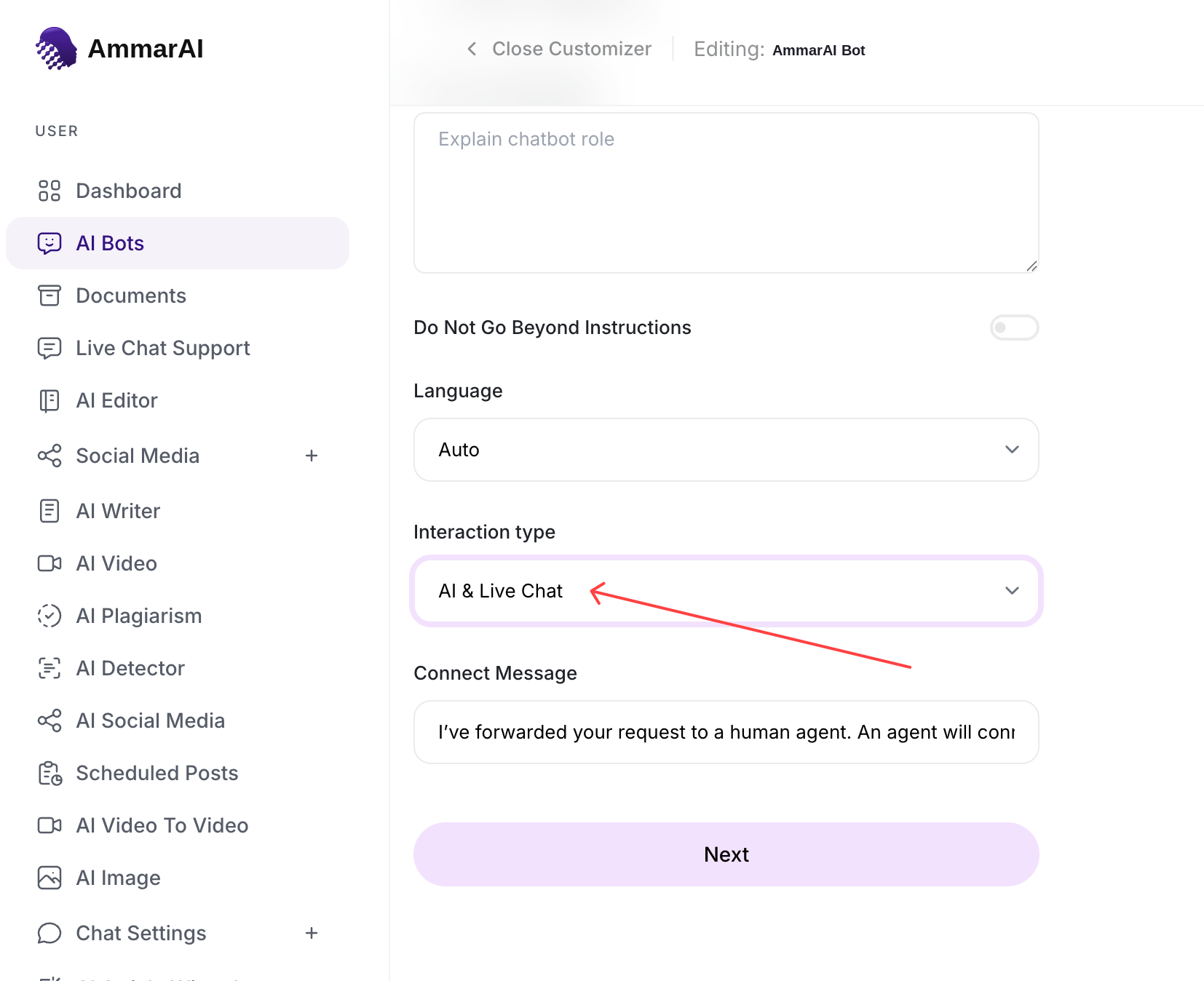
AI & Live Chat keeps the bot answering and still lets people reach you. Write the connect message
The connect message is what the visitor sees the moment they ask for a person — something like "I've forwarded your request to a human agent." Set expectations here about how quickly someone will reply.
Say how long a reply will take, so nobody waits in silence. Open the live conversations inbox
Once handover is on, requests arrive in the inbox. The list on the left holds the conversations, the thread sits in the middle, and everything you need to answer is on the same screen.
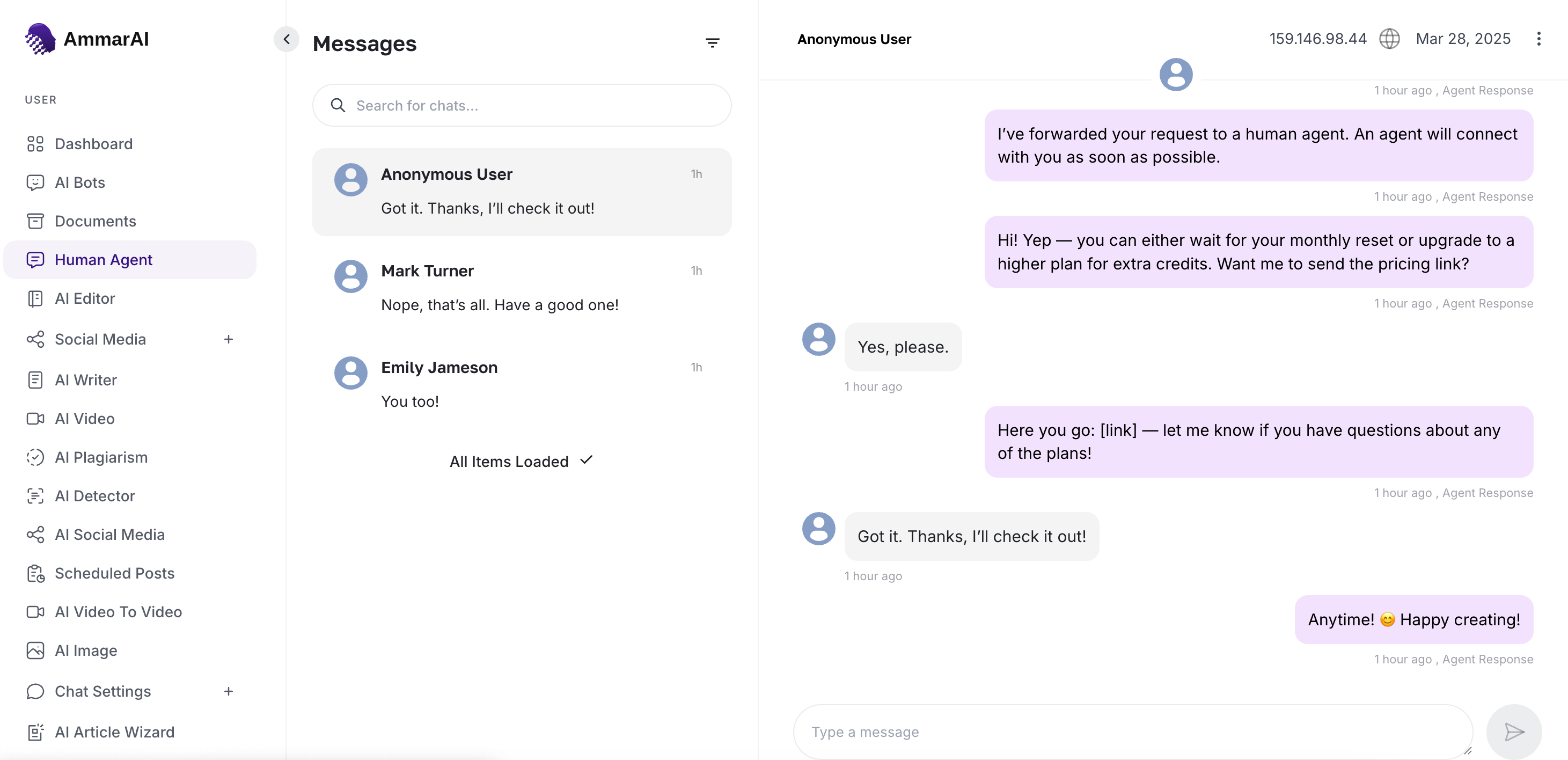
One inbox for every conversation that reaches a person.
Answer the conversation
Filter to the ones that need you
Use the filter above the list to switch between All, AI Agent and Human Agent. Human Agent shows only the conversations a visitor has asked a person to join.
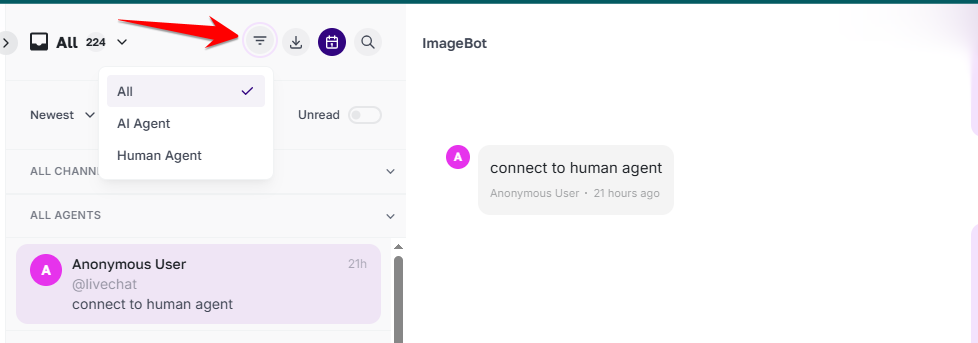
Start with Human Agent when time is short. Reply in the thread
Type in the message box at the bottom and send. Your reply appears in the same thread the visitor is already reading, so the conversation continues without them changing anything.
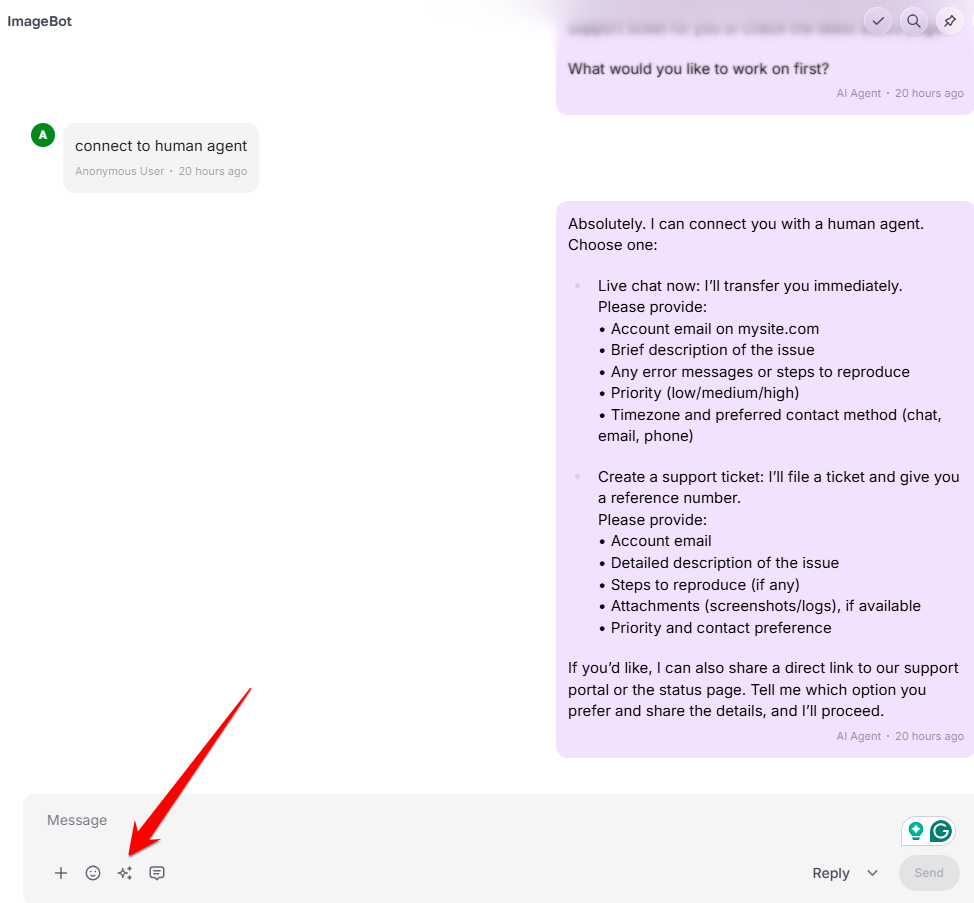
The visitor stays in the same chat window throughout. Send a saved reply
For the questions you answer every day, pull in a saved reply instead of typing it again. Search, pick the one you want and edit it before sending if the situation needs it.
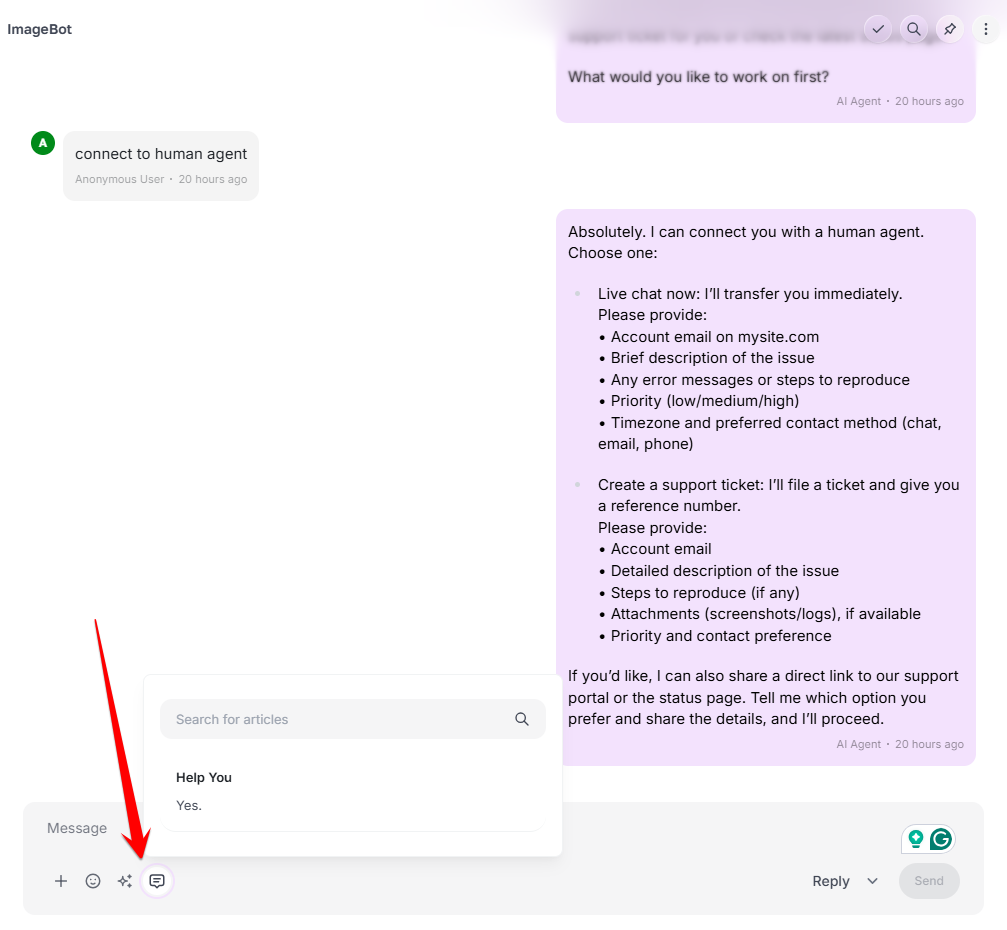
Saved replies keep common answers consistent. Leave a private note
Switch the send control from Reply to Note to write something only your team sees — context for whoever picks the conversation up next. Notes never reach the visitor.
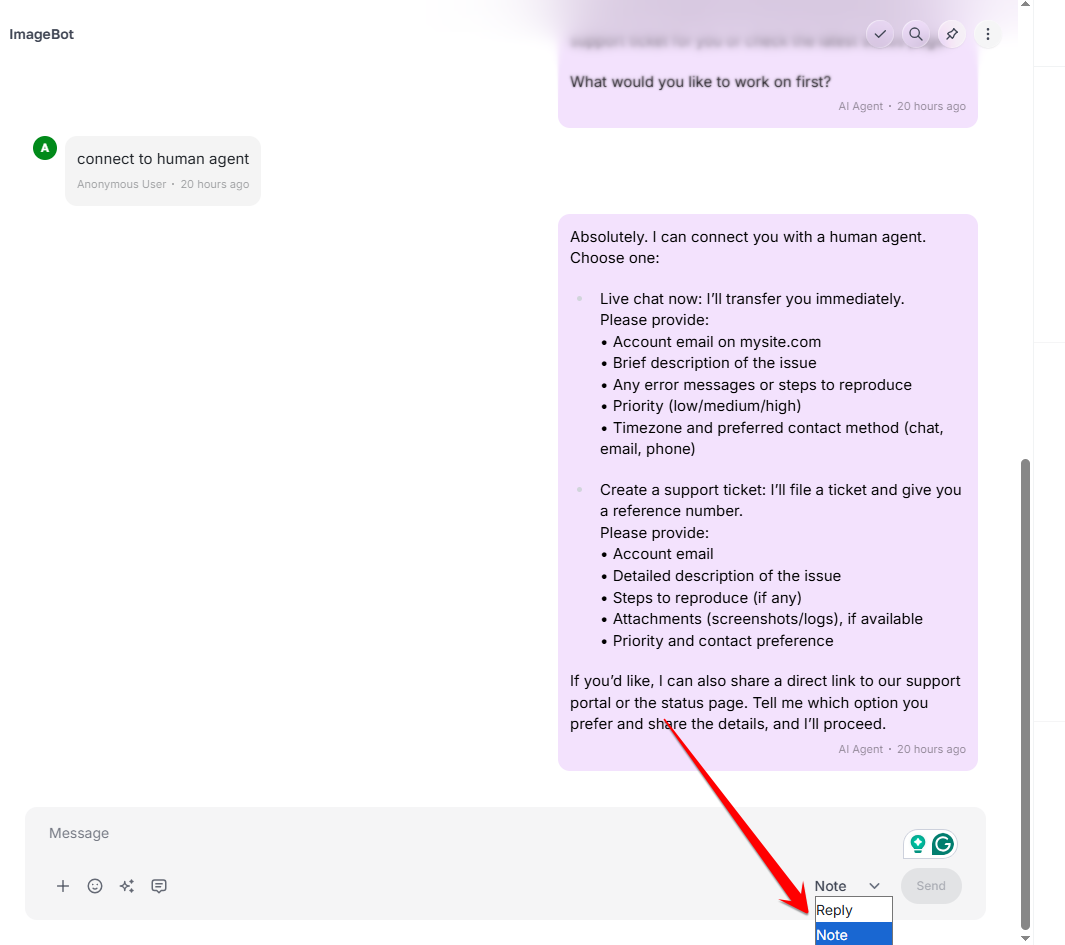
Notes are internal; check the control before you send.
Know who you are talking to
Open the details panel
The panel on the right shows the visitor, the channel they came from, when the conversation started and was last updated, their country and how long they have been on the site.
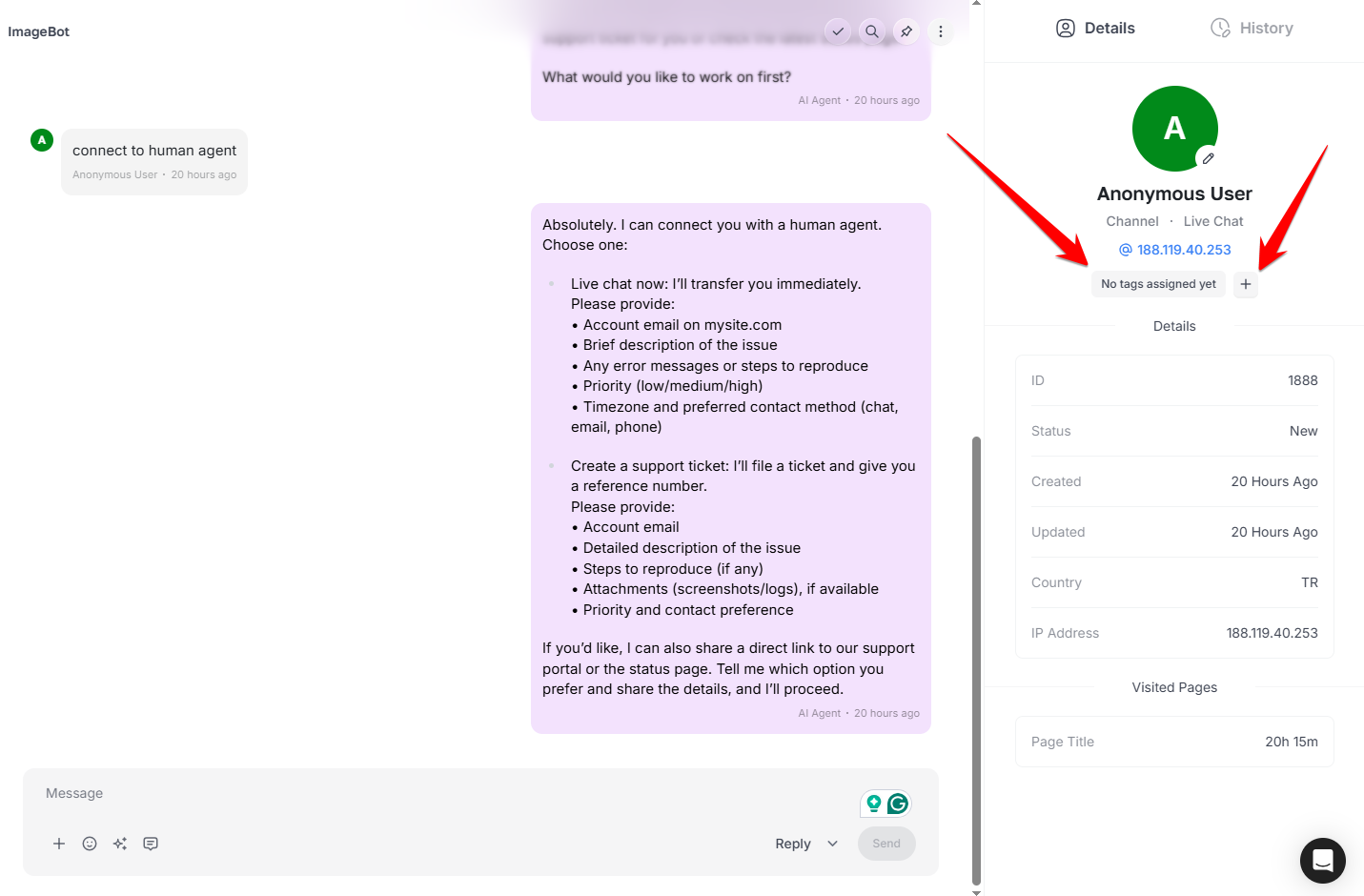
Context before you answer, without asking the visitor for it. Tag the conversation
Add a tag from the same panel to group conversations by topic, customer type or priority. Tags make the inbox searchable once the volume grows.
Agree a small tag list with your team and stick to it. See the pages they visited
The panel also lists the pages the visitor has been on, with page titles and time spent. A pricing page open for ten minutes tells you what the question is really about.
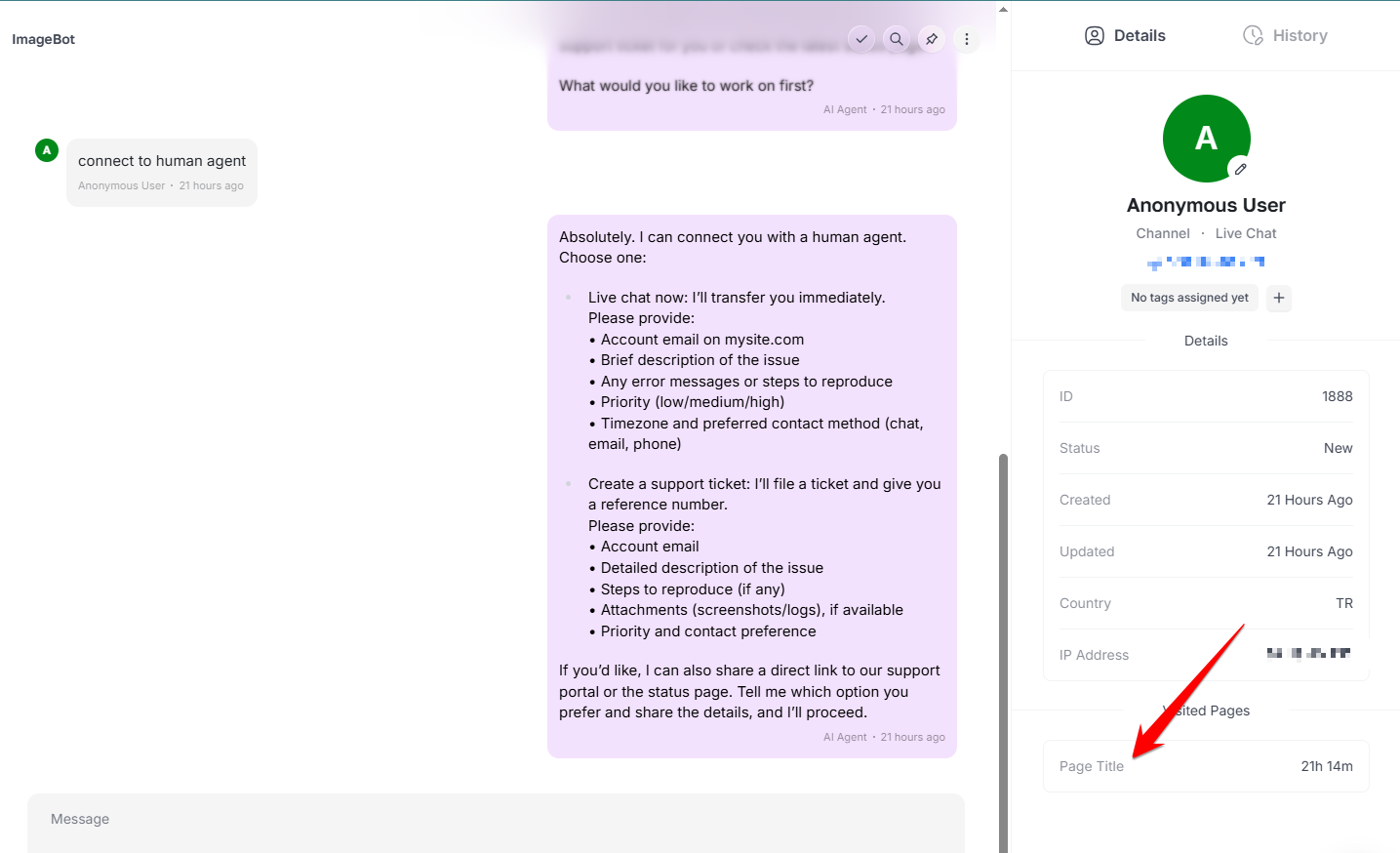
Their browsing history usually explains the question. Spot unread messages
A counter marks conversations with new messages, so replies that arrive while you are elsewhere do not sit unanswered.
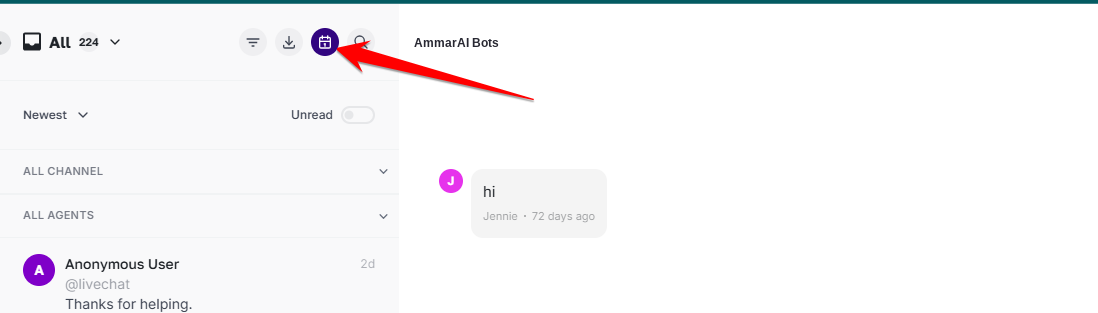
Unread counts stop conversations going cold.
Review and keep records
Filter by date range
Pick a start and end date in the calendar and apply it to narrow the inbox to a week, a campaign or a single busy day.
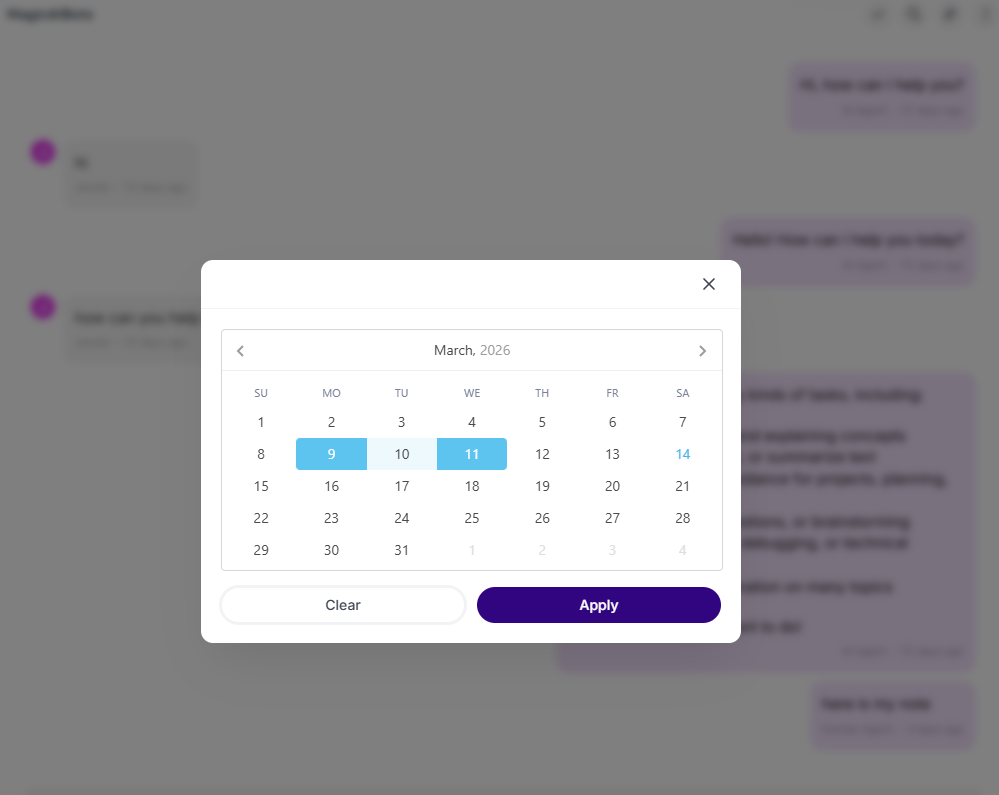
Useful for reviewing a launch day after the fact. Export one conversation
From the conversation menu, choose Export Conversation and download it as text, CSV, PDF or JSON — handy for a support record or a handover to another team.
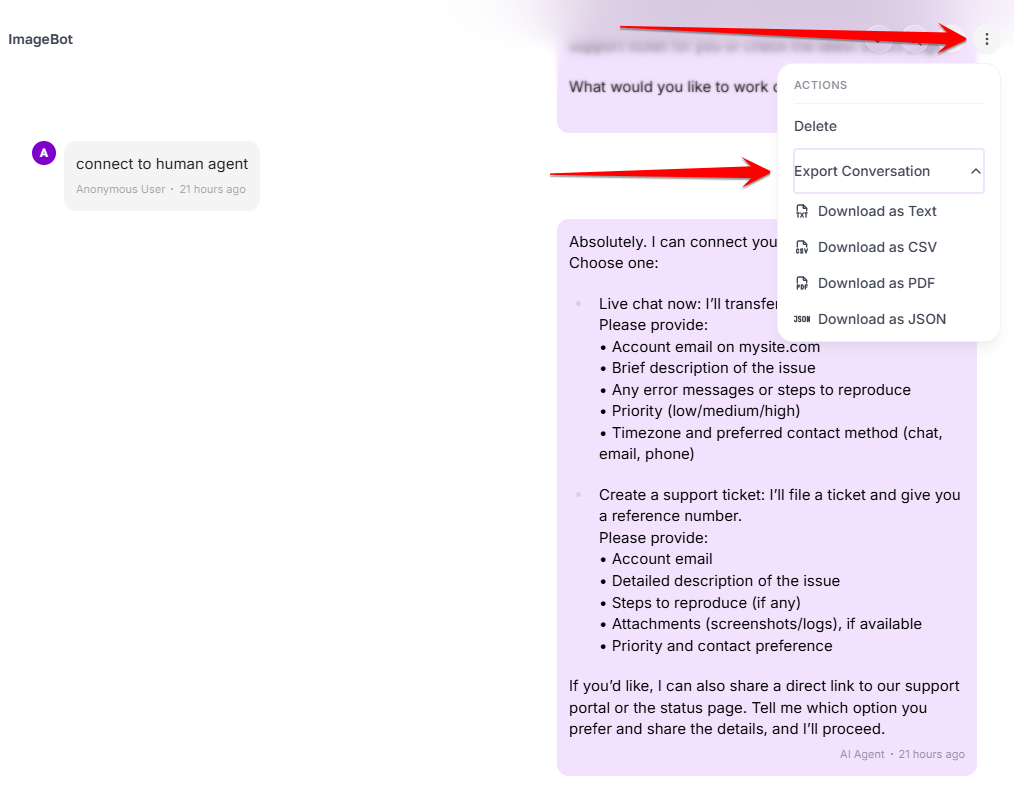
Four formats, so the record fits wherever it needs to go. Export the filtered list
The export control above the list saves everything currently filtered as CSV, JSON or PDF — combine it with the date filter to pull a clean monthly report.

Set your filters first; the export follows them.
Working well with handover
- Tell visitors when a person is available; an honest message beats an unanswered chat.
- Keep notes factual — they can be exported with the conversation.
- Review tagged conversations weekly and feed the common questions back into the chatbot's training.
- Handle personal data in line with your privacy policy before you export anything.
Ready to try it?
Try AI Smart Inbox in AmmarAI