
Productivity
How to create a presentation with AI
AI Presentation Maker turns a short written brief into a finished deck, with slide structure, written content, layout and imagery generated together.
When to use this
- You need a first full draft of a deck rather than an empty template.
- A topic must be turned into a structured narrative across a fixed number of slides.
- The deck needs a consistent visual theme and matching imagery without manual design work.
Write the presentation brief
Describe the presentation
In the creation field, write what the deck is about. A specific brief produces a stronger outline: name the subject, the audience and the angle, for example a market overview of electric vehicles in 2030 for an investor audience.
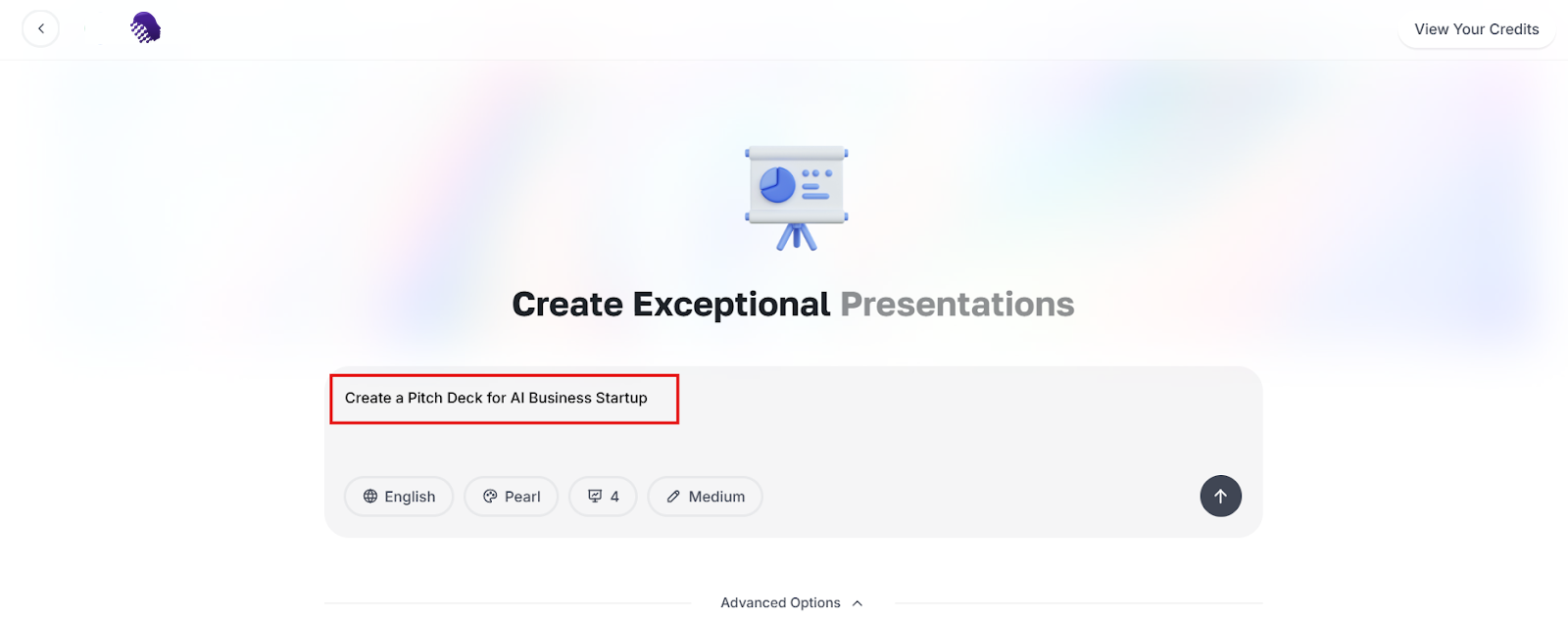
Start with a clear subject, audience and angle. Set the language
Open the language control and choose the language the slides should be written in. The outline, slide text and speaker-facing wording all follow this setting.
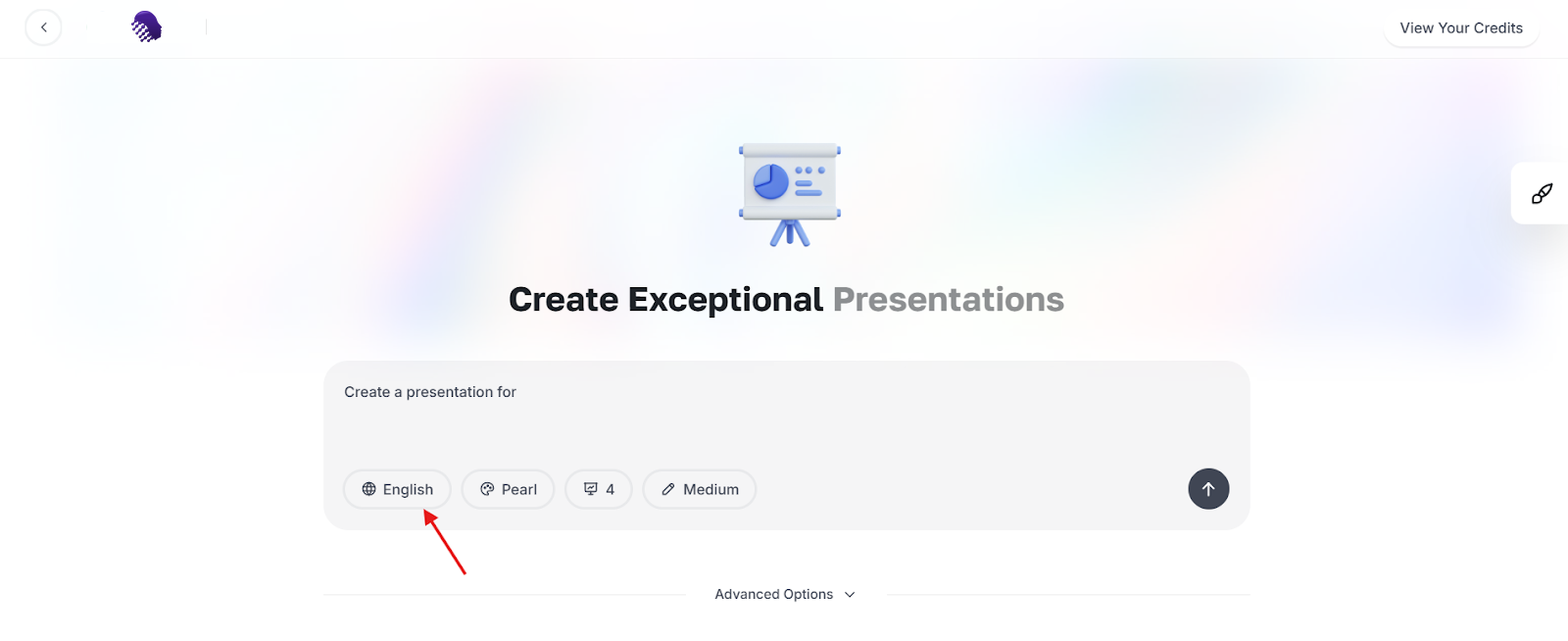
The chosen language applies to all generated slide text.
Choose structure and design
Pick a theme
Select the visual theme. It controls the typography, colour treatment and slide backgrounds applied across the whole deck.
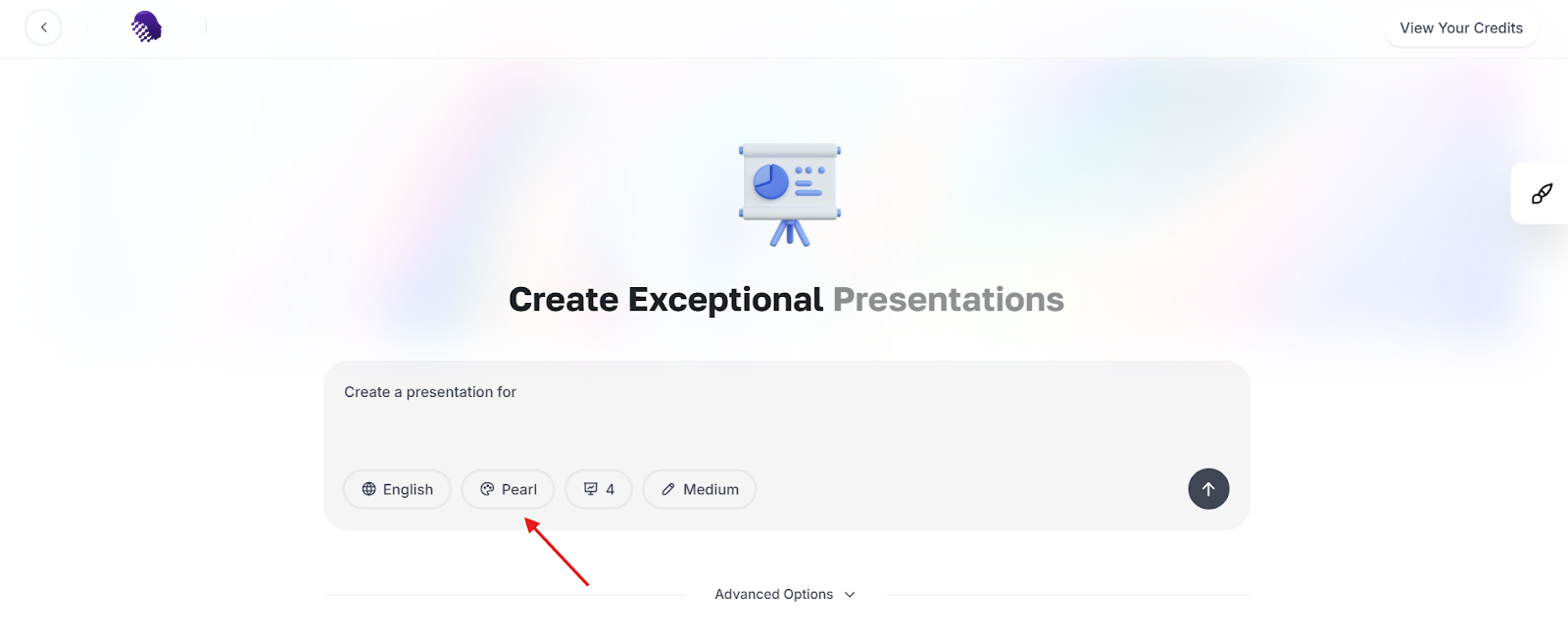
The theme sets typography, colour and background for every slide. Browse the full theme gallery
Open the theme gallery to compare all available designs. You can search by name or filter to light or dark options, and each card previews title, body and link styling before you commit.
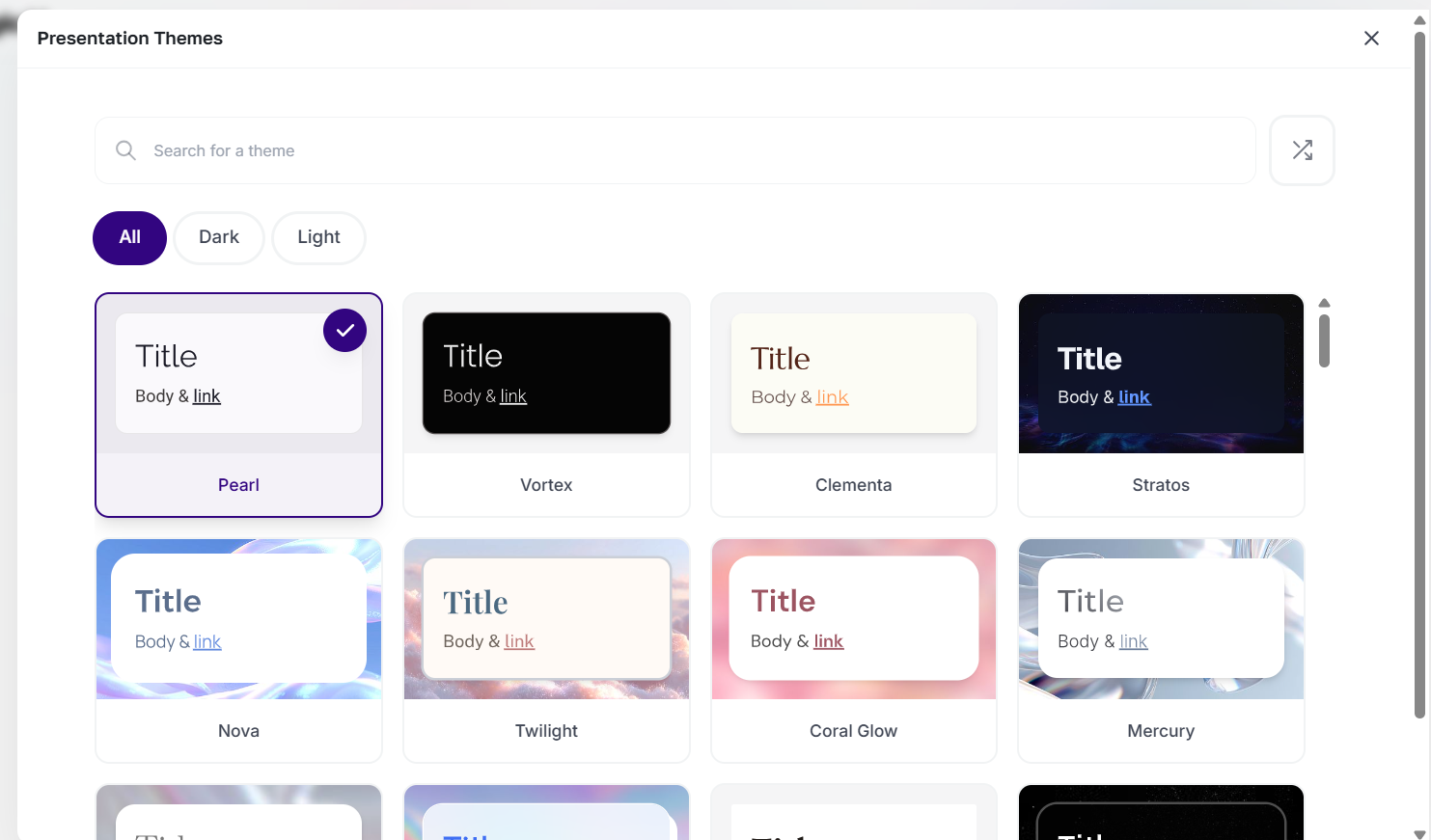
Filter by light or dark and preview each theme before choosing. Set the number of slides
Enter how many slides the deck should contain. This determines how tightly the topic is summarised, so match it to the length of the session rather than to the amount of source material.
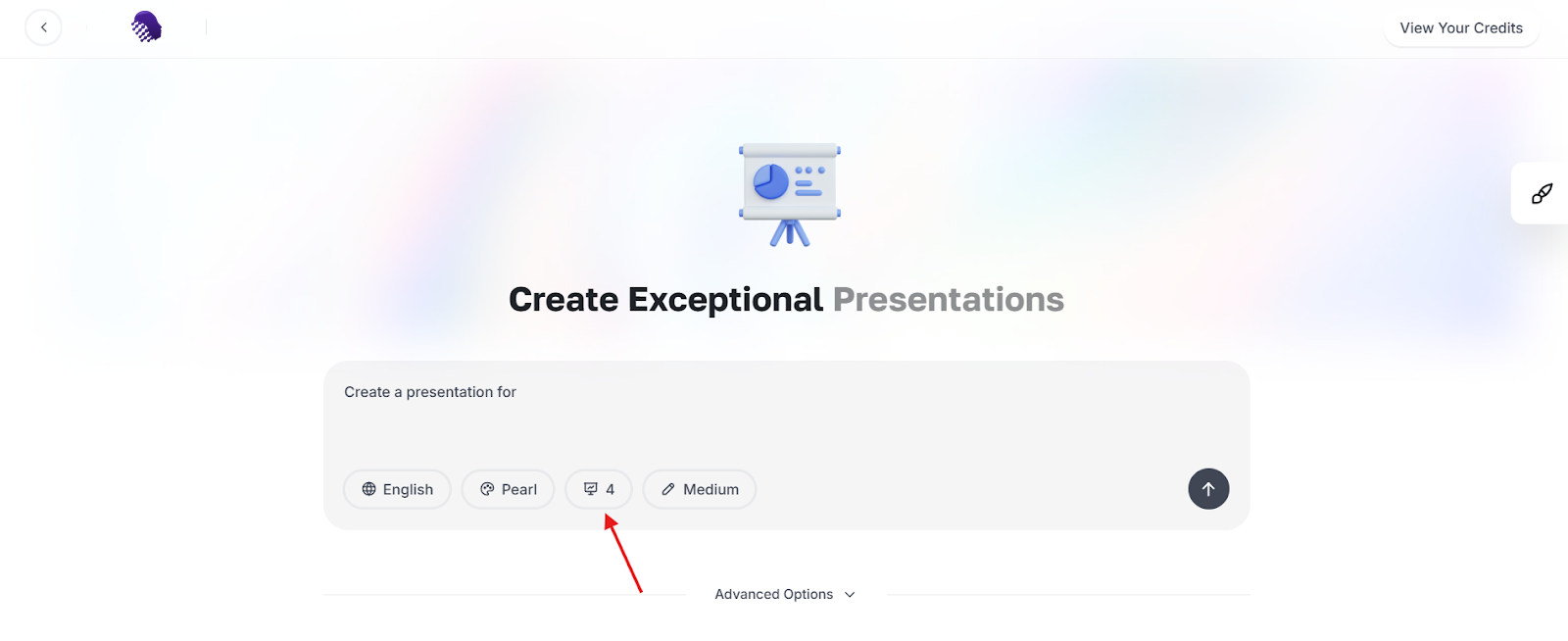
Choose the slide count that fits the time you have to present.
Refine with advanced options
Open Advanced Options
Expand Advanced Options to control text mode, format, card split, tone, audience and imagery. These refine the draft without changing the brief itself.
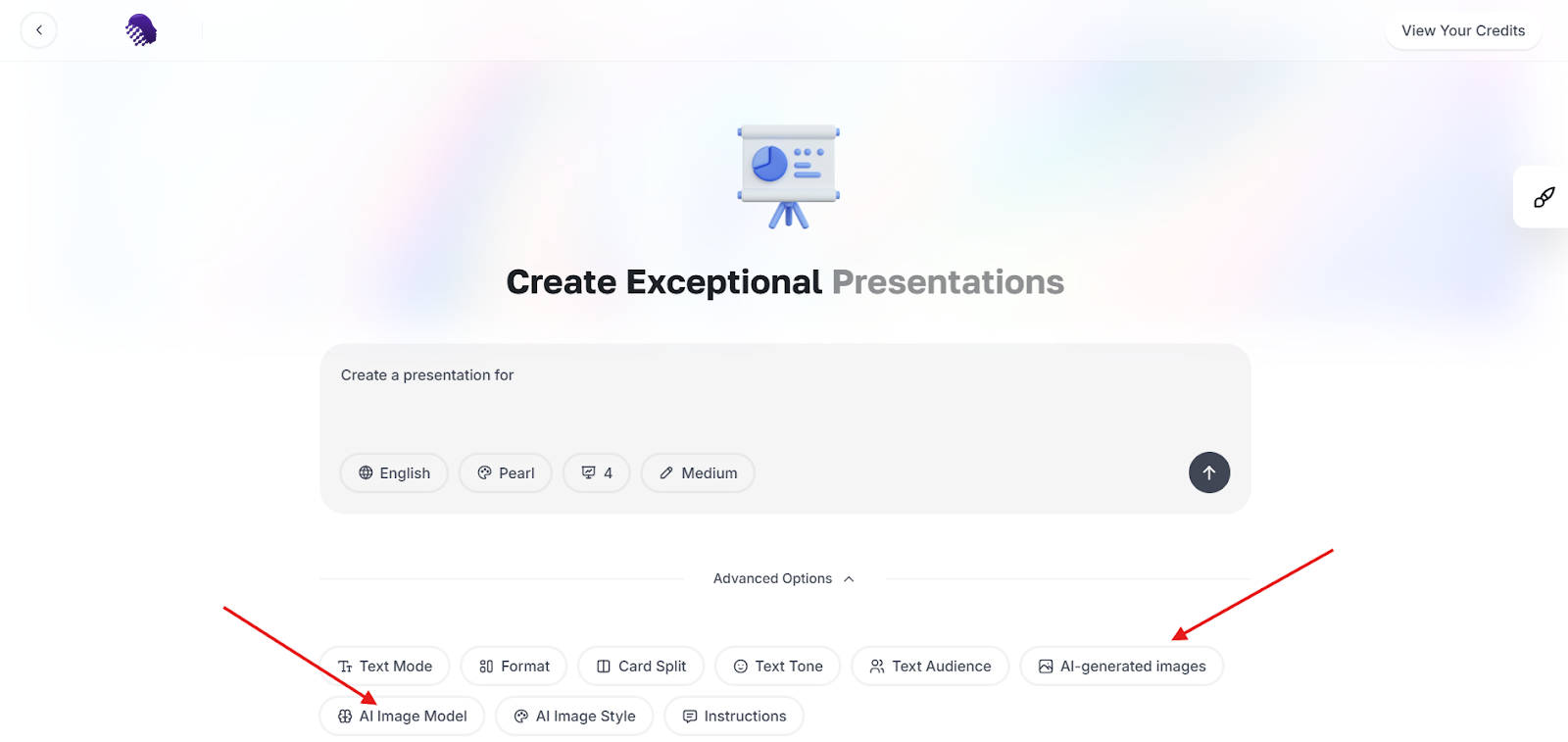
Advanced Options control tone, audience, layout density and imagery. Choose how images are produced
Decide whether slides use AI-generated images, then set the image model and image style so the visuals stay consistent with the theme and the subject matter.
Generate and download
Generate the deck
With the brief and settings in place, start generation. The outline, slide copy, layouts and images are produced together into a complete draft deck.
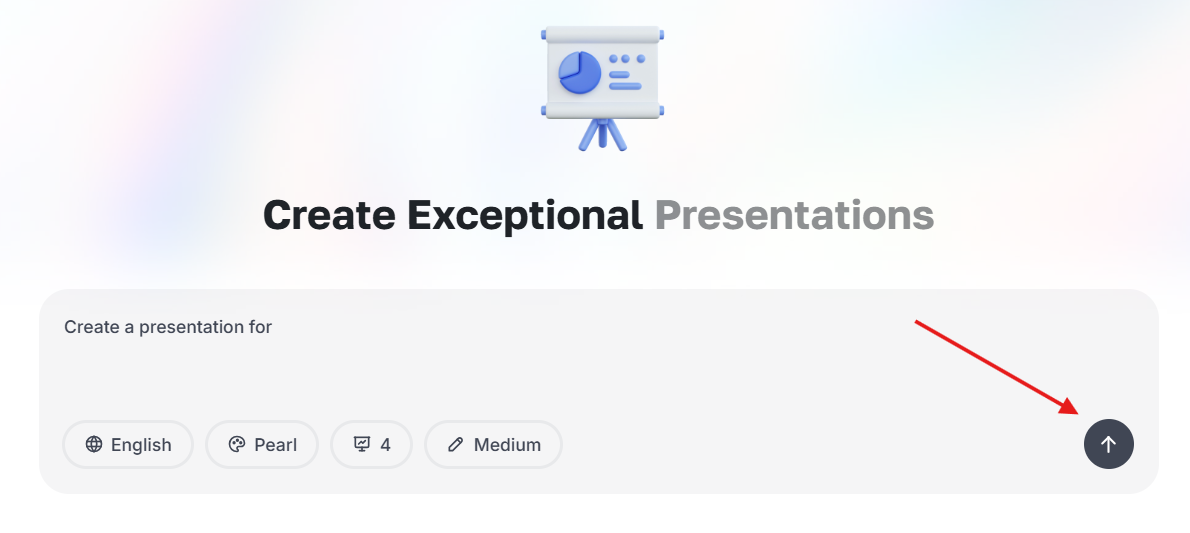
Generation produces structure, copy and imagery in one pass. Review slide by slide
Work through the slide list and read each slide in order. Check that the narrative flows, that no point is duplicated and that any figures you rely on come from your own verified sources.
Download the finished deck
Open the download control in the top-right of the editor and export the deck for sharing or presenting.
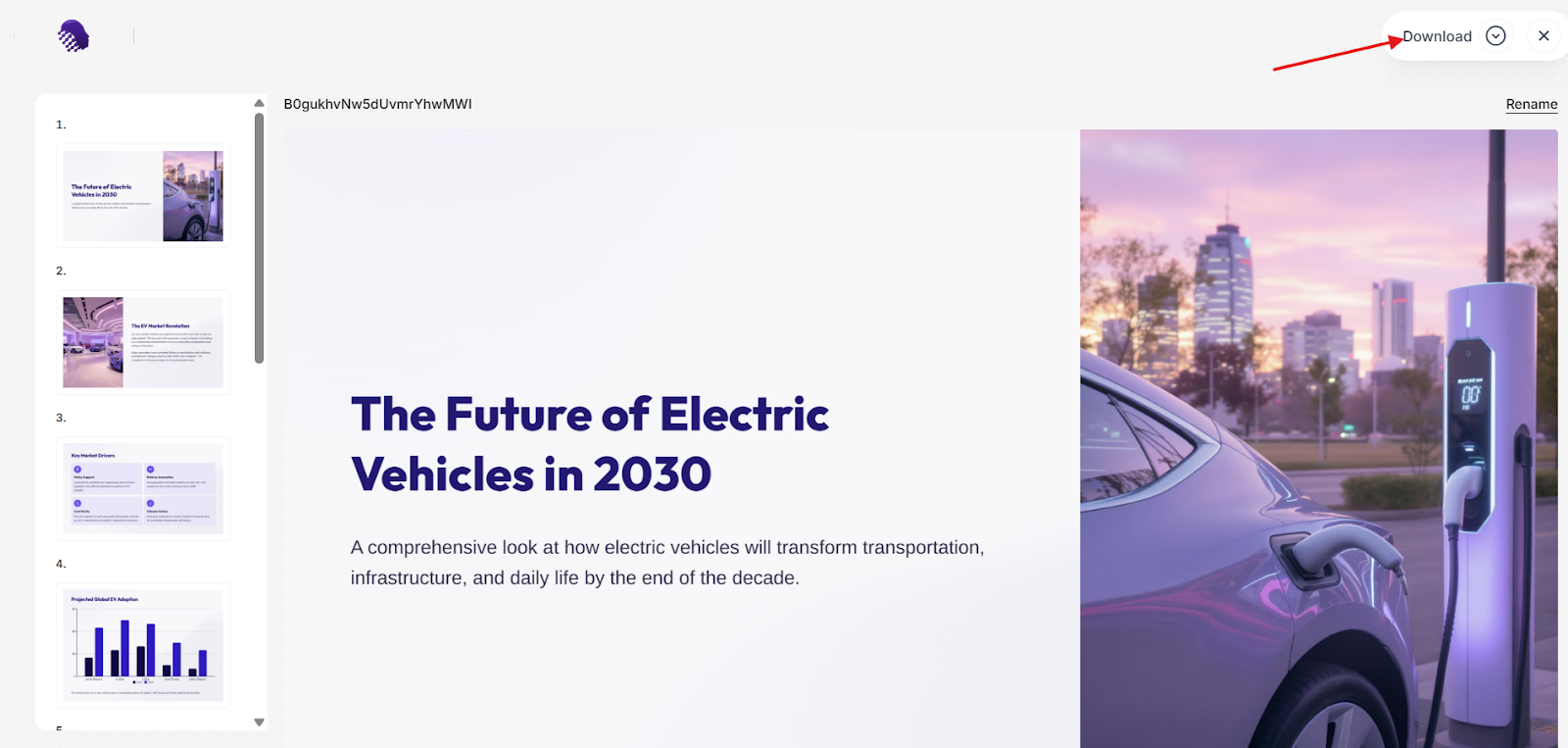
Export the finished deck from the editor toolbar.
Ready to try it?
Try AI Presentation Maker in AmmarAI