
Chat & Documents
How to take bookings with your website chatbot
A chatbot that answers questions is useful. A chatbot that books the meeting while the visitor is still interested is better. The booking assistant adds a scheduler inside the chat window, so an interested visitor picks a slot without leaving the conversation.
You decide when the scheduler appears, and you connect it to the calendar service you already use by pasting its inline embed code.
When to use this
- Your sales or support process ends in a call or demo.
- Visitors ask about availability, pricing or a walkthrough.
- You lose enquiries between the chat and a separate booking page.
Turn on the booking assistant
Open the chatbot configuration
Open the chatbot you want to change and scroll the configuration panel to the assistant switches, below the interaction type and connect message.
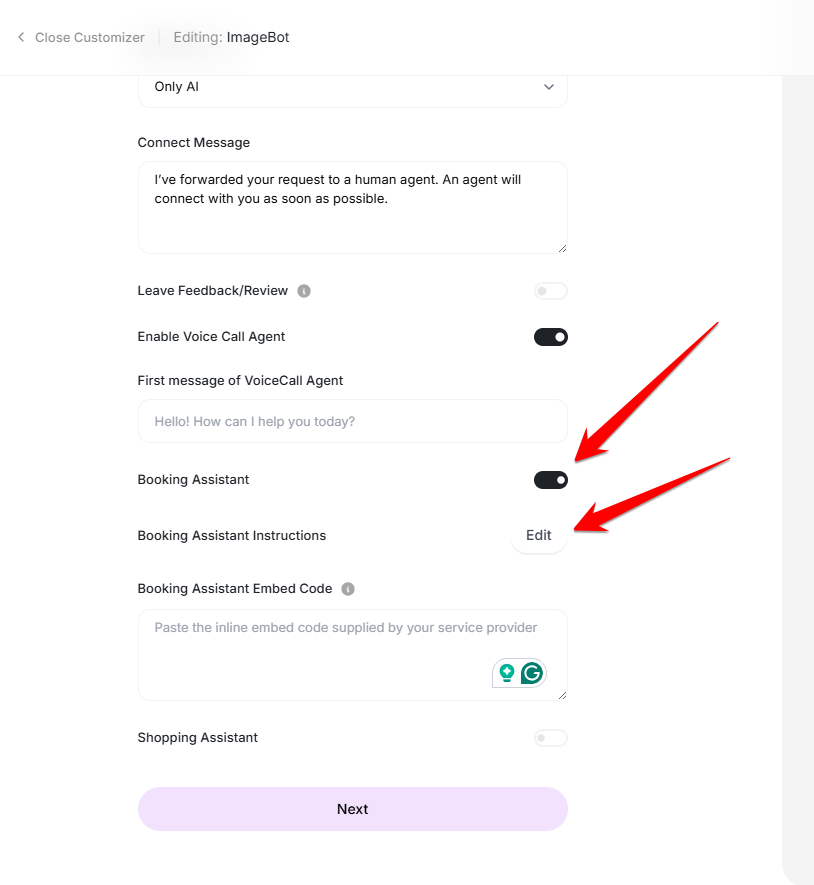
The booking assistant sits with the other chatbot switches. Switch on Booking Assistant
Turn the Booking Assistant switch on. Two further controls appear: the instructions that decide when the scheduler is offered, and the field for your scheduling embed code.
Choose when the scheduler appears
Select Edit next to the booking instructions and tick the situations that should trigger an offer to book — for example when a visitor asks to schedule a meeting, asks to see a demo, mentions team size, or hesitates. Save the instructions when you are done.
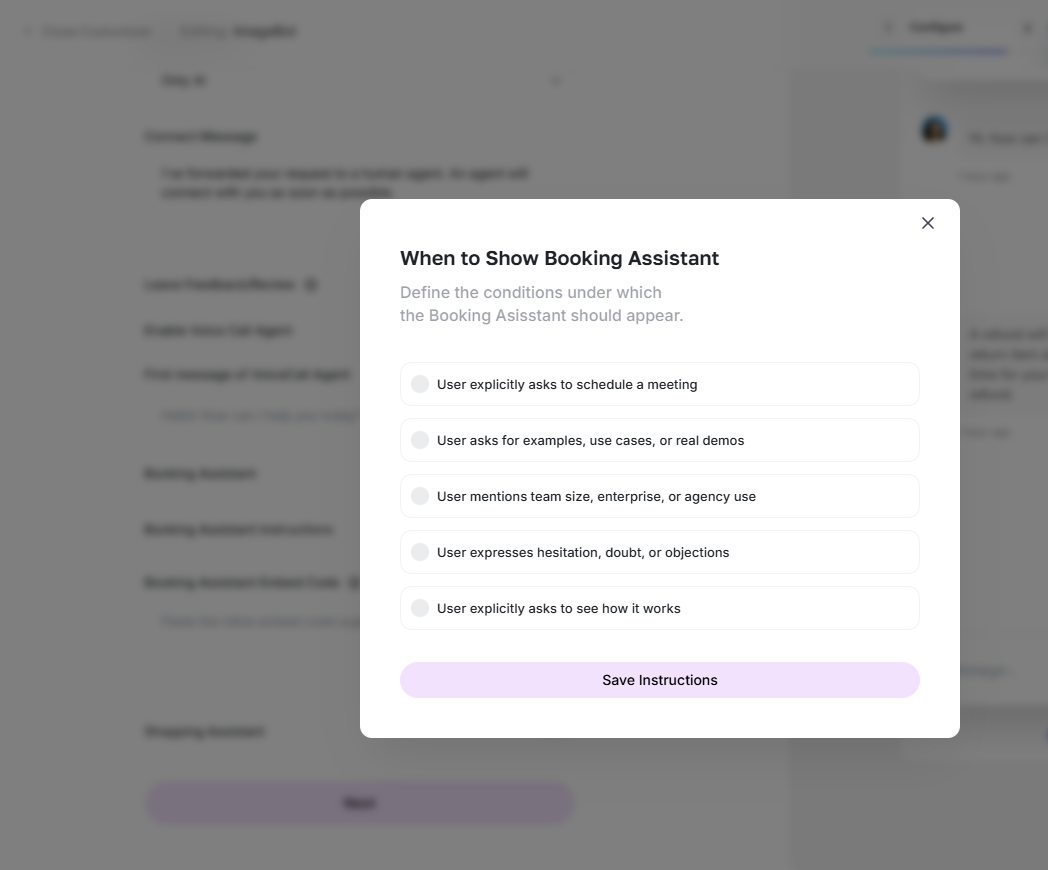
Tick the moments where a booking offer makes sense. Paste your scheduling embed code
Copy the inline embed code from your scheduling service and paste it into the Booking Assistant Embed Code box. Inline is the right format here because the calendar is shown inside the chat window rather than in a pop-up. Continue with Next and save the chatbot.
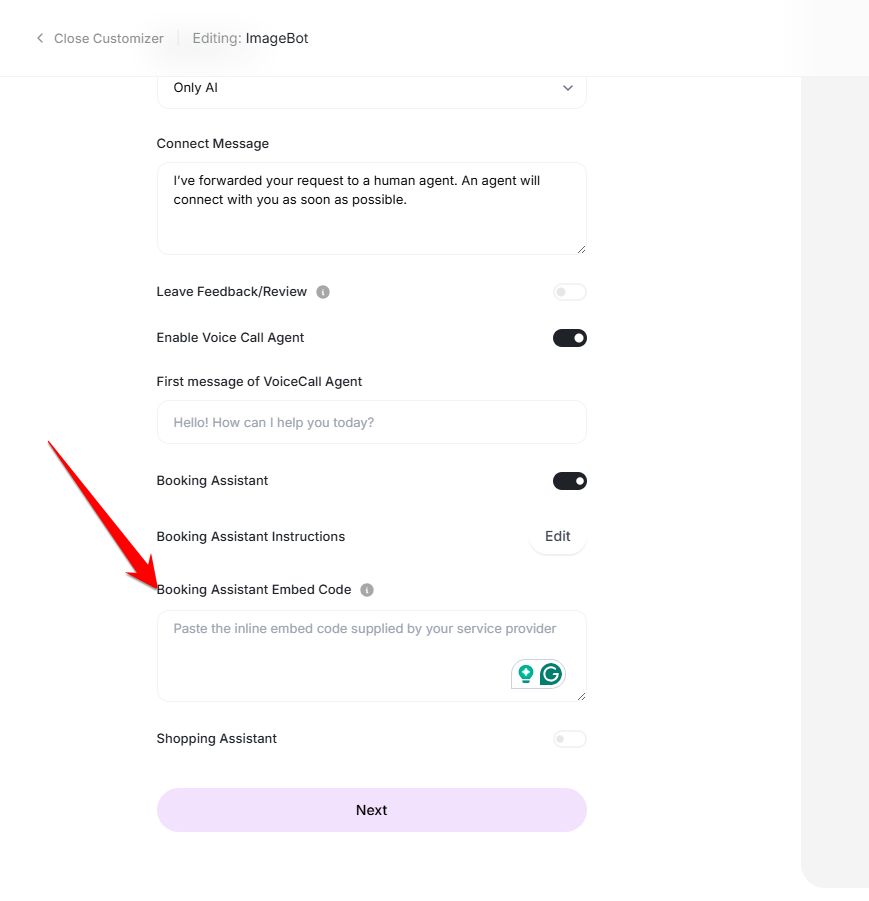
The inline embed code connects your calendar to the chat. Test it in the preview
Open the chatbot preview and ask for a meeting in plain language. The scheduler should appear in the conversation with your real availability; if it does not, re-check that the embed code is the inline variant and that a matching condition is ticked.
Good practice
- Keep the conditions narrow. A scheduler offered on every message feels pushy.
- Hide page details and cookie banners in the embed so the calendar fits the chat window.
- Keep your availability current — a booking assistant is only as good as the calendar behind it.
Ready to try it?
Try External Chatbot in AmmarAI