
Video Marketing
How to create AI influencer videos
AI URL to Video & Influencer creates product-led ads from a product link or uploaded assets and presenter-led videos from a script. The workflow combines product details, format choices, a presenter, a voice and captions before rendering.
This guide covers both regular-user creation paths: a product-powered ad and a presenter-led video made from a script.
When to use this
- You want a short product ad for Reels, TikTok or YouTube Shorts.
- You have a product page or product images to use as the source.
- You want a presenter-style video from your own script.
Create a product-powered ad video
Start a product ad
Open AI URL to Video & Influencer and select Generate New under the product-ad option.
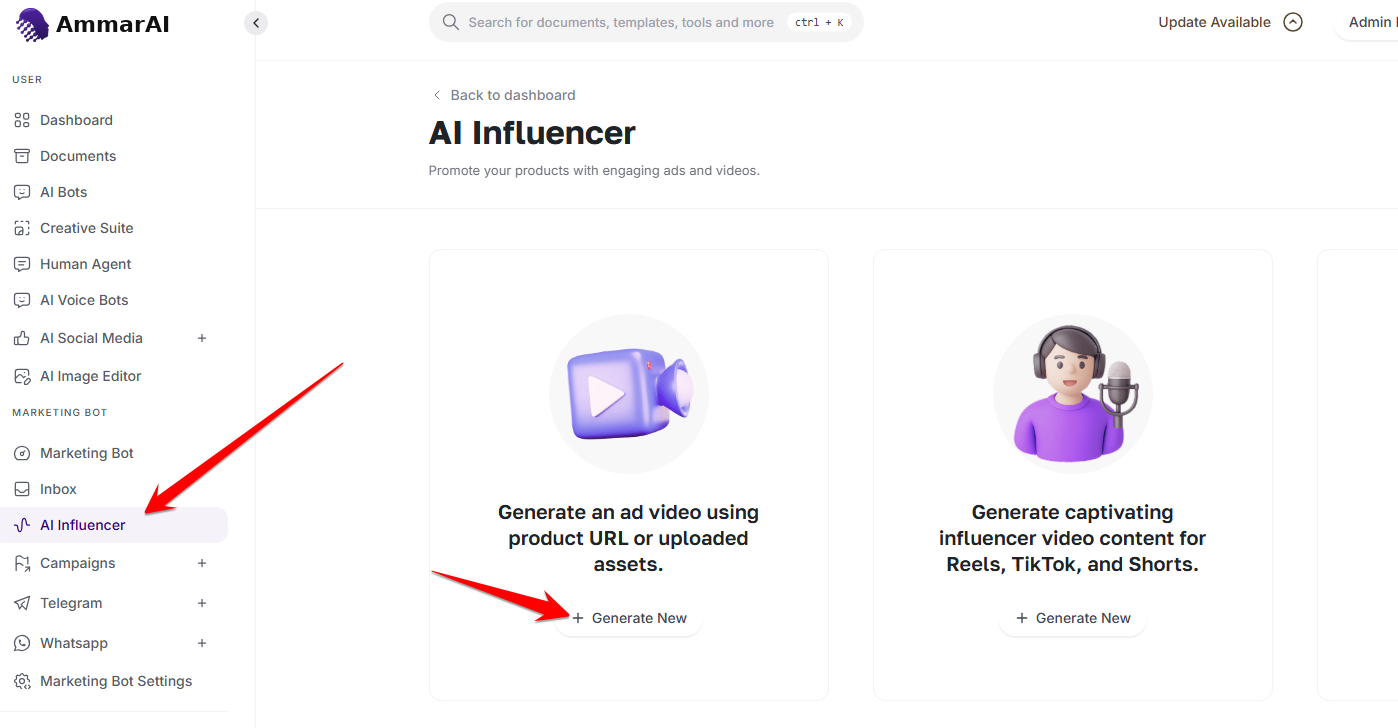
Choose the product-powered ad workflow. Add the product information
Choose whether to supply a product link or upload product images, then add the product source and continue.
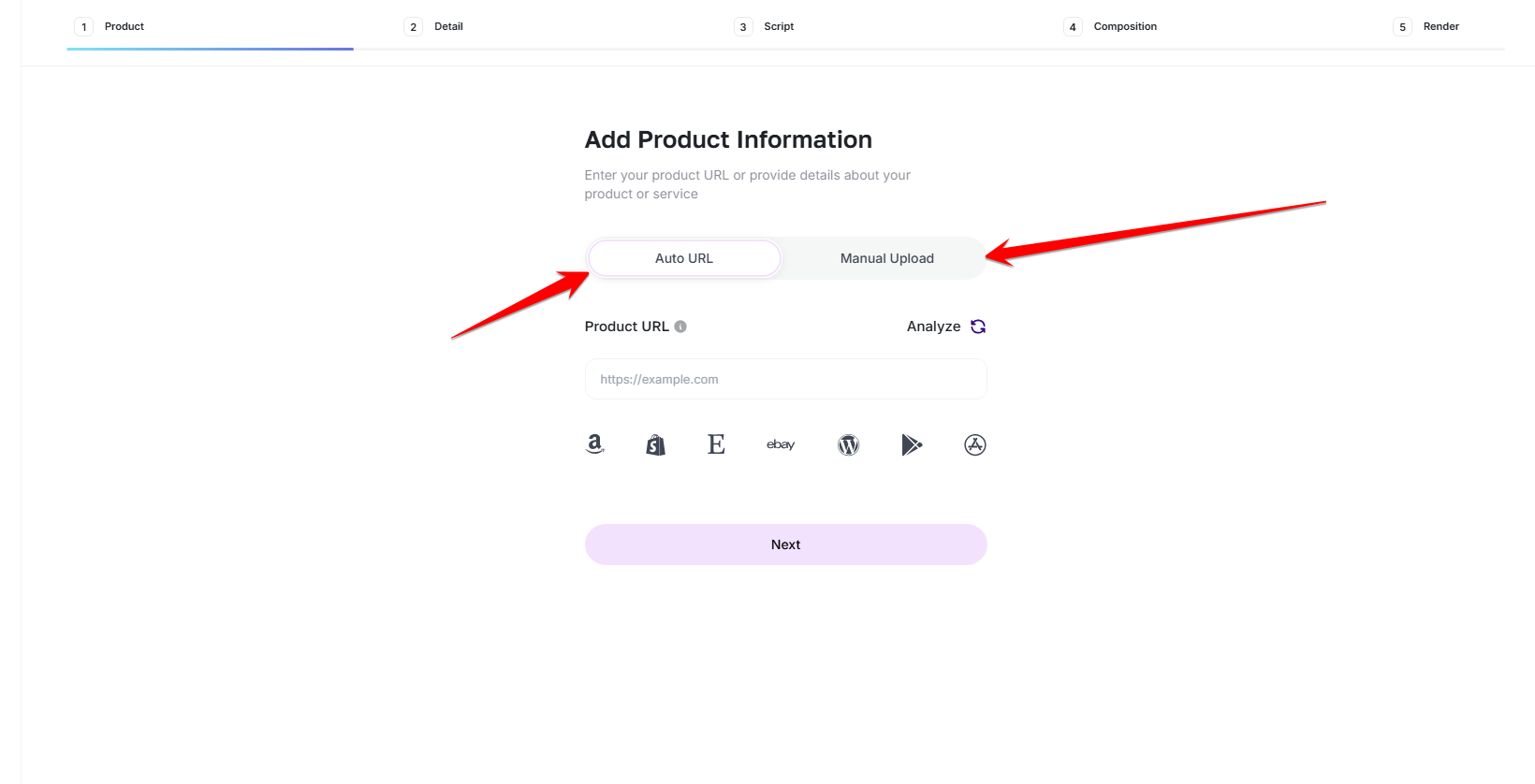
Provide a product link or upload product assets. Choose the video details
Set the language, duration and aspect ratio for the destination, then select Next.
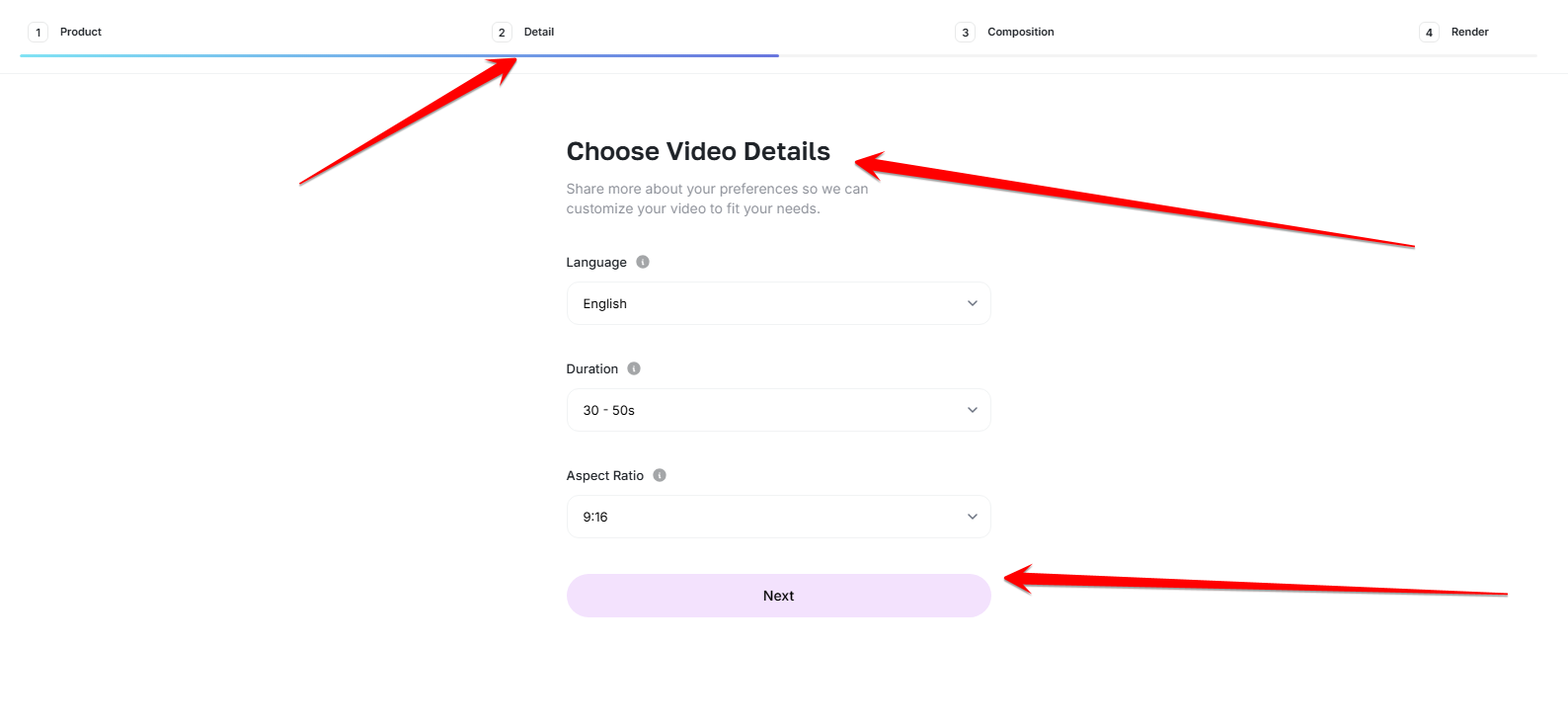
Set the language, length and format of the ad. Choose a presenter
Browse the available presenters, select the one that fits the video and continue to the voice step.
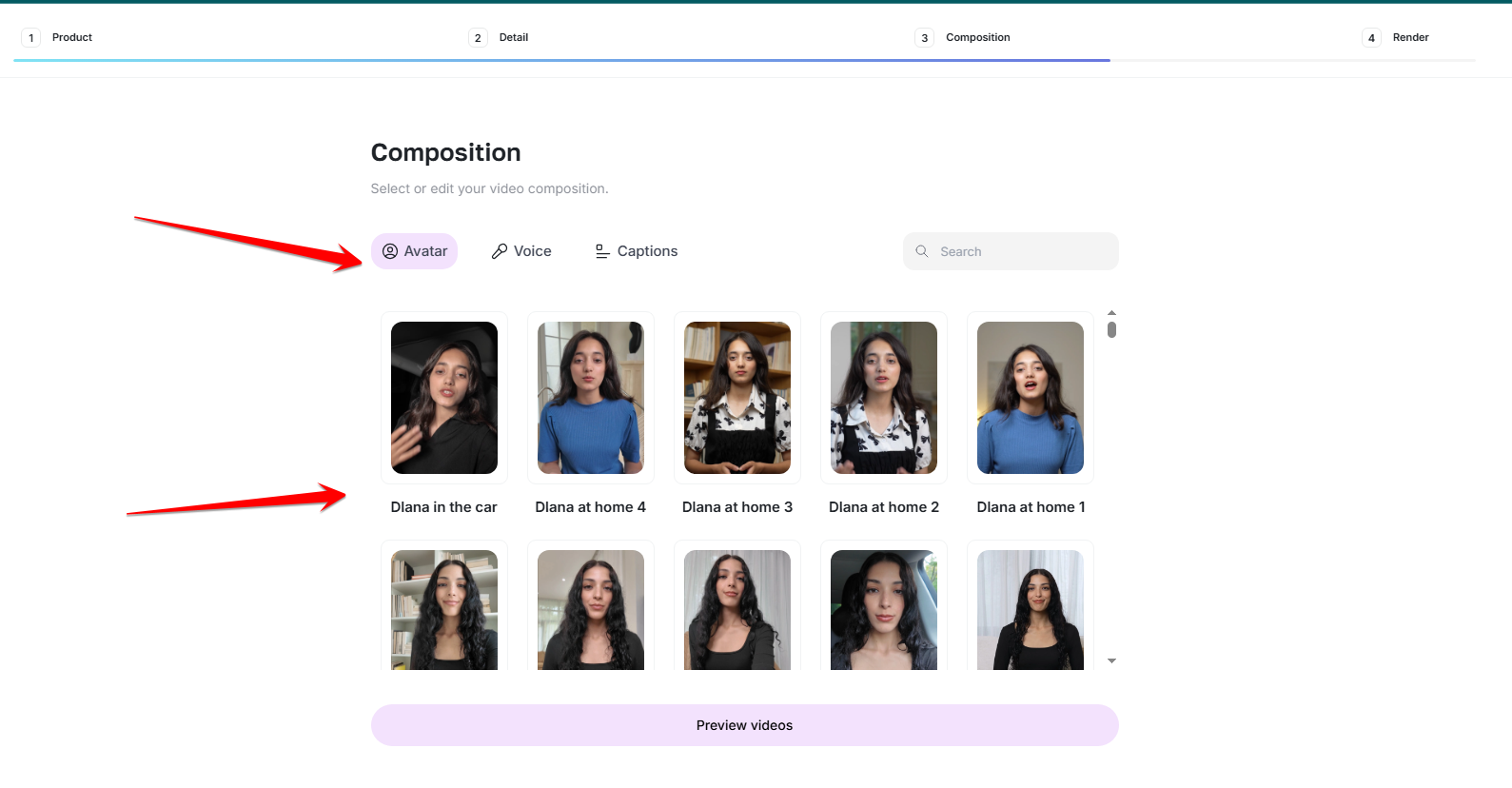
Select the presenter for the video. Select the voice
Preview the available voices and select the voice you want to use for the presenter.
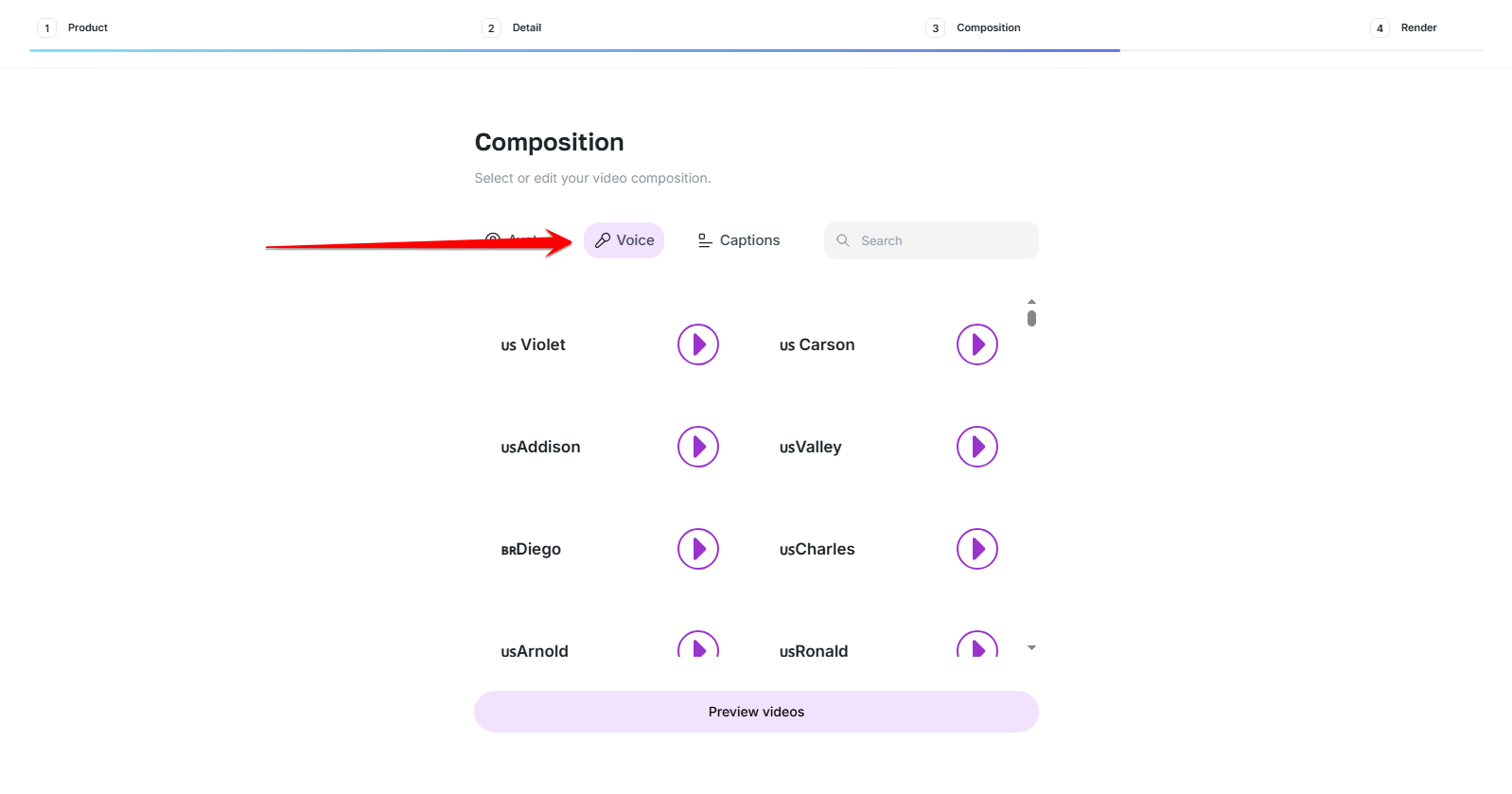
Preview and select the presenter voice. Choose the caption style and preview
Select a caption treatment, then choose Preview Video to create preview options.
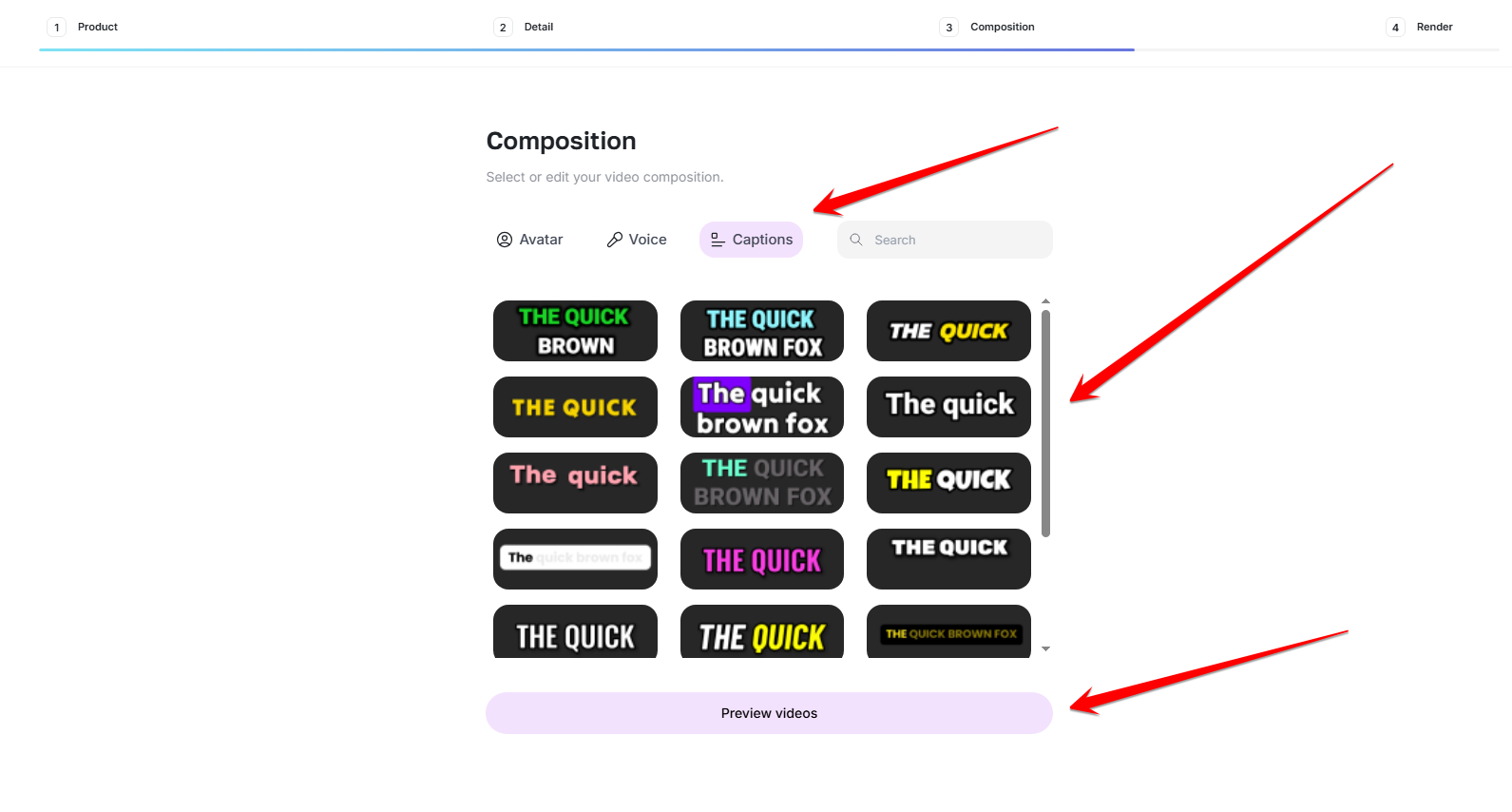
Pick a caption style and generate previews. Wait for rendering
The selected composition begins rendering. Keep the page open while the preview is prepared.
Wait while AmmarAI prepares the video previews. Choose the finished preview
Review the generated preview videos, select the strongest version and continue with the chosen result.
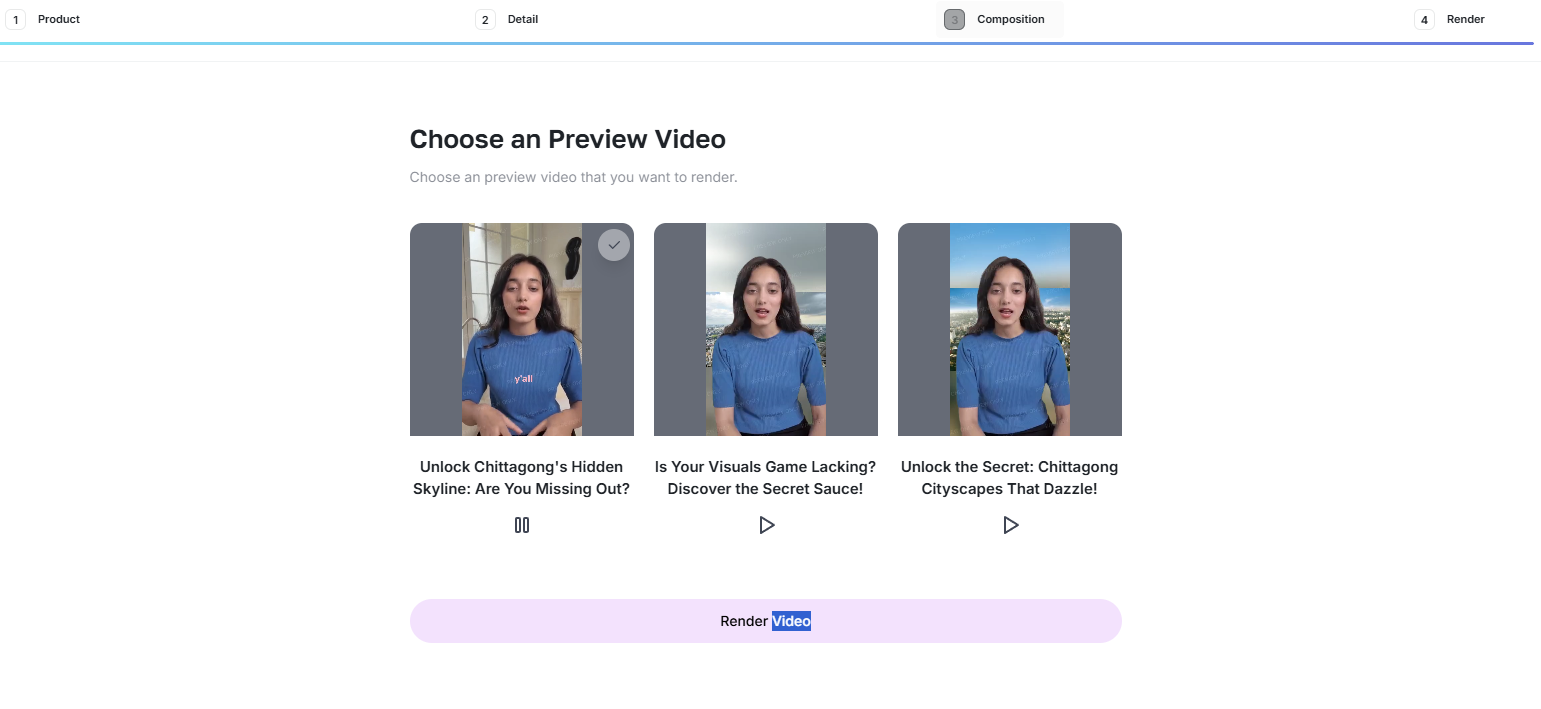
Compare the generated previews and choose a result.
Create a presenter video from a script
Start an influencer-style video
Return to the AI URL to Video & Influencer workspace and select Generate New under the influencer-video option.
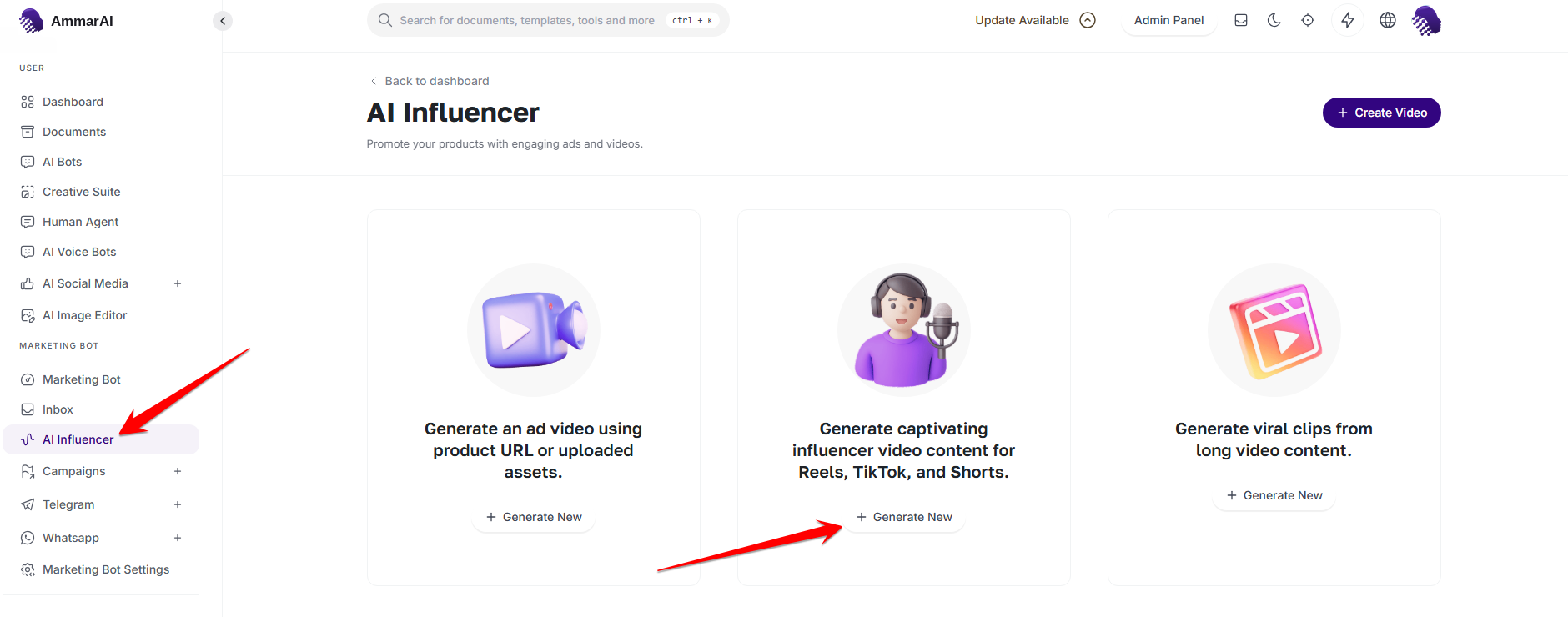
Choose the presenter-led influencer-video workflow. Choose the presenter and enter the script
Select a presenter, enter the script the presenter should deliver and select Generate Video to start creation.
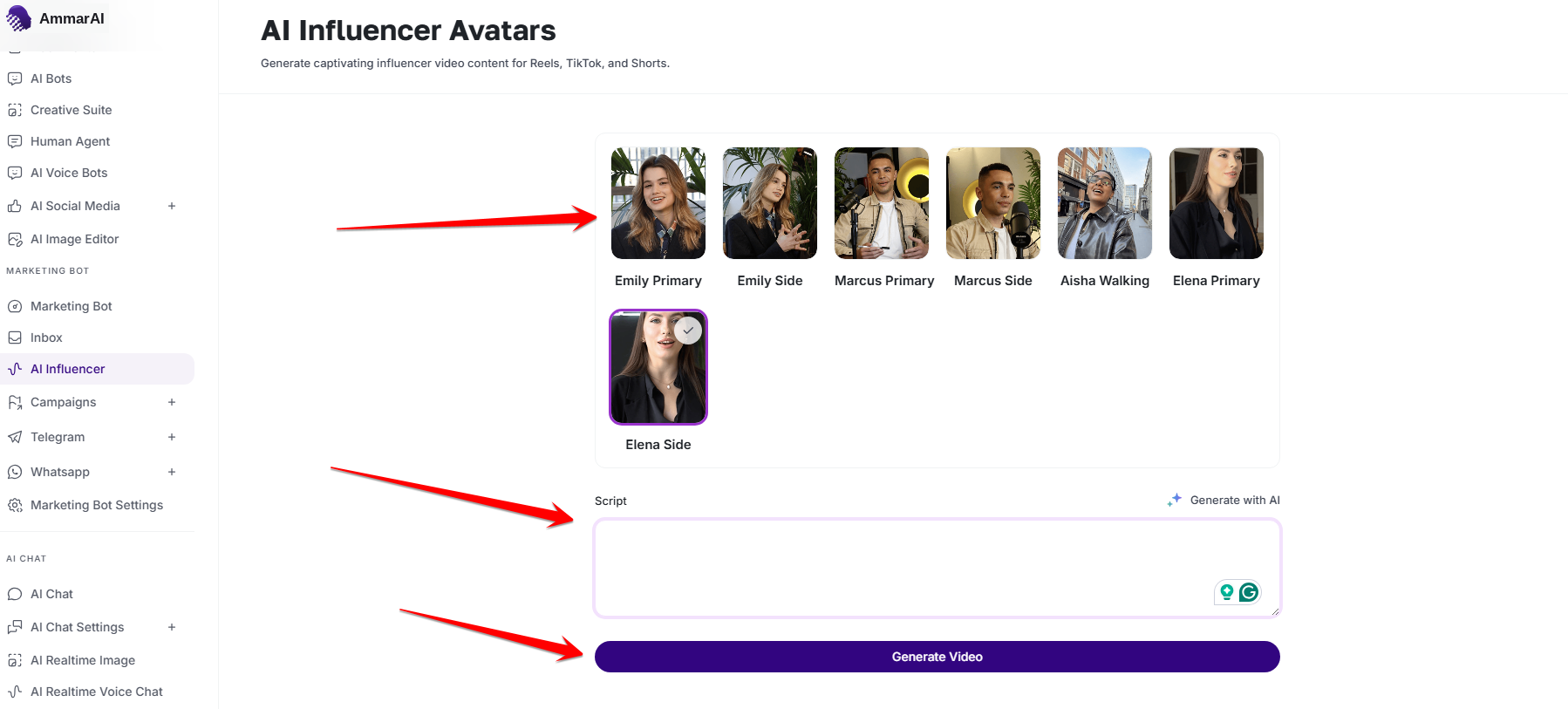
Select a presenter, add the script and generate the video.
Review before publishing
- Confirm that product claims match the source page and your approved messaging.
- Check the presenter, voice, captions and aspect ratio in the final render.
- Use only product assets, scripts and likenesses you are authorised to process.
Ready to try it?
Try AI URL to Video & Influencer in AmmarAI